How to add team members to your Klaasi shop (and what each role can do)
Invite a helper by email and give them the right role: Editor, Support or Finance. Each role sees only what it needs, and only you can move money. Here's how.
As your shop grows, you can't do everything alone. Someone can upload lessons while you record. Someone can answer buyers while you sleep. Someone can check the numbers for your accountant.
Klaasi lets you invite helpers to your shop by email and give each one a role. Each role only sees what it needs. Your helpers never get your sign-in, and only you can withdraw money or change where it goes.
By the end of this guide you will be able to invite a team member, pick the right role, and remove someone when they no longer help you.
How many people can you add?
Team seats depend on your plan. The count includes you, the owner:
- Free: 1 seat (just you).
- Pro: 2 seats (you plus 1 helper).
- Business: 5 seats (you plus 4 helpers).
If your seats are full, Klaasi says: "Your plan's team seats are full. Upgrade for more seats." See how to choose and upgrade your plan.
The three roles
Pick the role that matches the job. When in doubt, give less access. You can always change it later.
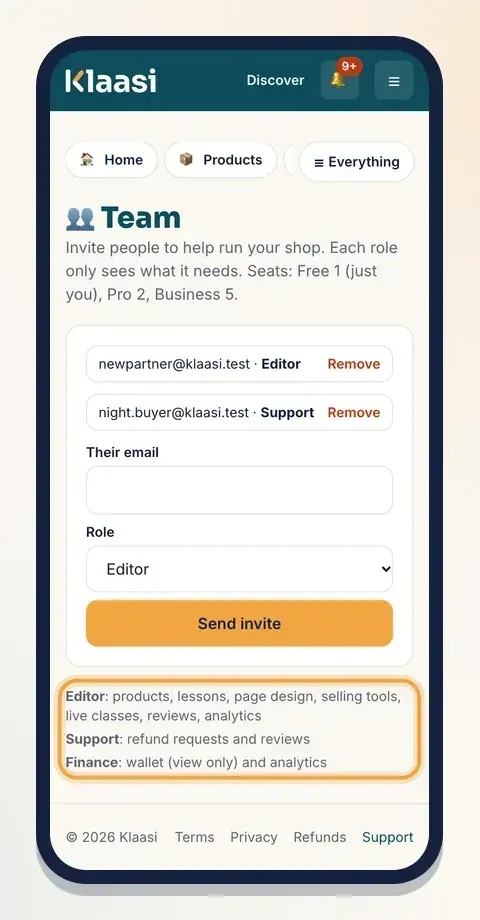
Editor: for the person who builds and runs your products. They can work on:
- products and lessons
- page design and selling tools (coupons, bumps, banners and more)
- live classes
- your website editor, invoices, emails and Ask Klaasi AI
- reviews
- analytics
Support: for the person who looks after your buyers. They can handle:
- refund requests
- reviews
- orders and customers, if you run a store or restaurant
Support never sees your sales money. On the dashboard home, the sales totals are hidden for this role. That's on purpose: someone answering messages doesn't need to know what you earn.
Finance: for your accountant or bookkeeper. They can see:
- your wallet (view only)
- analytics
Finance can read the wallet and the statement, but the page tells them: "You can see this wallet as a finance team member. Only the owner can withdraw or change payout details."
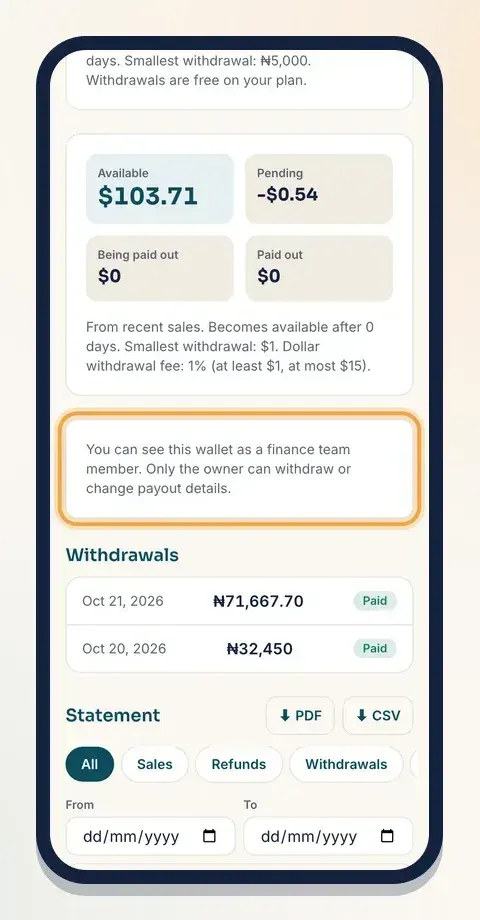
Only you, the owner, can:
- withdraw money and change payout accounts
- choose or pay for your plan
- manage the team
- manage integrations and developer keys
Which role for which helper?
Here are some everyday examples to help you choose.
- Your video editor or course assistant uploads lessons, fixes typos on your product page, sets up a coupon for a launch and schedules a live class. Give them Editor.
- The person who looks after your buyers checks refund requests, replies to reviews and, if you run a store, keeps an eye on orders. Give them Support. They can do the job without seeing what you earn.
- Your accountant or the friend who does your books downloads your statement every month and checks your numbers. Give them Finance. They can read the wallet and analytics but can't move a single naira or dollar.
- A business partner who runs the shop with you usually needs Editor. Withdrawals, payout accounts, your plan and the team itself still stay with you, the owner.
If someone needs two roles, pick the one they use most. You can remove them and invite them again with another role in under a minute.
Step 1: Open the Team page
- Open your dashboard.
- In the menu, open More tools and tap Team.
At the top it says: "Invite people to help run your shop. Each role only sees what it needs. Seats: Free 1 (just you), Pro 2, Business 5." If nobody has joined yet, you'll see Just you for now.
Step 2: Invite someone
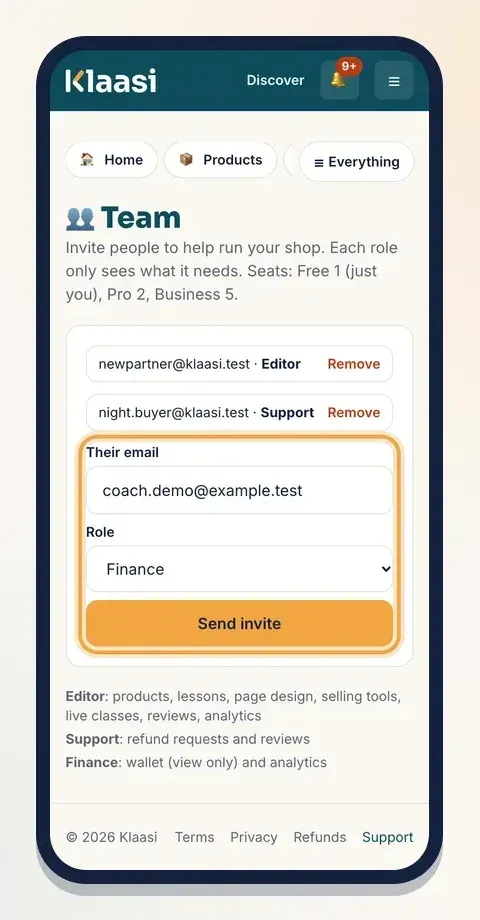
- Type Their email. Use the email they'll sign in with.
- Pick a Role: Editor, Support or Finance.
- Tap Send invite.
You'll see: "Invite sent. They accept by signing in with that email." Klaasi emails them an invite. Your team list now shows the person, the role and invite sent.
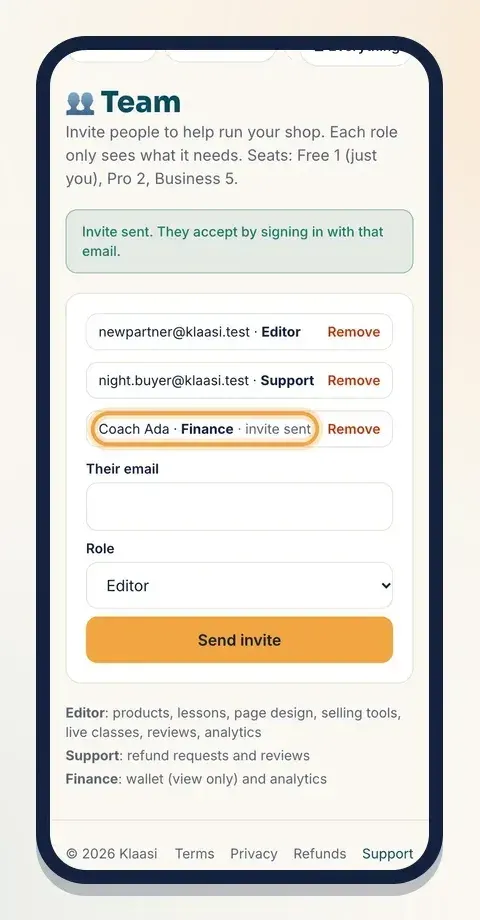
They don't need a Klaasi account first. If they don't have one, it's made when they sign in with that email.
Step 3: Your helper accepts
Your helper signs in to Klaasi with the email you invited. At the top of their dashboard they see a note like "Ada Designs invited you to their team as Finance." with two buttons: Join and No thanks.
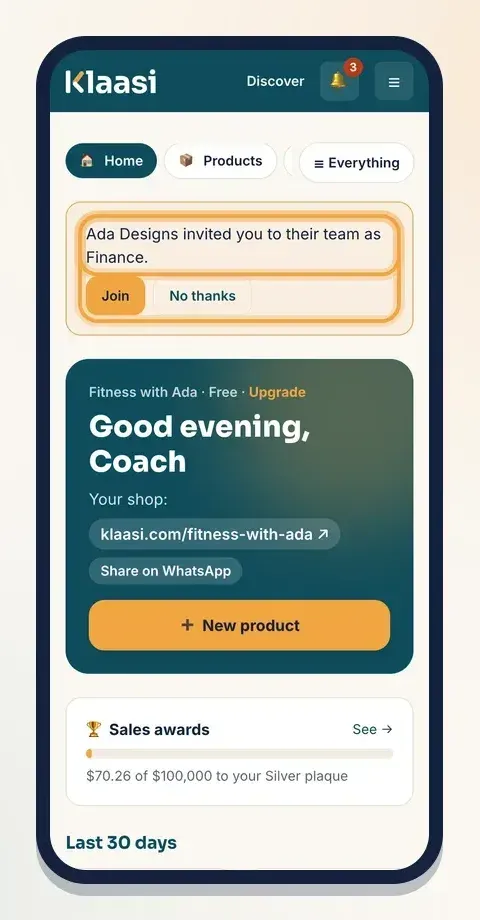
When they tap Join, the invite on your list stops saying "invite sent". They are now on your team.
Step 4: How your helper works for you
Your helper uses their own sign-in. They never need your email, your code or your password.
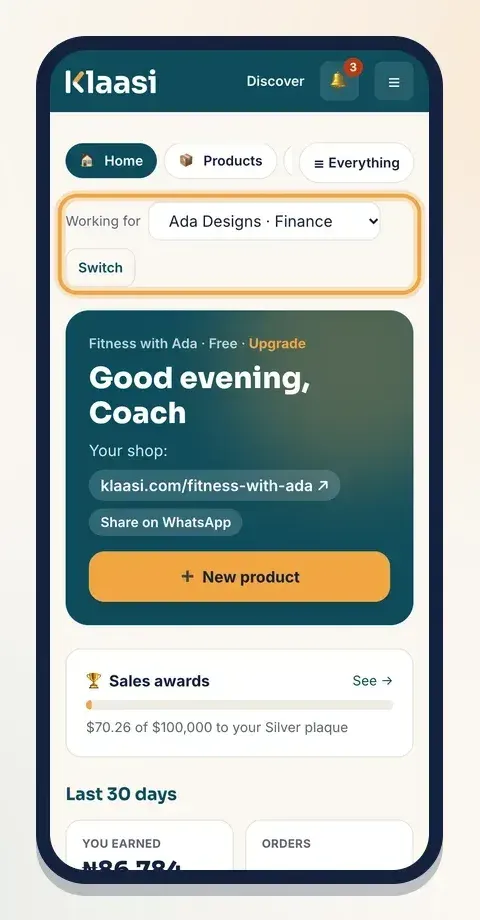
If they also have their own shop, or help more than one shop, their dashboard shows Working for with a list and a Switch button. They pick your shop and tap Switch.
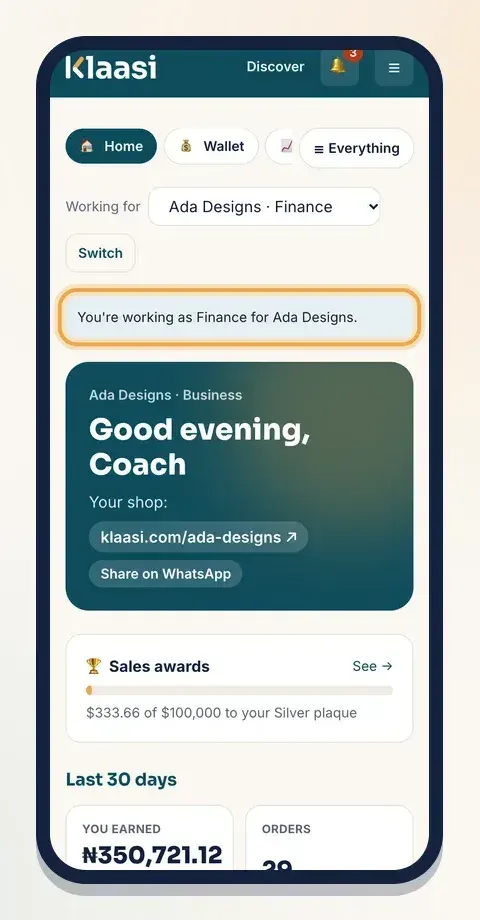
When they are working for you, the dashboard says, for example, "You're working as Finance for Ada Designs." The menu only shows what their role can open: a Finance member sees pages like Home, Wallet and Analytics, but not your products or settings.
Step 5: Remove someone
People move on. When someone stops helping you:
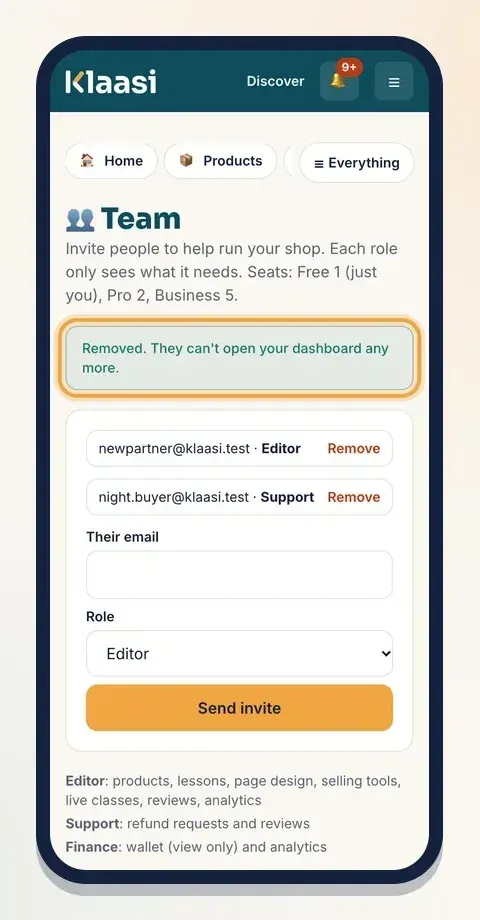
- Open Team.
- Find them on the list and tap Remove.
You'll see: "Removed. They can't open your dashboard any more." It works at once. Their seat is free again for someone else.
Also remove an invite that was never accepted, if you sent it to the wrong email.
What your helper doesn't need
Your helper never needs:
- Your sign-in code. Klaasi sends codes only to the person signing in. Never forward yours.
- Your bank or payout details. Only the owner sees and changes payout accounts.
- A paid plan of their own. They use your shop's seats. If they also sell, they can have their own shop on any plan, and switch between the two with Working for.
Good habits for a safe team
- Give the smallest role that does the job. Someone replying to buyers needs Support, not Editor.
- Use their own email. Never share your own sign-in with a helper. Everything a team member does can then be traced to them.
- Remove people the day they leave. It takes one tap.
- Keep money with you. Only the owner can withdraw and change payout accounts, so your money is safe even if a helper's phone is lost.
- Check reviews and refunds together. Support and Editor can both reply to reviews, so agree on who answers what.
Common questions
Can a team member withdraw money? No. Only the owner can withdraw or change payout accounts. Finance can only view the wallet.
Can Support see how much I sell? No. Sales totals are hidden on the dashboard for the Support role.
Can I change someone's role? Remove them, then invite them again with the new role. It takes a minute.
Does a team member cost extra? No. Seats come with your plan: Pro has 2 and Business has 5, counting you.
What to do next
Start selling on Klaasi, free
Your shop, courses, live classes and community in one place. Buyers pay in naira or dollars.
Open my free shopKeep reading
How to use the Klaasi developer API, webhooks and AI tools (MCP)
Connect your shop to your own website, Zapier, Make or an AI assistant. Create an API key, pick its permissions, receive signed webhooks for every sale and check them safely.
How to handle refunds and support as a seller on Klaasi
Klaasi has one refund policy for every shop. Buyers message Support, you reply with your side, and Klaasi decides using real evidence. Here's how it works and how to answer a refund request.
How to track sales on Klaasi with analytics, ad pixels and A/B tests
See what you earned, how many people visited, where they came from and which product sells best. Then measure your ads with pixels and test a second headline.