How to use the Klaasi developer API, webhooks and AI tools (MCP)
Connect your shop to your own website, Zapier, Make or an AI assistant. Create an API key, pick its permissions, receive signed webhooks for every sale and check them safely.
Klaasi runs your shop, but your business may use other tools too: a spreadsheet of customers, a CRM, a Slack channel for the team, your own website or app. The Klaasi developer tools let those systems talk to your shop.
In this guide you'll learn how to create an API key, choose what it can see, read your products, orders and customers, receive a signed message (a webhook) every time something happens, connect Zapier or Make without writing code, and, on the Business plan, connect an AI assistant to your shop.
You don't need to be a programmer for the Zapier and Make parts. The API parts are for you or the developer who builds your website.
What you can do
There are three pieces:
- The API: your code asks Klaasi for your products, orders and customers.
- Webhooks: Klaasi tells your system the moment something happens, such as a paid order.
- AI tools (MCP): on Business, an AI app like Claude or ChatGPT can answer questions about your shop and make coupons.
The full reference lives on the public Build on Klaasi page at klaasi.com/developers. It has a quick start, the list of endpoints, webhook examples and limits.
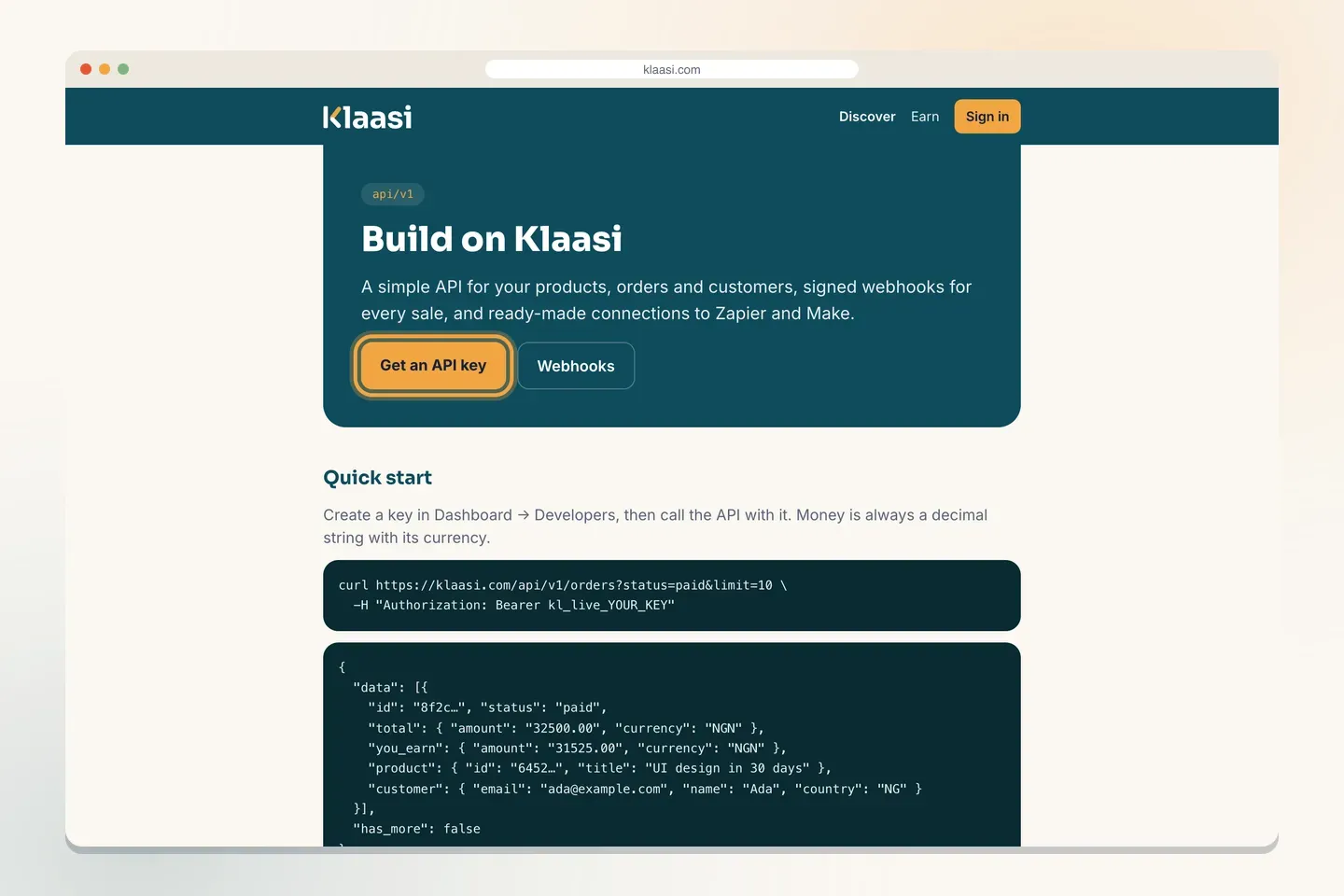
Step 1: Open Developers in your dashboard
Open your dashboard. In the menu, open More tools and tap Developers. Only the shop owner sees this page, because keys can read your sales and customers. Team members don't.
At the top there's a short explanation, an API docs link back to the reference, and two cards that explain how to use Zapier and Make.
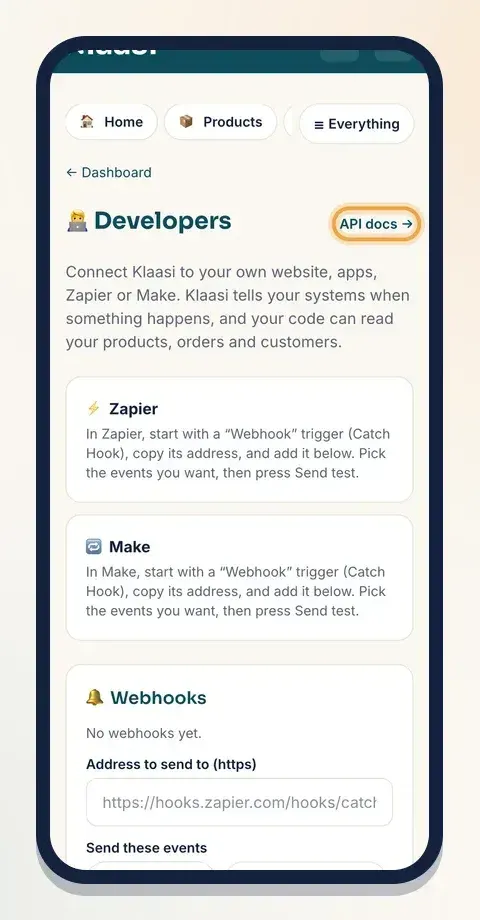
The API and webhooks are on every plan. Connecting AI tools (MCP) is on Business.
Step 2: Create an API key
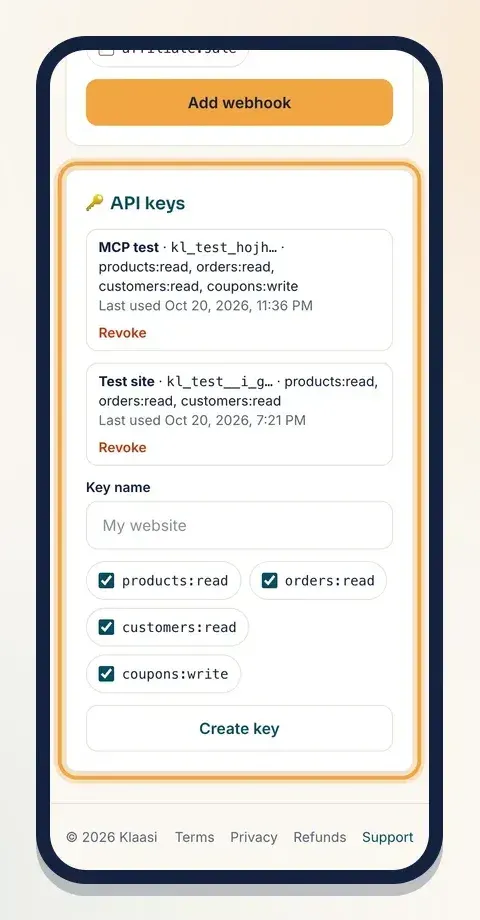
Scroll to API keys.
- In Key name, type something that tells you where the key is used, for example "My website" or "Google Sheet".
- Choose its permissions. Untick anything the key doesn't need:
- products:read: see your products.
- orders:read: see your orders.
- customers:read: see your customers.
- coupons:write: let an AI tool create coupons (only used by AI tools).
- Tap Create key.
Klaasi shows the full key once: "Your new API key. Copy it now: it won't be shown again." Tap Copy and store it somewhere safe, like a password manager or your server's settings. Klaasi keeps only a short start of the key, so nobody (including Klaasi) can show it to you again. If you lose it, make a new one.
Your keys are listed with their name, the first few characters, their permissions and when they were last used. Tap Revoke to stop a key at once.
Keep keys secret. Never put a key in a website page or an app that people can download, because anyone could copy it.
Step 3: Call the API
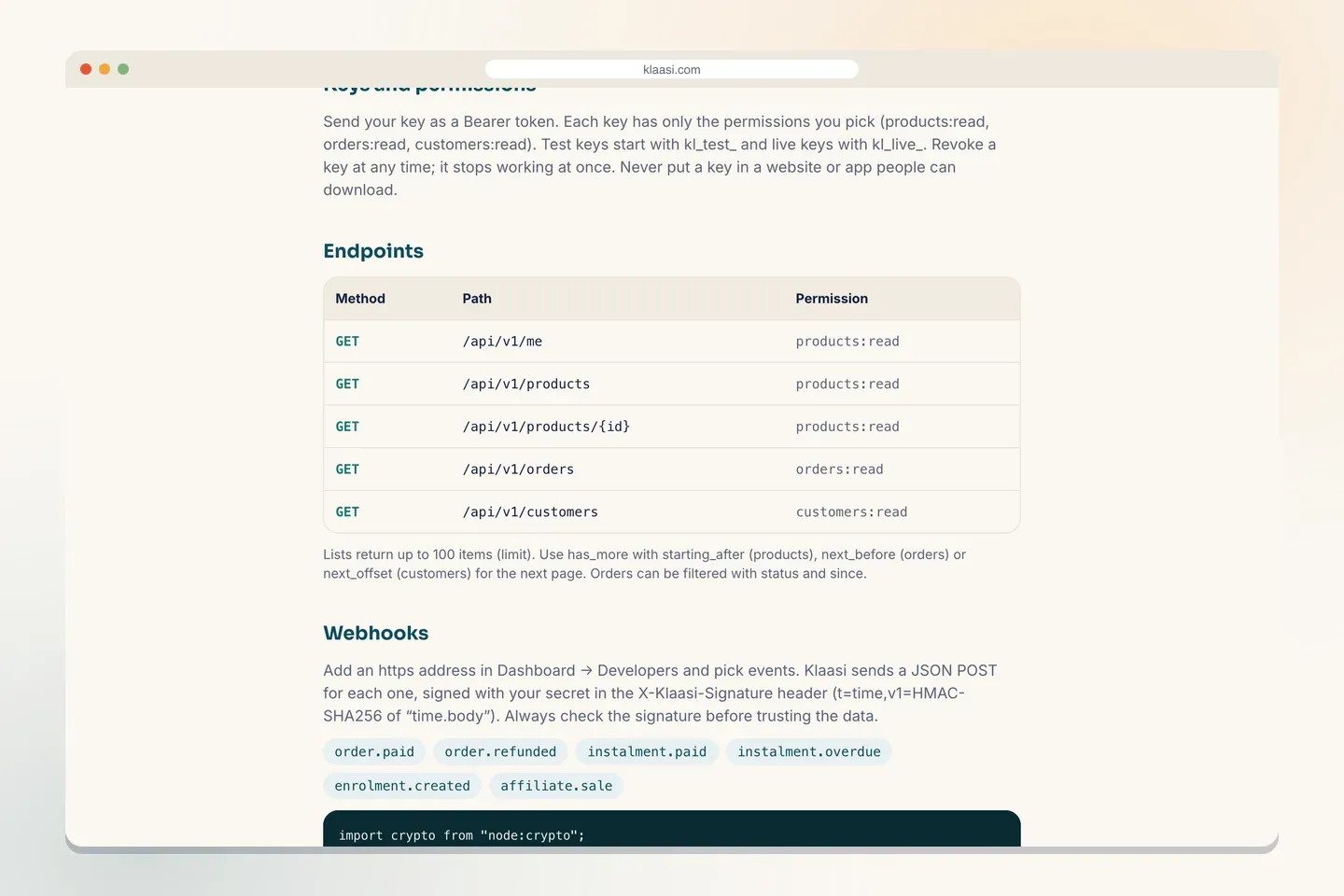
Send your key as a Bearer token in the Authorization header. Live keys start with kl_live_.
The endpoints are:
- GET /api/v1/me (products:read): your shop's name, web address and plan.
- GET /api/v1/products and GET /api/v1/products/{id} (products:read).
- GET /api/v1/orders (orders:read). Filter with status and since.
- GET /api/v1/customers (customers:read).
A few rules that make life easier:
- Money is always a decimal string with its currency, like "32500.00" and "NGN". You never have to guess whether a number is in kobo or naira.
- Lists return up to 100 items. When has_more is true, ask for the next page with starting_after (products), next_before (orders) or next_offset (customers).
- All times are UTC in ISO 8601.
- Each key can make 120 requests a minute.
If a key is missing a permission, the API refuses with a clear "missing_scope" message. If the shop is paused, its keys stop working.
Step 4: Get webhooks when something happens
Instead of asking Klaasi again and again "any new orders?", let Klaasi tell you. That's a webhook: a message Klaasi sends to an address you choose.
Scroll to Webhooks on the Developers page.
- In Address to send to (https), paste the address of your system. It must be a public https address.
- Under Send these events, tick what you want:
- order.paid: a sale is paid.
- order.refunded: a sale was refunded.
- instalment.paid: a buyer paid a part of a pay-in-parts order.
- instalment.overdue: a part is late.
- enrolment.created: someone got access to a course.
- affiliate.sale: a partner brought a sale.
- Tap Add webhook.
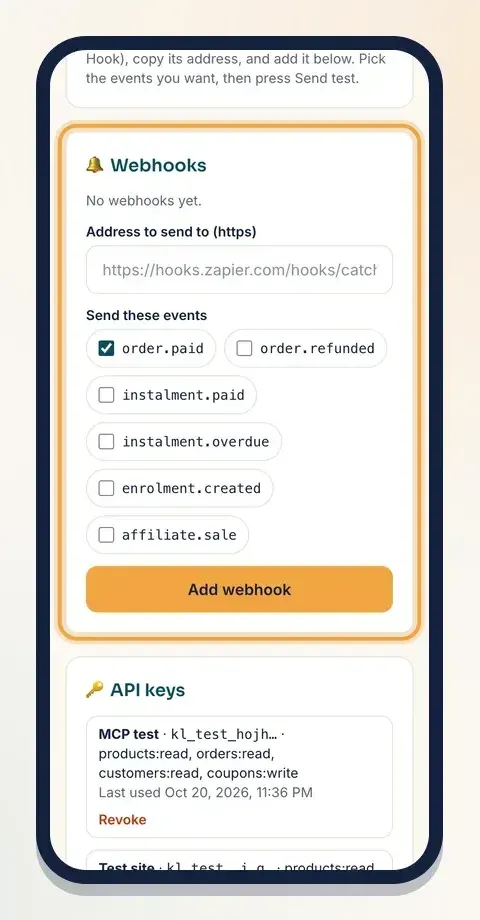
Klaasi shows your signing secret once: copy it. You'll use it to check that messages really come from Klaasi.
Each webhook then shows its address, its events and buttons:
- Send test sends a sample so you can check your Zap, scenario or server.
- Turn off and Turn on pause and restart it.
Under Recent deliveries you can see what was sent, and whether your server answered. You can have up to 10 webhooks.
The order message includes the order (status, time paid, total, Klaasi's fee, what you earn, whether it's pay-in-parts), the product, the customer and any partner commission.
Step 5: Check the signature
Anyone can send a message to a public address, so always check that a webhook came from Klaasi before you trust it.
Every delivery has an X-Klaasi-Signature header that looks like t=time,v1=signature. The signature is an HMAC-SHA256 of the time, a dot, and the raw body, made with your signing secret. Your code makes the same signature and compares. The docs page has a short Node.js example you can copy.
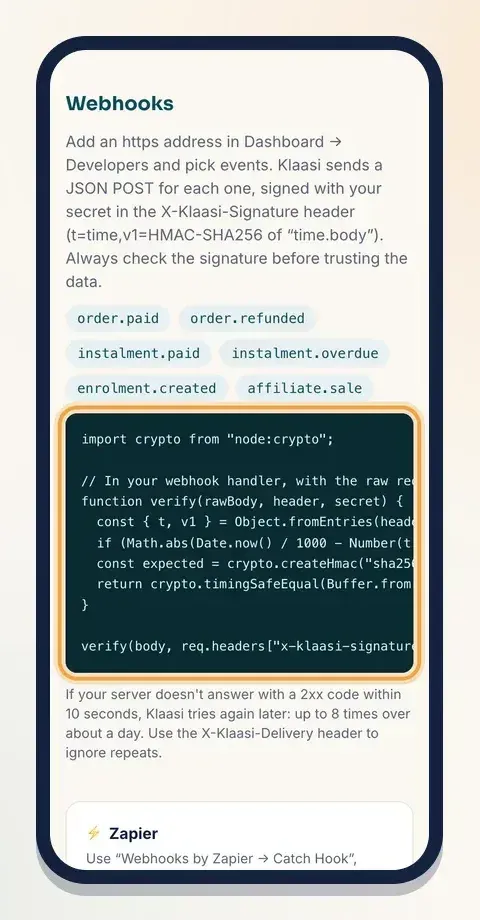
Good habits:
- Check the signature on the raw body, before you change it in any way.
- Refuse messages more than about 5 minutes old (the example does this).
- Answer quickly with a 2xx code. If your server doesn't answer with 2xx within 10 seconds, Klaasi tries again later: up to 8 times over about a day.
- Use the X-Klaasi-Delivery header to ignore repeats, so a retried message doesn't create a second record.
Step 6: Connect Zapier or Make (no code)
You can turn every sale into a Google Sheet row, a CRM contact or a team message without writing code.
Zapier:
- In Zapier, start a Zap with "Webhooks by Zapier", trigger "Catch Hook".
- Copy the address Zapier gives you.
- In Klaasi, paste it into Address to send to (https), tick order.paid and tap Add webhook.
- Tap Send test, then go back to Zapier and finish your Zap.
Make: do the same with the "Custom webhook" module.
Step 7: Connect AI tools with MCP (Business)
On the Business plan you can connect an AI app that supports MCP (Model Context Protocol), such as Claude or ChatGPT, then ask in plain words: "How much did I sell this week?", "Which product sells best?" or "Make a 20% coupon for my Excel course that ends Friday."
- In Developers, create an API key. Tick coupons:write only if you want the AI to create coupons.
- In your AI app, add a custom connector (MCP server) with the address https://klaasi.com/api/mcp and the header Authorization: Bearer followed by your key.
- Ask your question.
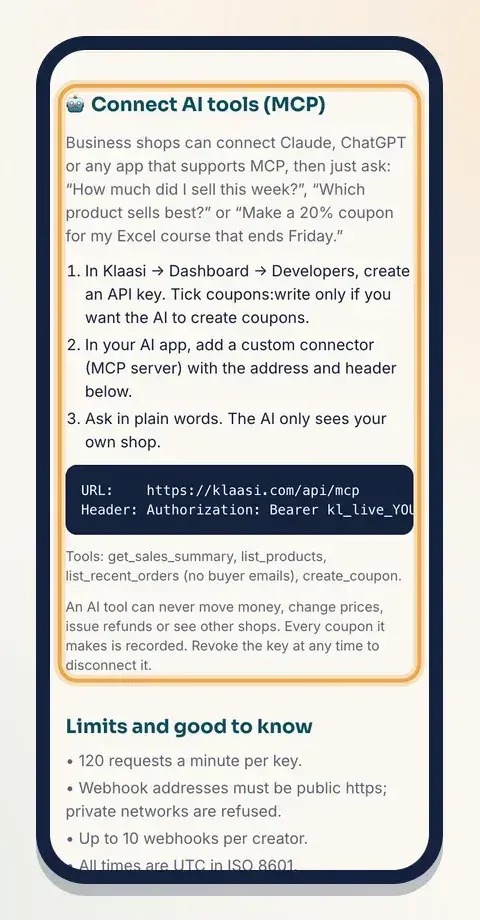
The tools it can use are get_sales_summary, list_products, list_recent_orders (no buyer emails) and create_coupon.
It's built to be safe: an AI tool can never move money, change prices, issue refunds or see other shops. Every coupon it makes is recorded, and coupons made this way are capped each day. Revoke the key any time to disconnect it.
Safety checklist
- Give each key only the permissions it needs.
- Use one key per place (website, sheet, AI app), so you can revoke one without breaking the others.
- Never share keys in chats or put them in public code.
- Always check webhook signatures.
- Revoke keys you no longer use.
What to do next
- How to set up affiliates for your product, then track affiliate.sale events.
- How to track sales with analytics, pixels and A/B tests
- How to add team members to your shop
Thinking about Business for AI tools? See how to choose and upgrade your Klaasi plan.
Start selling on Klaasi, free
Your shop, courses, live classes and community in one place. Buyers pay in naira or dollars.
Open my free shopKeep reading
How to handle refunds and support as a seller on Klaasi
Klaasi has one refund policy for every shop. Buyers message Support, you reply with your side, and Klaasi decides using real evidence. Here's how it works and how to answer a refund request.
How to add team members to your Klaasi shop (and what each role can do)
Invite a helper by email and give them the right role: Editor, Support or Finance. Each role sees only what it needs, and only you can move money. Here's how.
How to track sales on Klaasi with analytics, ad pixels and A/B tests
See what you earned, how many people visited, where they came from and which product sells best. Then measure your ads with pixels and test a second headline.