How to buy on Klaasi and find what you bought in your library
Buying a course, ebook or file on Klaasi takes an email and one payment. No password needed. Here's how checkout works, what happens after you pay, and how to open everything from your library.
Someone shared a Klaasi link with you: a course, an ebook, a template or a live class. This guide is for you, the buyer.
You'll learn how to read a product page, pay with just your email (no password), what the thank-you page means, how to sign in later with a 6-digit code, and how to find everything you bought in My library, on any phone or computer.
Step 1: Read the product page
Every product on Klaasi has its own page, made by the seller. At the top you'll see the name, the type (for example Ebook or Course), who made it and the price. Scroll down to see what's inside: chapters, lessons, a sample, reviews or an intro video.
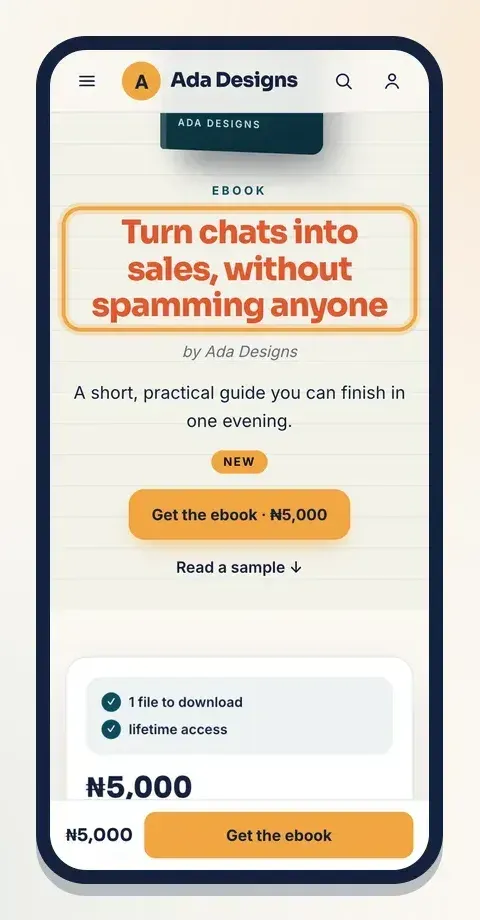
The price is shown in your money. Buyers in Nigeria see naira; buyers everywhere else see US dollars. You don't need to choose: Klaasi works it out from where you are. If you want the details, read how to pay on Klaasi from any country.
The buy box also lists what's included, such as "1 file to download" or "lifetime access".
Step 2: Pay with your email
Scroll to the buy box. Depending on the product, you may see a few choices first:
- Have a code? Enter it here. Tap it if you have a coupon code from the seller.
- Pay with: Card, bank transfer or mobile money, and sometimes Crypto (USDT, USDC).
- Add to your order: an optional extra the seller offers at a lower price.
- How do you want to pay?: some products let you pay in parts.
Then type your email in Your email. That's where your receipt and access go. You don't need a password or an account first: Klaasi makes one for you with that email.
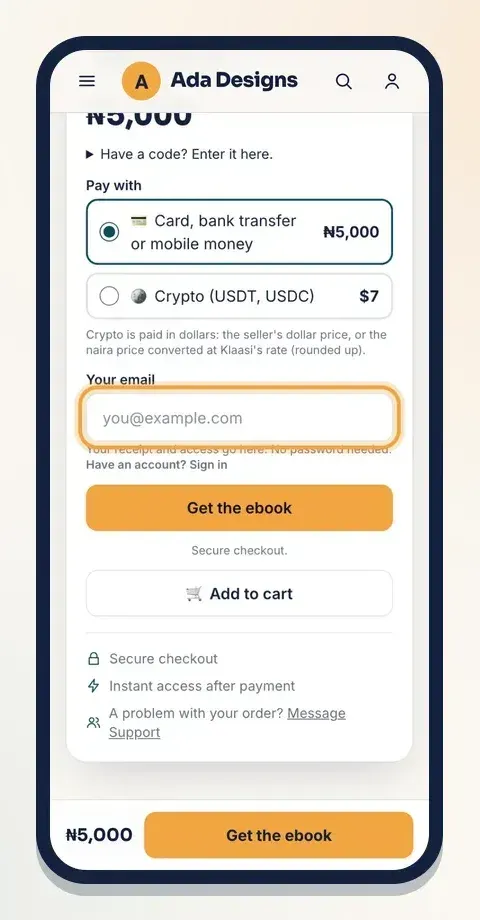
Already have a Klaasi account? Tap Have an account? Sign in first, so the purchase lands in the library you already use.
Tap the main button. It may say Buy now, or something that fits the product, like Get the ebook or Save my seat. You go to a secure checkout page to pay. Follow the steps there for your card, bank transfer or mobile money.
Tip: type your email carefully. A typo means your receipt goes to the wrong place. If it happens, message Support (see the end of this guide).
Buying several things from one shop
If you want more than one product from the same shop, tap Add to cart instead of buying each one.
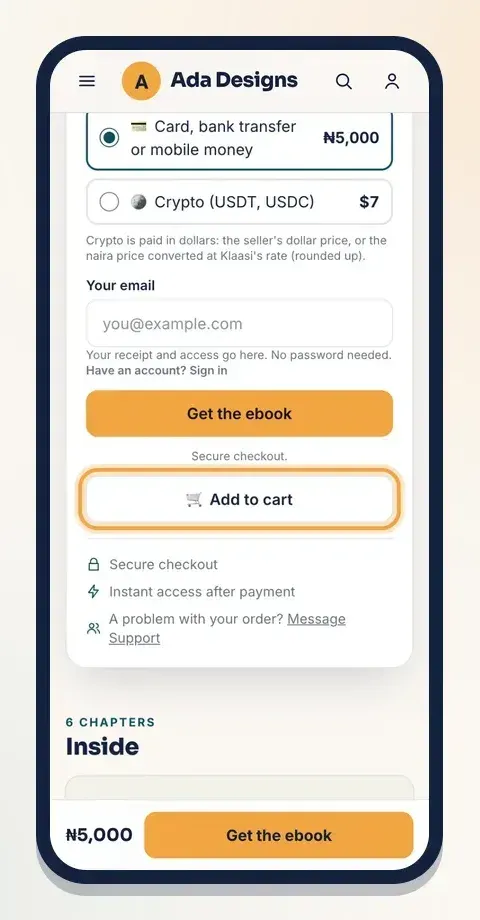
A cart icon with a number appears in the shop's header. Keep browsing, then open the cart and pay once for everything. A cart holds up to 20 items from one shop. Things you already own are taken out for you. Coaching calls and physical goods are bought on their own, not in a cart, and pay-in-parts isn't available for a cart.
Step 3: The thank-you page
After you pay, you come back to a page that says Thank you for your purchase! It shows the product, the Amount paid, the Order number and the Date.
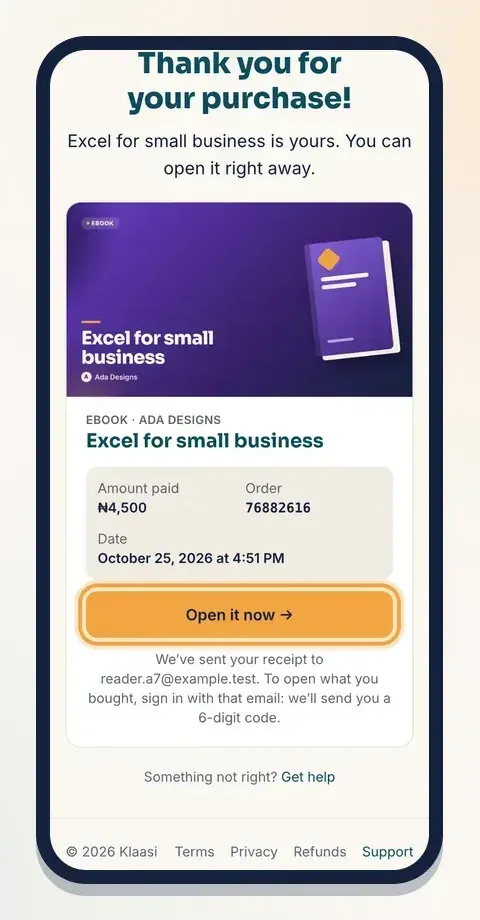
Tap Open it now to start reading, watching or downloading right away. Your receipt is also emailed to you.
If you bought several items in a cart, the page names every one of them.
If the payment didn't go through, the page tells you and gives you a way to try again.
Step 4: Sign in later with a 6-digit code
Klaasi doesn't use passwords. Whenever you want to come back:
- Tap Sign in at the top of any Klaasi page.
- Type the same email you used to buy.
- Tap Send my code.
- Type the 6-digit code from your email.
You stay signed in while you keep visiting, so on your own phone you'll rarely need a code again.
Step 5: Find everything in My library
Tap Library in the menu. This is your home for everything you bought, from every shop on Klaasi.
At the top it greets you and tells you how many things you own. Below are tabs: All, Courses, Downloads and Live & calls. Each product card shows its cover, its type, who made it, when you bought it and one clear main button.
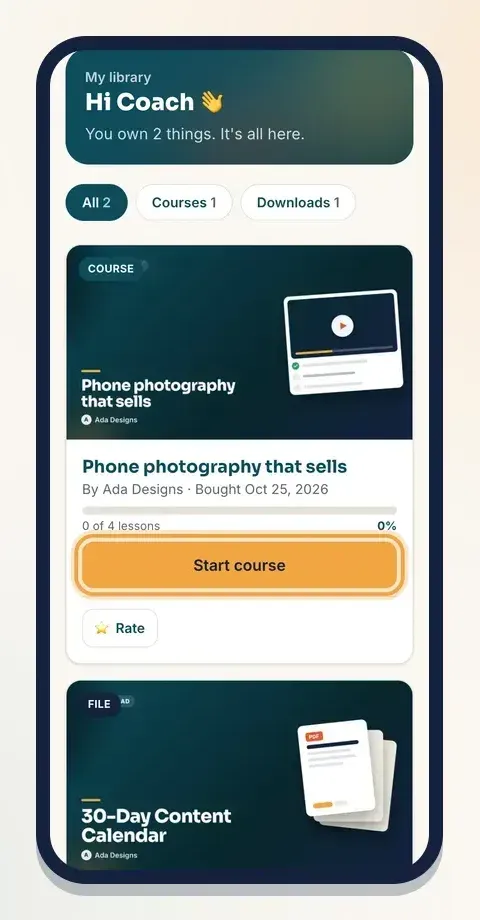
The main button changes with the product:
- Start course or Continue for a course, with a progress bar like "0 of 4 lessons".
- Download for ebooks and files.
- Class times & join for a live class.
- See my call for a coaching call.
When you're partway through a course, the library shows Pick up where you left off with your next lesson, so you can carry on in one tap. A live class or call coming up soon is shown near the top too.
Step 6: Download your files
Tap the Downloads tab, or find the file in All. Tap Download to save it to your phone or computer. The file name and size show under the button.
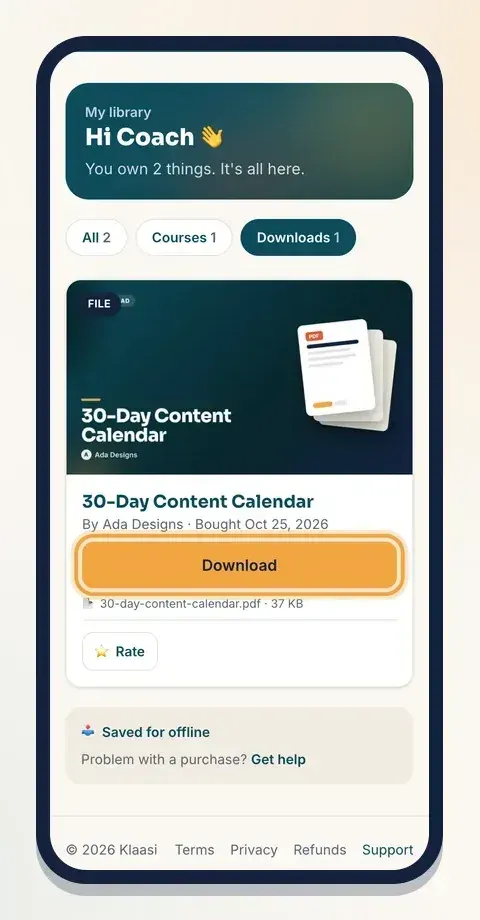
You can download again later from the same place, so don't worry if you lose the file on your phone.
Step 7: Take a course
Tap Start course (or Continue). The course page shows the cover, the number of lessons, the total time, how many sections there are, and your progress.
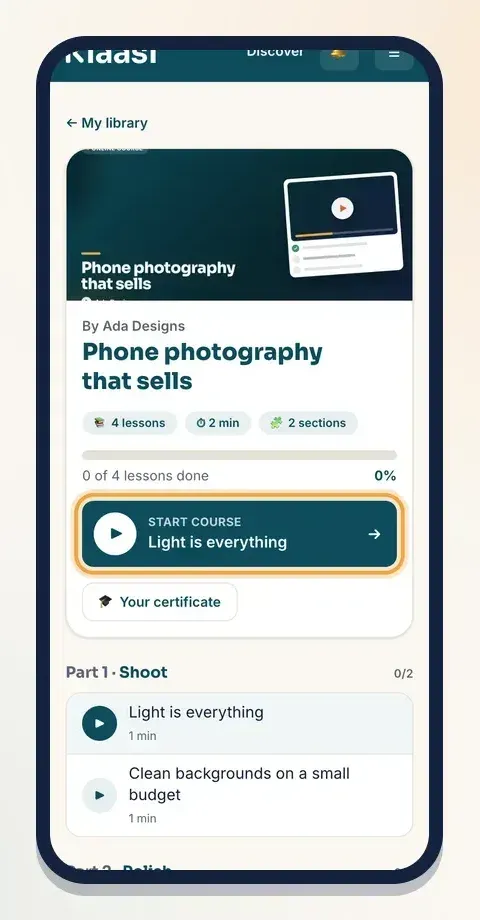
Tap the big button to open the next lesson, or tap any lesson in the list below.
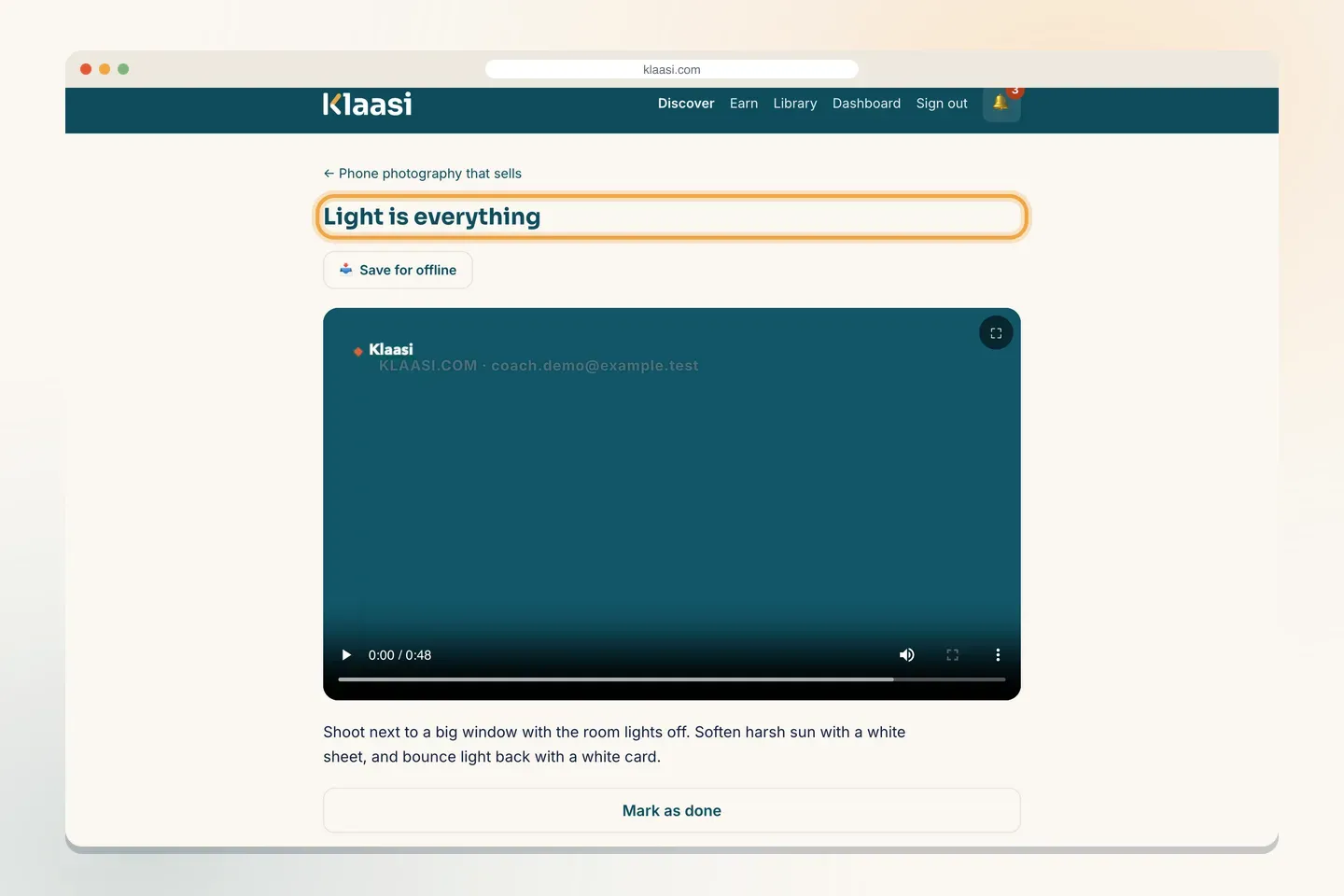
Inside a lesson:
- Watch the video or read the text.
- Tap Mark as done when you finish, so your progress moves forward.
- Tap Save for offline to keep the lesson on your phone for when you have no data or a weak network.
When you finish the last lesson, you'll see Get my certificate. Add the name you want printed and your certificate is ready.
Some courses also come with a community or a WhatsApp, Telegram or Discord group. Look for Open the community or the group link on the course page.
Rate what you bought
Each library card has a ⭐ Rate button. Leaving an honest review helps other buyers and helps the seller improve. Only real buyers can review, so reviews on Klaasi come from people who actually bought.
Something wrong? Get help
If you can't open something, paid twice, or what you got isn't what the page described, don't worry. At the bottom of your library there's Problem with a purchase? Get help. It opens Support, where you pick the order and tell us what happened. Klaasi Support sorts it out with the seller.
Klaasi has one refund policy for every shop. Digital products are delivered straight away, so sales are final once you've opened or downloaded them. Klaasi helps if you paid twice, couldn't get what you bought, or it isn't what the page described. Tell Support within 7 days of buying.
Please message Support before opening a dispute with your bank. It's usually faster.
Quick answers
- Do I need an account? No. Your email is enough. Klaasi makes your account for you.
- I lost the email. How do I open my purchase? Sign in with the email you used and open Library.
- Can I use another phone? Yes. Sign in on any device with the same email.
- Is my payment safe? You pay on a secure checkout page. Sellers never see your card details.
What to do next
- How to pay on Klaasi from any country
- How to become a Klaasi partner and earn commission by sharing products you love.
- Thinking of selling your own? Start with getting started on Klaasi.
Start selling on Klaasi, free
Your shop, courses, live classes and community in one place. Buyers pay in naira or dollars.
Open my free shopKeep reading
How to use the Klaasi developer API, webhooks and AI tools (MCP)
Connect your shop to your own website, Zapier, Make or an AI assistant. Create an API key, pick its permissions, receive signed webhooks for every sale and check them safely.
How to handle refunds and support as a seller on Klaasi
Klaasi has one refund policy for every shop. Buyers message Support, you reply with your side, and Klaasi decides using real evidence. Here's how it works and how to answer a refund request.
How to add team members to your Klaasi shop (and what each role can do)
Invite a helper by email and give them the right role: Editor, Support or Finance. Each role sees only what it needs, and only you can move money. Here's how.