How to choose a website theme for your Klaasi shop
Klaasi has 21 website themes for stores, restaurants and creators. Here's how to find the right one, try it on your own shop before you switch, and what changes when you do.
Your website theme is the first thing a visitor feels. Before they read a word, they see your colours, your fonts and the way your products sit on the page. A perfume brand and a suya spot should not look the same, and on Klaasi they don't have to.
By the end of this guide you will know where the themes live, which themes your plan includes, how to try any theme on your own shop without changing anything, and what happens to your words and pictures when you switch.
What a theme is (and what it isn't)
A theme is a complete look for your website: colours, fonts, the shape of buttons and corners, the style of product cards, the big banner at the top, and sometimes a few special touches like moving words or a film-grain background.
A theme is not your content. Your products, prices, shop name, logo, photos and the words you wrote all stay the same when you change themes. Only the look changes. That means you can try a theme, decide you don't like it, and go back, and nothing is lost.
Klaasi has 21 themes, made for three kinds of business:
- Stores: clothes, perfume, beauty, jewellery, gadgets, groceries, art and fabrics. Themes like Boutique, Market Day, Gold Room, Bloom, Fresh Basket, Studio, The Rack, Noir Drop, Atelier, Maison, Volt and Kente.
- Restaurants and food vendors: Bistro, Street Grill, Patisserie and Candlelight.
- Creators: people who sell courses, ebooks, coaching and live classes. Classic, Midnight, Paper, Cover Story and Spotlight.
Each theme has a short line under its name that says who it suits, for example "Jewellery, watches, luxury" for Gold Room or "Fast food, suya and grills" for Street Grill. Those lines are a guide, not a rule. A course creator can use a store theme if they love it.
Which themes your plan includes
- Free: 1 default theme, the one made for your kind of business (Boutique for stores, Bistro for food, Classic for creators).
- Pro: 5 premium themes on top of that: Market Day, Gold Room, Bloom, Street Grill and Midnight.
- Business: all 21 themes.
Themes your plan doesn't include show a small lock with the plan name, like 🔒 Business. You can still look at them and try them on your own shop (more on that below). You just can't publish them until your plan includes them.
If your plan ends and the theme you used isn't part of your new plan, your website switches to the free theme for your kind of business. Your content stays. When you upgrade again, you can pick your old theme back.
Step 1: Open the themes
- Open your dashboard.
- In the menu, under Website, tap Website editor.
- Tap the 🎨 Design tab.
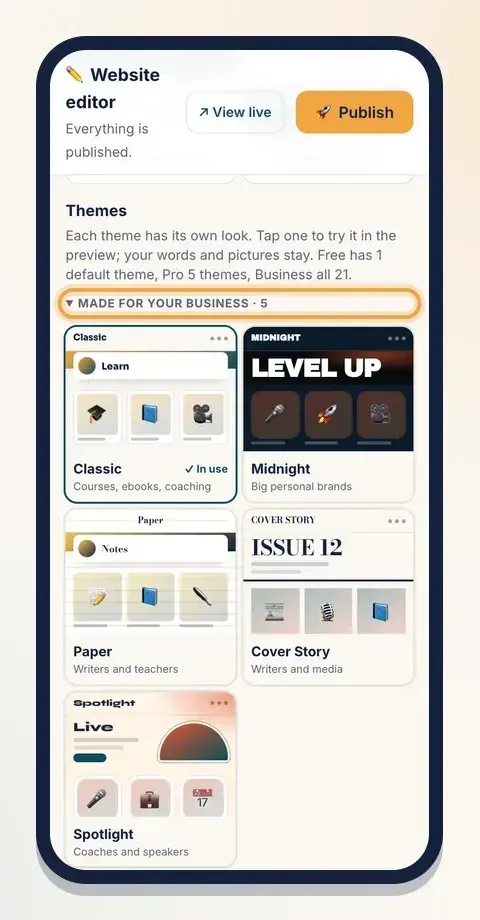
At the top you'll see Themes. The first group, Made for your business, shows the themes for what you sell. Tap More themes to see the rest.
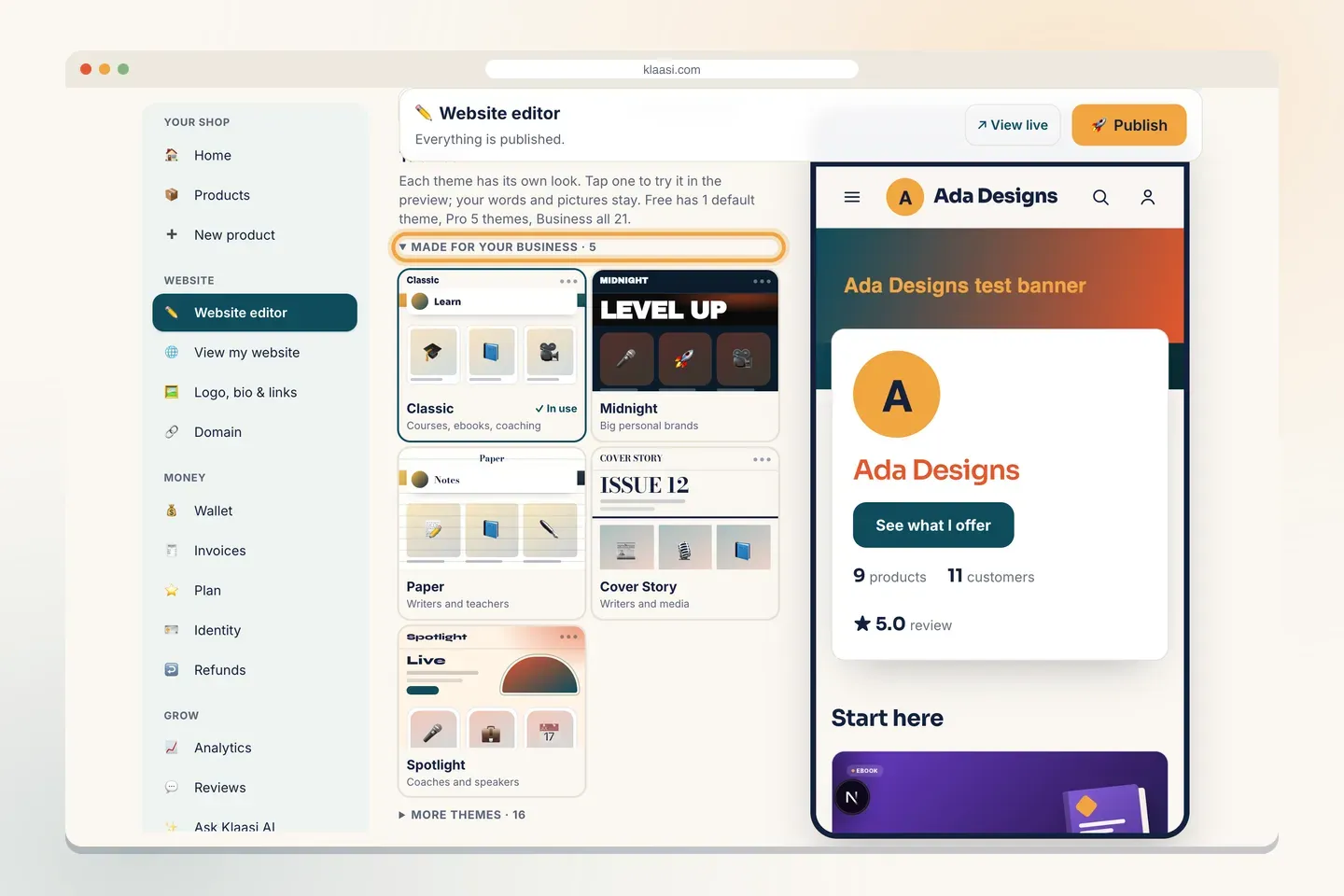
Each theme card shows a small picture of the look, its name and who it suits. The theme you use now says ✓ In use.
On a phone, the editor works the same way. Tap ✏️ Edit to see the tabs and 👀 Preview to see your website.
Step 2: Try a theme on your own shop first
You don't have to guess how a theme will look with your products. You can open your own shop wearing any theme, without saving anything, even a theme your plan doesn't include yet.
While you're signed in, open your shop's address and add this to the end:
?preview=1&theme=minimal
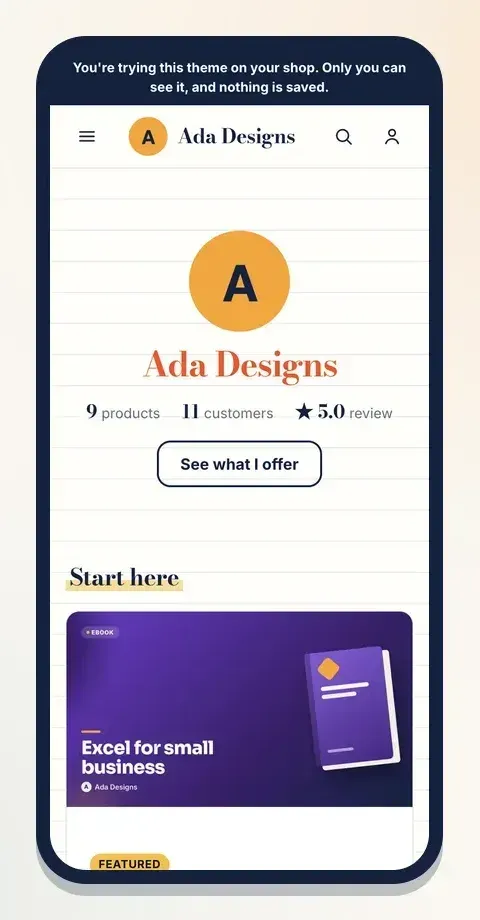
So if your shop is klaasi.com/ada-designs, open klaasi.com/ada-designs?preview=1&theme=minimal. A dark strip at the top says "You're trying this theme on your shop. Only you can see it, and nothing is saved." Visitors still see your published website.
Here is a creator shop trying the Paper theme (its short name is minimal), made for writers and teachers:
The short names you can use after theme= are:
- Stores: boutique, market, luxe (Gold Room), bloom, fresh (Fresh Basket), studio, rack (The Rack), noir (Noir Drop), atelier, maison, volt, kente
- Food: bistro, street (Street Grill), patisserie, fine (Candlelight)
- Creators: classic, bold (Midnight), minimal (Paper), magazine (Cover Story), spotlight
Try two or three. Check them on your phone.
Step 3: Look at the sample websites
Not sure where to start? Every theme also has a full sample website with sample products, so you can see the theme at its best. Go to the Klaasi home page and scroll to the theme gallery. Tap any theme to open its sample.
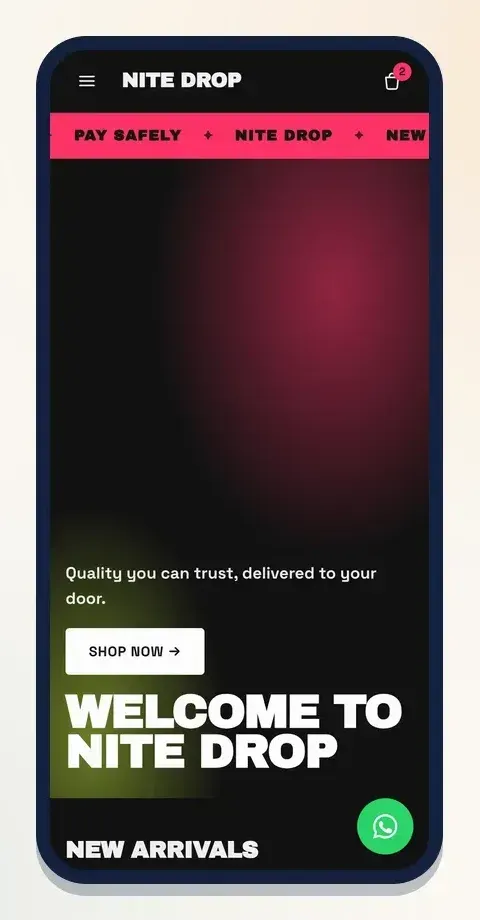
Here are a few of them on a phone. Noir Drop, for streetwear and sneakers, with a moving strip of words at the top:
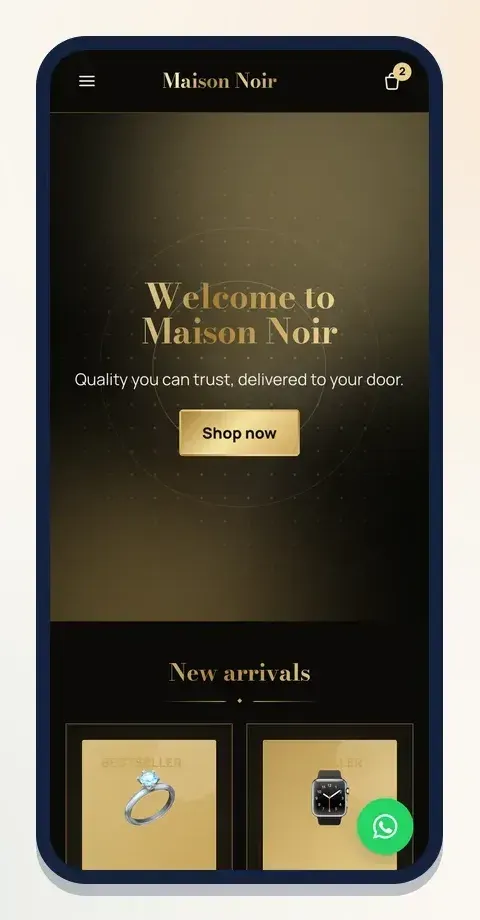
Gold Room, for jewellery and watches, with gold touches and products shown like items in a jewellery case:
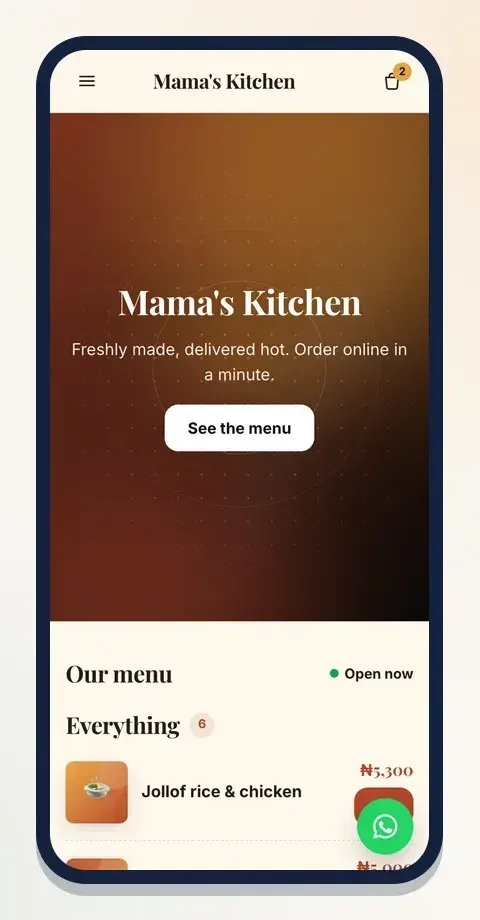
Bistro, the free theme for restaurants, with the menu right under the banner:
What signature blocks are
Some themes come with signature blocks: special sections that make the theme what it is. For example:
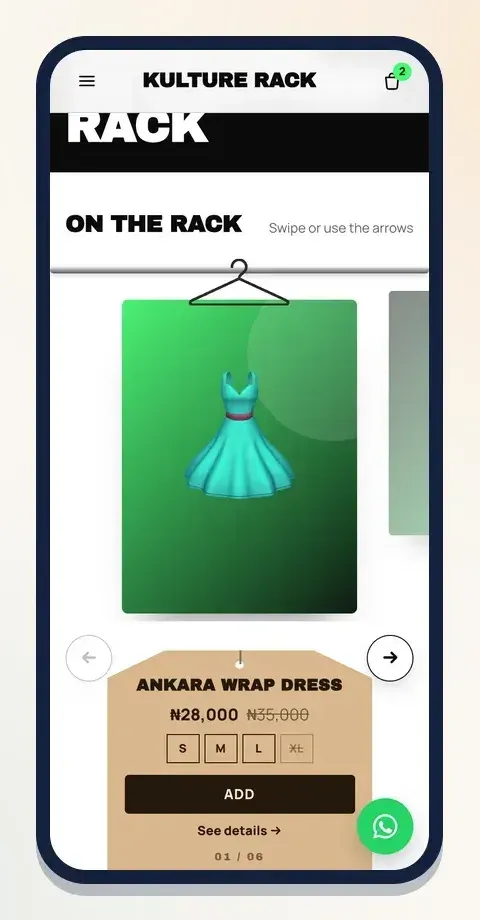
- The Rack adds a Clothes rack: your clothes hang on a rail, buyers swipe along it, and the item in front swings and shows its price tag and sizes. It also adds a strip of Moving words.
- Noir Drop, Market Day and Street Grill add Moving words at the top, like "New drop Friday ✦ Free delivery".
- Atelier, Maison, Studio and Candlelight add Shop the look: one big photo with dots on it. Buyers tap a dot to see that item and its price.
- Market Day, Bloom, Fresh Basket, Volt, Cover Story and Spotlight add a Picture grid of big and small tiles that link to your collections or pages.
Signature blocks are added for you when you pick the theme. Their words come from your own shop, so you don't start with someone else's text. If you switch to another theme and you never changed the block, Klaasi takes it away again so your page stays tidy. If you did change it, it stays, because it's now your work.
You can also add these blocks yourself to any theme from the 🧱 Sections tab, as long as your plan includes them. Moving words and Picture grid are on Pro and Business. Clothes rack and Shop the look are on Business.
Step 4: Pick the theme and publish
When you've decided:
- In the 🎨 Design tab, tap the theme card. The preview changes straight away. Your words and pictures stay.
- Look at the preview on 📱 Phone and 🖥️ Computer (the switch is above the preview on a computer).
- Tap 🚀 Publish. Visitors see your new look from now on.
Until you tap Publish, your changes are saved as a draft that only you can see. The top bar tells you where you are: "Changes saved. Press Publish to show them to visitors." If you change your mind, tap Undo changes to throw away everything since you last published.
Make the theme your own
A theme is a starting point. In the same 🎨 Design tab you can change:
- Colours: tap a ready colour set, or pick your own Main colour, Highlight, Background, Cards and Text.
- Fonts: one for Headings and one for Body text, from modern to elegant to street.
- Corners, Buttons, Logo position, Product cards, Product photos and Special touch (like film grain, kente stripes or candle glow).
- Big capital letters for a streetwear feel, and Moving effects so sections glide in as people scroll. Phones that ask for less motion get none.
The full walk-through of the editor is in our guide to editing your Klaasi website.
Your product pages wear your website theme too: they pick up its colours, fonts and moving effects, so your whole shop feels like one brand.
Tips for choosing well
- Start with what you sell. The themes under Made for your business were built for it.
- Check your photos. Dark themes like Gold Room, Noir Drop and Candlelight look best with bright, clear product photos. Light themes like Paper and Maison suit simple photos on plain backgrounds.
- Think about your buyer. Young streetwear buyers like big capitals and moving words. Bridal and luxury buyers like calm, spacious pages.
- Look on a phone. Most visitors arrive from WhatsApp, Instagram or TikTok on their phone.
- Don't change every week. Pick one, publish it and let people get used to it.
What to do next
- Learn every part of the editor in How to edit your Klaasi website.
- Let Klaasi AI pick a theme and write your words: How to build your website with Klaasi AI.
- Give your shop its own address: How to connect a domain to your shop.
Start selling on Klaasi, free
Your shop, courses, live classes and community in one place. Buyers pay in naira or dollars.
Open my free shopKeep reading
How to use the Klaasi developer API, webhooks and AI tools (MCP)
Connect your shop to your own website, Zapier, Make or an AI assistant. Create an API key, pick its permissions, receive signed webhooks for every sale and check them safely.
How to handle refunds and support as a seller on Klaasi
Klaasi has one refund policy for every shop. Buyers message Support, you reply with your side, and Klaasi decides using real evidence. Here's how it works and how to answer a refund request.
How to add team members to your Klaasi shop (and what each role can do)
Invite a helper by email and give them the right role: Editor, Support or Finance. Each role sees only what it needs, and only you can move money. Here's how.