How to connect your own domain to your Klaasi shop
Open your Klaasi shop at your own address, like yourbrand.com. Buy a domain right in your dashboard, or connect one you already own on Business, and keep it renewed without stress.
Every Klaasi shop already has a free address: klaasi.com/your-name. It always works and you can share it anywhere. But a name of your own, like scenthouse.com or shop.adadesigns.com, looks more serious, is easier to remember and fits nicely on a flyer, a business card or your Instagram bio.
This guide shows you the two ways to give your shop its own address on Klaasi: buying a new domain right inside your dashboard, or connecting a domain you already own. You'll also learn what the three ticks mean, how renewals work, and what happens if your plan changes.
Which plans can use their own domain
- Your free address (klaasi.com/your-name) works on every plan, forever.
- Your own domain opens your shop on Pro or Business.
- Connecting a domain you bought somewhere else (Namecheap, GoDaddy, Cloudflare and so on) is a Business tool.
- A free first year: on a yearly Pro plan, or a quarterly or yearly Business plan, you can claim one domain free for the first year. It covers the common endings: .com, .store, .shop and .online. One free domain per business.
If your plan later drops to Free, your domain doesn't disappear. It simply sends visitors to your klaasi.com/your-name address. When you pay for Pro or Business again, your domain opens your shop again by itself.
Option 1: Get a domain in your dashboard
This is the easiest way. Klaasi buys the domain for you, connects it to your shop and switches on SSL (the padlock and https). You don't touch any settings.
- Open your dashboard.
- In the menu, under Website, tap Domain.
- You'll see Your free address at the top. Under it is Get your own domain.
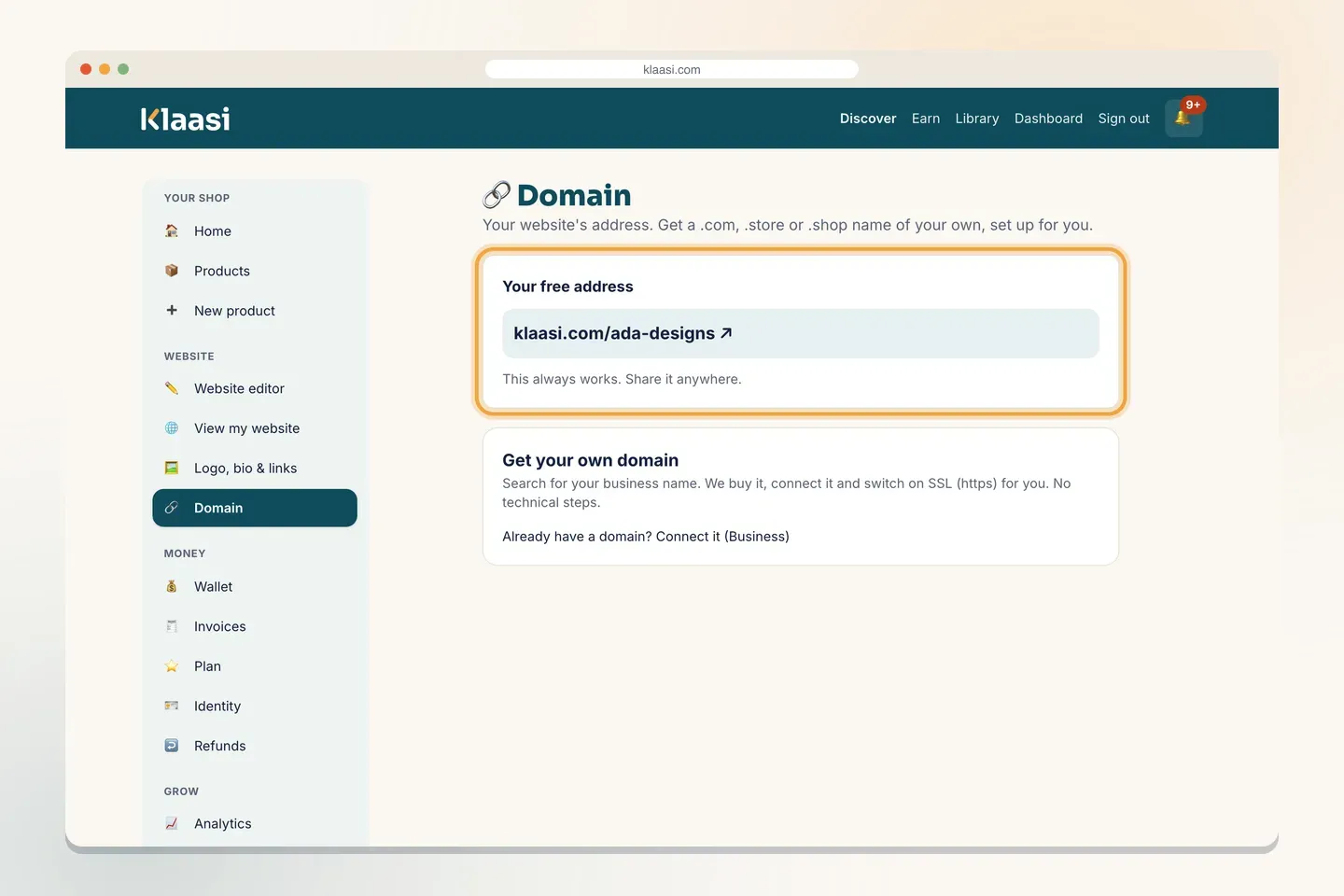
- Type your business name in the search box and tap Search. Klaasi shows you which names are free and which are Taken.
- Next to each free name you see its price for a year, or Free for 1 year if your plan includes a free domain.
- Tap Buy it (or Claim it free).
- Choose how to pay: Pay from my naira balance or Pay from my dollar balance. The money comes from your Klaasi wallet.
- Pick How many years?: 1, 2, 3, 5 or 10. With a free first year, you pay only for the extra years.
- Tick the box to confirm. Please read it: domains can't be refunded once bought.
- Tap Buy now (or Claim my free domain).
You'll see "Done! … is yours. We're connecting it to your website; it takes a few minutes."
A few things to know:
- Names that aren't .com, .store, .shop or .online cost the registry's price plus a small fee.
- Very expensive "premium" names can't be bought here.
- If the domain company doesn't answer, nothing is charged. Just try again.
- Domains are registered for you by Klaasi. If you ever want a domain moved to your own account, contact Support.
The three ticks
Once you own a domain, it appears under Your domains on the same page, with three ticks that fill in one by one:
- Domain ready: Klaasi has the domain.
- Pointed at your shop: the domain's settings now lead to your shop.
- Secure (https), shop open: the padlock is on and your shop opens at your new address.
When all three are green, the status says Live and an Open it link appears. This usually takes a few minutes. Klaasi checks by itself every few minutes, so you don't need to do anything but wait.
Option 2: Connect a domain you already own (Business)
Already bought a domain from another company? On Business you can point it at your Klaasi shop.
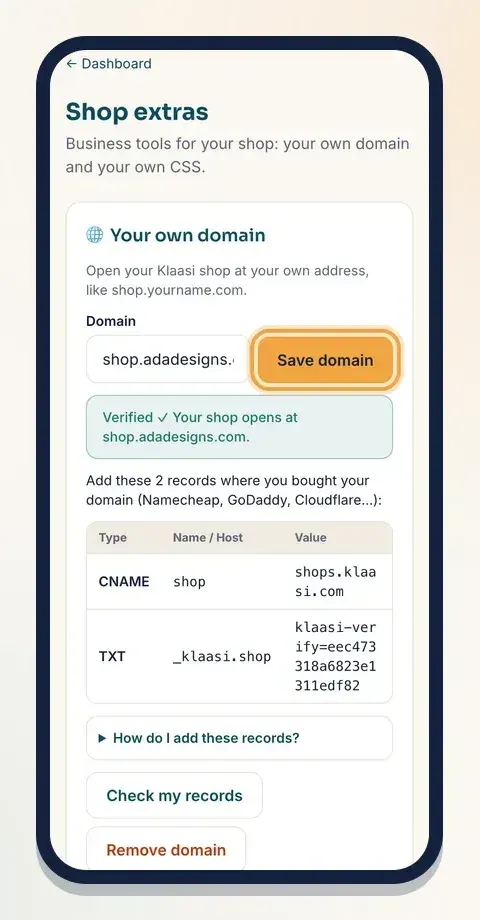
- In the dashboard menu, open More tools and tap Advanced. The page is called Shop extras.
- Find Your own domain.
- Type your domain in the Domain box. We suggest an address like shop.yourname.com: it's the easiest to set up and your main website or email at yourname.com stays where it is.
- Tap Save domain.
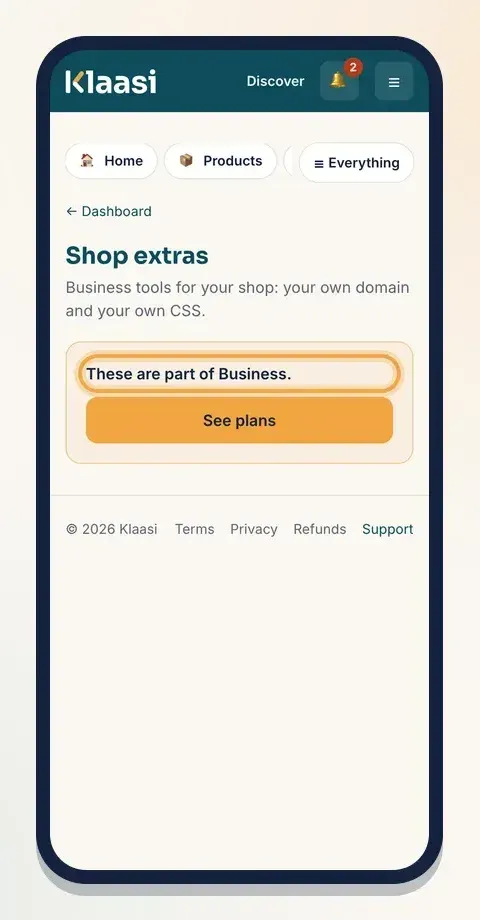
If you're not on Business, this page says These are part of Business. with a See plans button.
Step 2: Add two records where you bought your domain
After you save, Klaasi shows a small table with 2 records. These tell the internet that the domain is yours and where your shop lives:
- A CNAME record. Its Name / Host is the first part of your address (for shop.yourname.com, that's "shop") and its Value is shops.klaasi.com.
- A TXT record. Its Name / Host starts with _klaasi and its Value starts with klaasi-verify=. This proves the domain is yours. Copy it exactly; every shop's value is different.
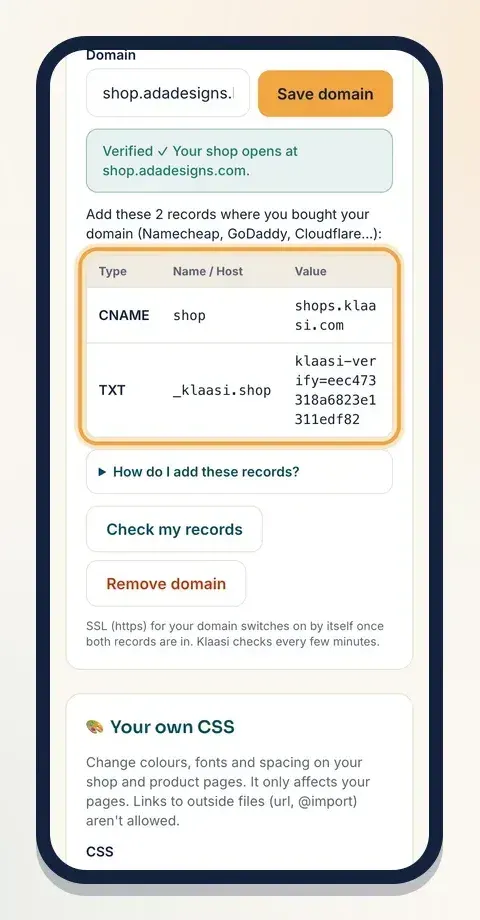
Now open the website of the company where you bought the domain and add both records. Not sure where? Tap How do I add these records? under the table. It has short steps for Namecheap, GoDaddy and Cloudflare.
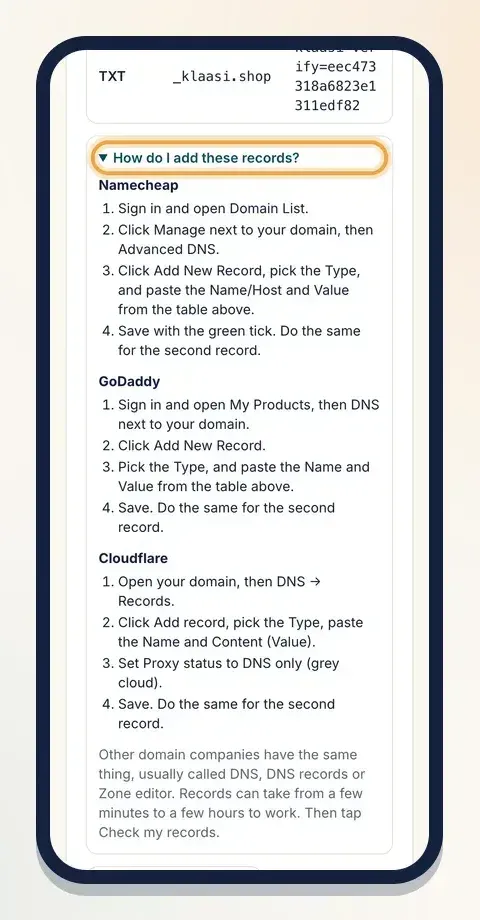
The short version at most companies:
- Sign in and open your domain's DNS settings (sometimes called DNS records, Advanced DNS or Zone editor).
- Tap Add record, pick the Type (CNAME or TXT), and paste the Name / Host and Value from Klaasi.
- Save, then do the same for the second record.
- If your domain is on Cloudflare, set the record's proxy status to DNS only (grey cloud).
Want your main domain (yourname.com, with nothing in front)? It works, but some domain companies need a special setting called CNAME flattening for it. If that sounds confusing, use shop.yourname.com instead, or get a domain in your dashboard where we set everything up for you.
Step 3: Check my records
Records can take from a few minutes to a few hours to work. Then go back to Shop extras and tap Check my records. Klaasi tells you what it found:
- Ownership record (TXT): found ✓
- Address record: found ✓
- And then a line about SSL (https). It usually switches on a few minutes after the records are in.
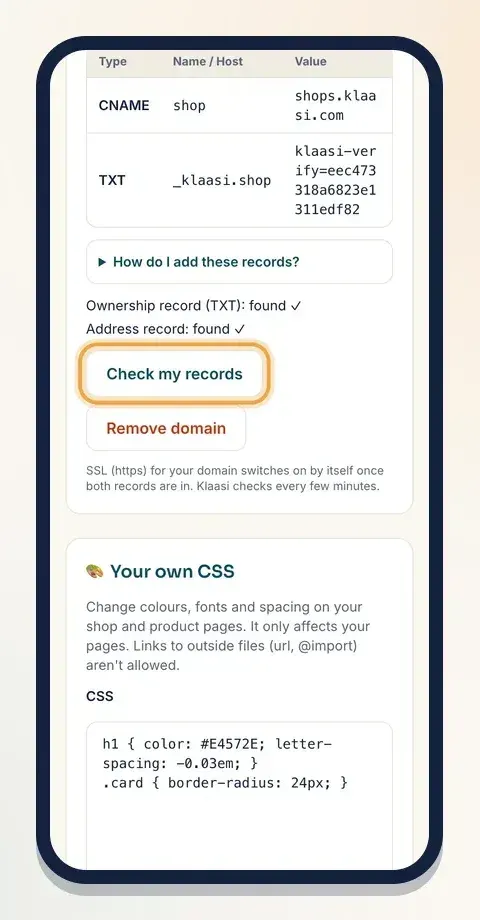
You don't have to keep pressing the button. Klaasi checks again by itself every few minutes, and when everything is in place you'll see Verified ✓ Your shop opens at your domain.
If you see "not found yet", wait a little longer and check that you copied each value exactly, with no extra spaces. If the page says connecting a domain bought elsewhere is almost ready, you can already add your domain and check your records; or get one in your dashboard today.
To stop using the domain, tap Remove domain.
Renewals and auto-renew
A domain is rented one year at a time, so it must be renewed every year. For domains you get in your dashboard, Klaasi makes this simple:
- 30 days before the end date, we send you a reminder with the price.
- 14 days before, if Auto-renew is On, one year is taken from your wallet. Klaasi uses the wallet that has enough money, starting with the currency you bought the domain in.
- Not enough money? We remind you again at 14, 7, 3 and 1 days before. Add money to your wallet by making sales, and the renewal goes through.
- Want to pay early? From 30 days before, a Renew now button appears next to the domain. After paying, it says Next year paid ✓.
You control it under Your domains on the Domain page: Auto-renew: On or Off, with Turn on and Turn off buttons. If you turn auto-renew off after next year was already paid, the money goes back to your wallet.
If a domain isn't renewed, it expires a day after its end date and your shop goes back to your klaasi.com address. Klaasi never pays a renewal for you, so keep an eye on your reminders.
Domains connected from another company are renewed with that company, not on Klaasi.
Tips
- Keep it short. Short names are easier to type and to say on the phone.
- Avoid hyphens and numbers if you can; people forget them.
- Match your Instagram or TikTok name so customers know it's you.
- Keep sharing your klaasi.com address too. It always works.
What to do next
- Make your website look the part: How to choose a website theme.
- Change your banner, sections and colours: How to edit your Klaasi website.
- Not on Pro or Business yet? Compare what each plan includes: How to choose and upgrade your Klaasi plan.
Start selling on Klaasi, free
Your shop, courses, live classes and community in one place. Buyers pay in naira or dollars.
Open my free shopKeep reading
How to use the Klaasi developer API, webhooks and AI tools (MCP)
Connect your shop to your own website, Zapier, Make or an AI assistant. Create an API key, pick its permissions, receive signed webhooks for every sale and check them safely.
How to handle refunds and support as a seller on Klaasi
Klaasi has one refund policy for every shop. Buyers message Support, you reply with your side, and Klaasi decides using real evidence. Here's how it works and how to answer a refund request.
How to add team members to your Klaasi shop (and what each role can do)
Invite a helper by email and give them the right role: Editor, Support or Finance. Each role sees only what it needs, and only you can move money. Here's how.