How to edit your Klaasi website: sections, banner, colours and publish
Change your website's banner, add and move sections, pick colours and fonts, add pages and menu links, then publish when you're happy. A step-by-step tour of the Klaasi Website editor.
Every Klaasi shop comes with a full website at klaasi.com/your-name. It's ready the moment you sign up, but it becomes yours when you change it: your banner, your words, your colours, the sections you want in the order you want.
This guide walks you through the Website editor one part at a time. By the end you'll be able to change the big banner, add, move and hide sections, set your colours and fonts, add pages and menu links, and publish your changes safely. No design or coding skills needed.
How the editor works
Before you start, three things to know:
- Your website is made of sections. A section is one block of the page: the big banner, your products, reviews, questions and answers, a WhatsApp button and so on. You stack them like building blocks.
- Every change is saved as a draft. A moment after you change something, Klaasi saves it. Only you can see the draft. Visitors keep seeing your published website.
- Nothing goes live until you tap Publish. When you're happy, tap 🚀 Publish and visitors see the new version.
At the top of the editor, a short line always tells you where you are, for example "Changes saved. Press Publish to show them to visitors." or "Everything is published."
Step 1: Open the Website editor
- Open your dashboard.
- In the menu, under Website, tap Website editor.
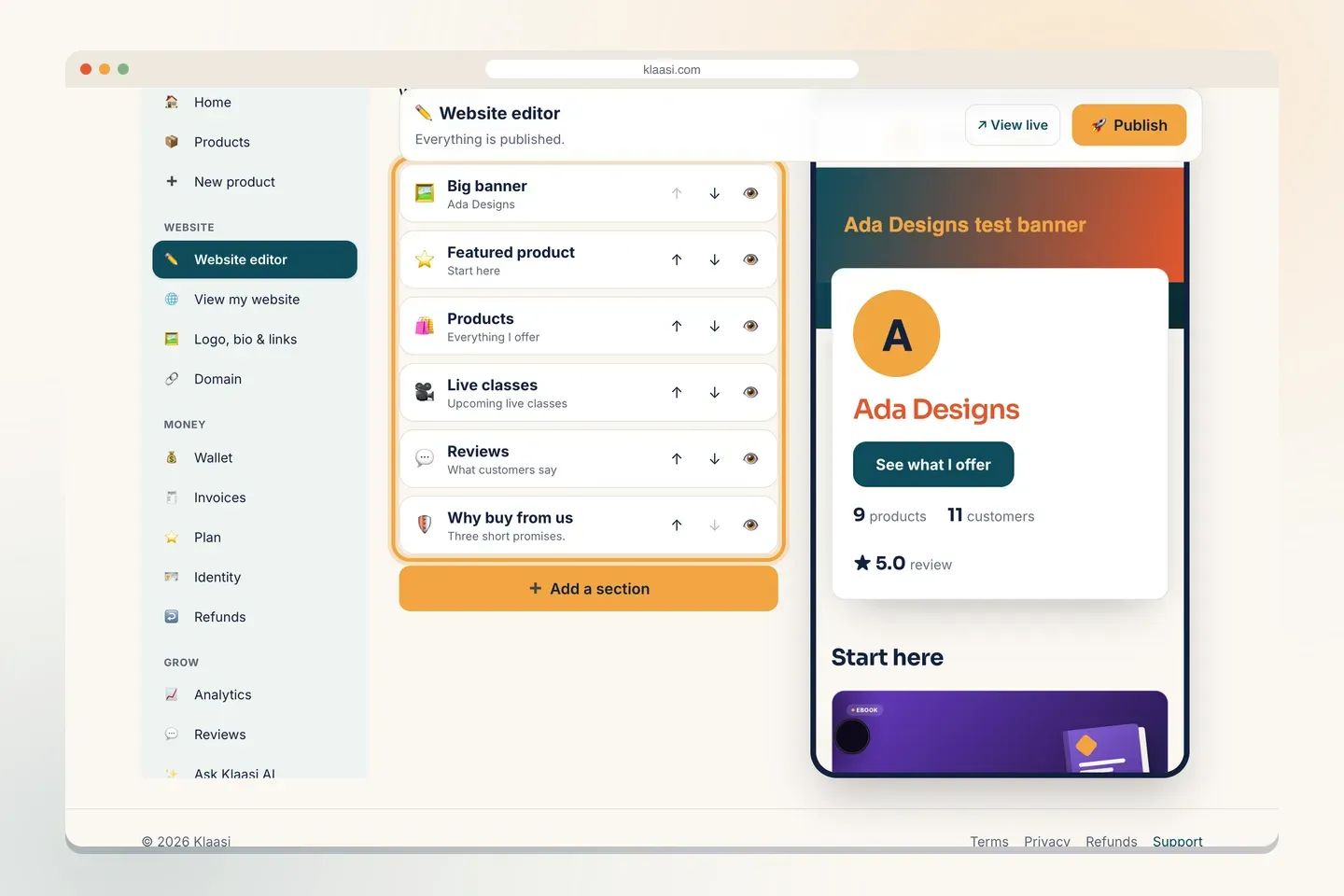
On a computer you see the editing panel on the left and a live preview of your website on the right. Above the preview you can switch between 📱 Phone and 🖥️ Computer.
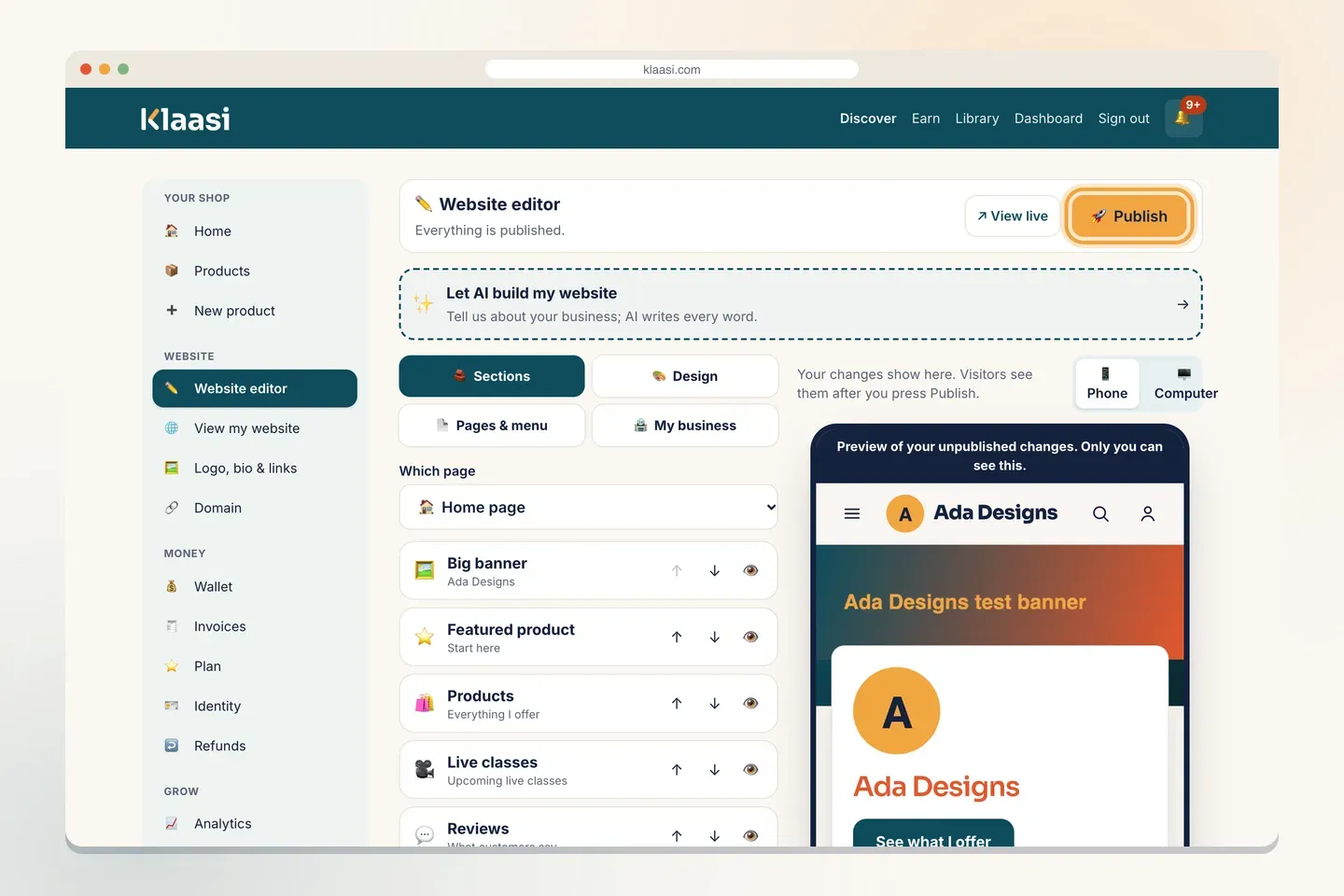
On a phone, the editor and the preview share the screen. Tap ✏️ Edit to change things and 👀 Preview to see how it looks.
The editor has four tabs:
- 🧱 Sections: what's on each page and in what order.
- 🎨 Design: theme, colours, fonts and style.
- 📄 Pages & menu: your business name, announcement bar, menu links, extra pages and footer.
- 🏪 My business: what you sell (only the shop owner sees this tab).
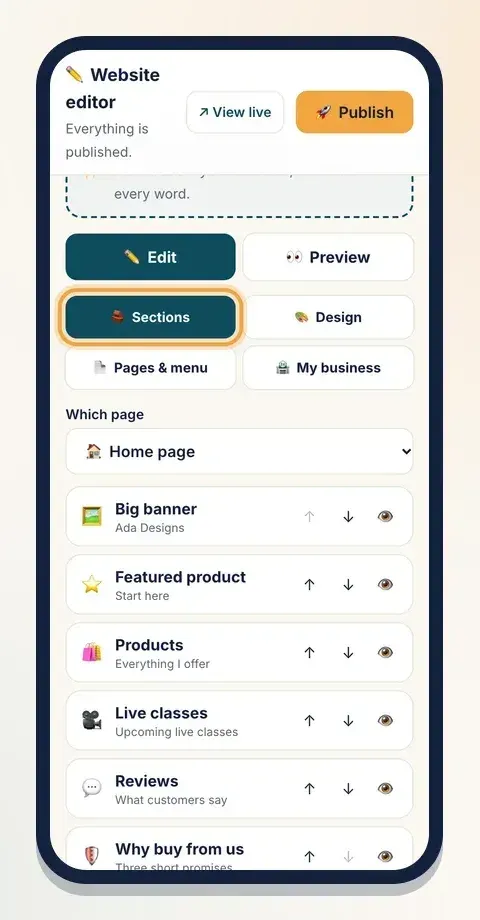
Short on time? The dashed box at the top, Let AI build my website, writes every word for you from a few answers about your business. See How to build your website with Klaasi AI.
Step 2: Change the big banner
The Big banner is the first thing visitors see, so start there.
- In the 🧱 Sections tab, tap Big banner. It opens.
- Pick a Style: Banner + card, Full picture, Side by side, Centred, Magazine, Big poster or Arch.
- Type your Big heading. Keep it short and clear: say what you sell or who you help.
- Add a line of Words under it.
- Set the Button text (for example "Shop now" or "See my courses") and where the Button goes to. "#shop" jumps to your products.
- Tap Upload picture to add a photo. Use a JPG, PNG or WebP picture up to 5 MB.
- Use Darken the picture so white words stay easy to read on a bright photo, and pick a Height: Short, Medium or Tall.
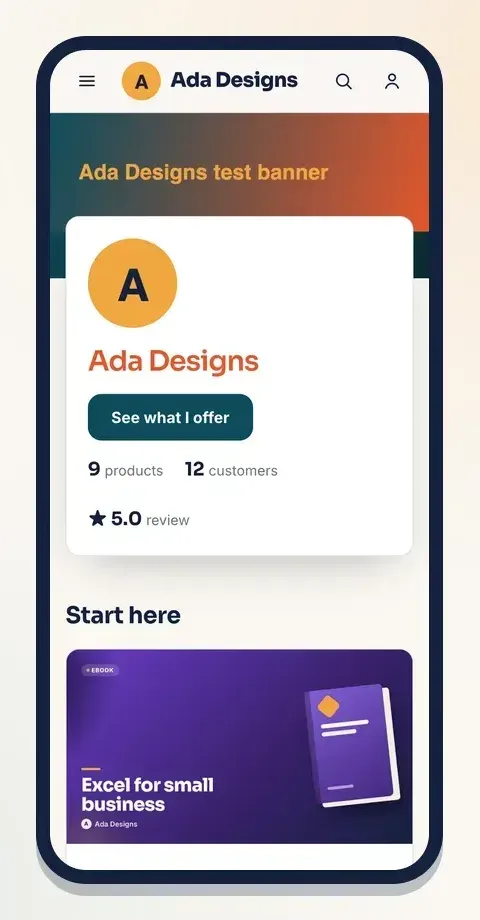
Creators can also switch on Show my photo and numbers, which shows your photo with how many products and customers you have. These are real numbers from your shop; you can hide either one.
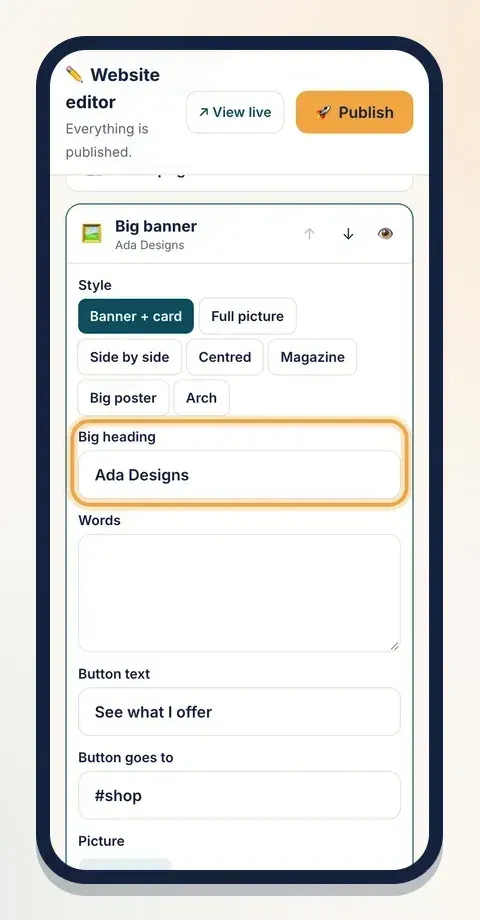
Watch the preview update a moment after each change.
Step 3: Add, move, hide and delete sections
To add a section:
- Scroll to the bottom of your list and tap ➕ Add a section.
- Sections are grouped: Top of the page, Sell, Pictures & words, Build trust and Contact.
- Tap the one you want. It's added at the bottom of the page and opens so you can fill it in.
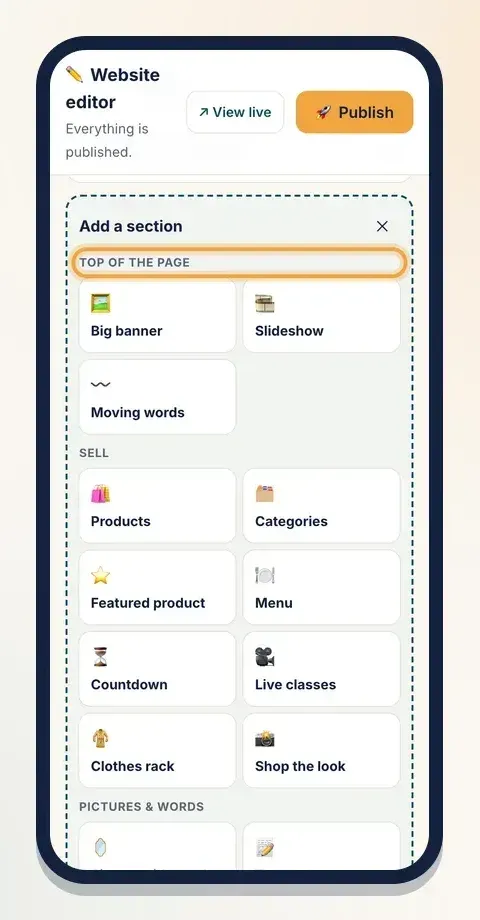
Some useful ones:
- Products: a grid or list of what you sell. Choose All, Newest, Best sellers, On sale or One collection.
- Featured product: one product, big.
- Reviews: real reviews from buyers, or your own words.
- Questions & answers: answer what people always ask in your DMs.
- WhatsApp button: lets visitors chat with you, with an optional floating button on every page.
- Why buy from us: three short promises.
- Live classes: your upcoming classes.
Most sections are on every plan. A few need a paid plan: Slideshow, Video, Mailing list, Countdown, Photo gallery, Moving words and Picture grid need Pro or Business; Clothes rack and Shop the look need Business. Those show a small plan label in the list.
To move a section, tap ↑ or ↓ on its row.
To hide a section without deleting it, tap the 👁️ eye. It turns into 🙈 and the section fades in your list. Tap again to show it. This is handy for a holiday sale banner you'll use again.
To copy or delete a section, open it and tap ⧉ Copy or 🗑️ Delete.
Step 4: Set your colours and fonts
Open the 🎨 Design tab.
- Themes come first. A theme changes the whole look at once. Your words and pictures stay. Read How to choose a website theme to pick one.
- Under Colours, tap one of the ready colour sets, or set each colour yourself: Main colour, Highlight, Background, Cards and Text.
- Under Fonts, pick one for Headings and one for Body text. Each font says its mood, like "Playfair (elegant)" or "Archivo Black (street)".
- Then fine-tune: Corners, Buttons, Logo position, Product cards, Product photos and Special touch.
- Switch Big capital letters on for a streetwear feel, and Moving effects on so sections glide in as people scroll.
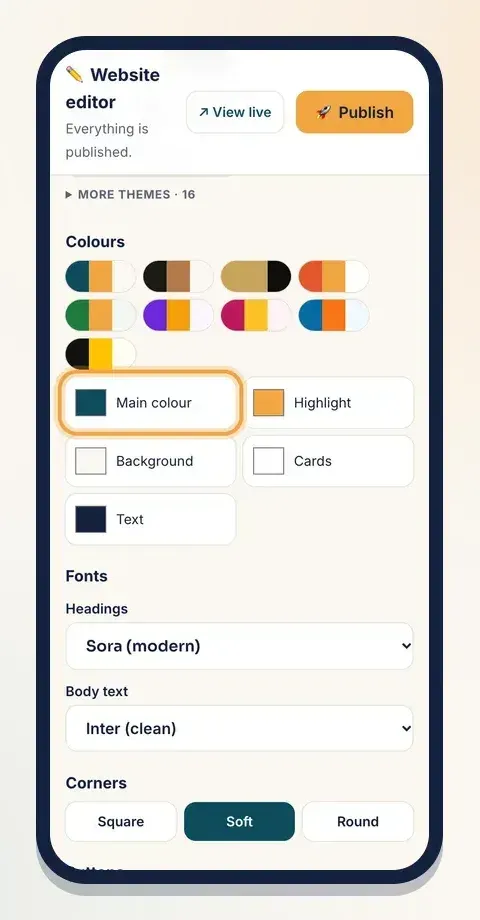
A tip on colours: pick a Main colour dark enough that white words on buttons are easy to read, and keep the Background light or very dark. Two or three colours are enough.
Step 5: Pages, menu and footer
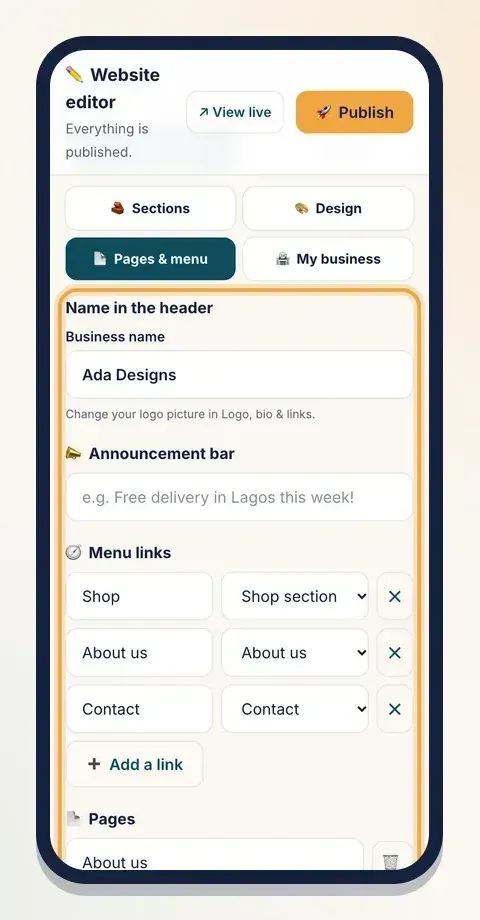
Open the 📄 Pages & menu tab.
- Business name: the name in your header. Your logo picture is changed in Logo, bio & links in the dashboard menu.
- 📣 Announcement bar: a thin strip at the very top, for example "Free delivery in Lagos this week!"
- 🧭 Menu links: the links in your header. Give each a name and choose where it goes: your shop section, contact section or one of your pages. Tap ➕ Add a link (up to 8 links).
- 📄 Pages: add your own pages, like "Our story" or "Delivery". Type the name and add it. Extra pages are on Pro and Business.
- Footer: a line about your business at the bottom of every page. On Pro and Business you can switch Show "Made with Klaasi" off. On Free it always shows.
To edit an extra page, go back to 🧱 Sections and choose it under Which page at the top. Each page has its own sections.
Step 6: Preview, then publish
- Look at the preview. On a computer, switch between 📱 Phone and 🖥️ Computer. On a phone, tap 👀 Preview.
- Happy? Tap 🚀 Publish. You'll see "Published! Visitors now see your new website."
- Tap ↗ View live to open the real website in a new tab.
Changed your mind before publishing? Tap Undo changes. It throws away everything since you last published (Klaasi asks you first).
My business: what you sell
The 🏪 My business tab asks What do you sell?: Products, Food & drinks, Digital products, Courses & classes, or Services & bookings. Tick everything that applies and tap Save. This changes your dashboard menu and the sections Klaasi suggests, so set it right once.
Tips for a website that sells
- Say it in the banner. "Handmade ankara bags, delivered in 3 days" beats "Welcome to my shop".
- Products near the top. Don't make buyers scroll past three blocks of text.
- Answer questions before they're asked. A Questions & answers section saves you hours of DMs.
- Use real photos. Bright, clear phone photos are fine.
- Check on a phone every time before you publish.
What to do next
- Pick the right look: How to choose a website theme.
- Give your website its own address: How to connect a domain to your shop.
- Set your logo, photo and links: How to set up your shop profile.
Start selling on Klaasi, free
Your shop, courses, live classes and community in one place. Buyers pay in naira or dollars.
Open my free shopKeep reading
How to use the Klaasi developer API, webhooks and AI tools (MCP)
Connect your shop to your own website, Zapier, Make or an AI assistant. Create an API key, pick its permissions, receive signed webhooks for every sale and check them safely.
How to handle refunds and support as a seller on Klaasi
Klaasi has one refund policy for every shop. Buyers message Support, you reply with your side, and Klaasi decides using real evidence. Here's how it works and how to answer a refund request.
How to add team members to your Klaasi shop (and what each role can do)
Invite a helper by email and give them the right role: Editor, Support or Finance. Each role sees only what it needs, and only you can move money. Here's how.