How to make marketing banners for your product on Klaasi
Klaasi makes ready-to-post banners for every product: WhatsApp status, square posts, wide posts and a print flyer, each with your link and a QR code. Pick a size and download.
You made a great product. Now people need to see it. The fastest way is a good picture on your WhatsApp status, Instagram, Facebook or a flyer on a wall. But not everyone has time to open a design app.
Klaasi makes those pictures for you. Every product gets Marketing banners in four sizes and three colour styles, with the product's name, price, your link and a QR code. You pick one, tap Download, and post it.
By the end of this guide you will know where to find your banners, which size to use where, how to pick the price currency, and how to copy a ready caption.
Marketing banners are on the Pro and Business plans. Your partners get banners for free, with their own link (more on that below).
What a banner shows
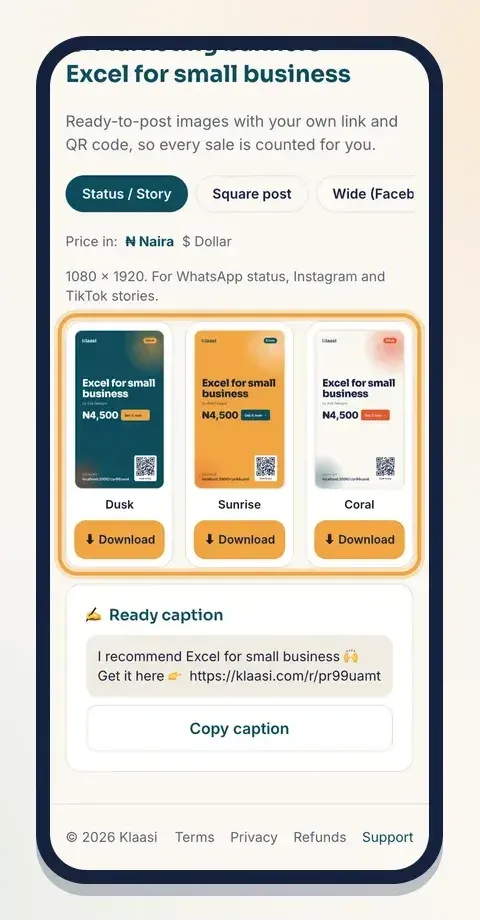
Each banner is made from your product, so you don't type anything. It shows:
- The product name, your shop name ("by …") and what kind of product it is (for example "Online course" or "Ebook")
- The price, with a Get it now button
- Your shop's link and a QR code that opens the product when someone scans it
- The Klaasi logo, small, so people know they can trust the checkout
If you change your product's name or price, the banners change too. There's nothing to redo.
Step 1: Open your product's Selling tools
- Open your dashboard and tap Products.
- Pick the product you want to promote.
- Open its Selling tools.
Near the top of Selling tools you'll see a card called Marketing banners, with the four sizes listed under it: Status / Story · Square post · Wide (Facebook, X) · Print flyer. Tap it.
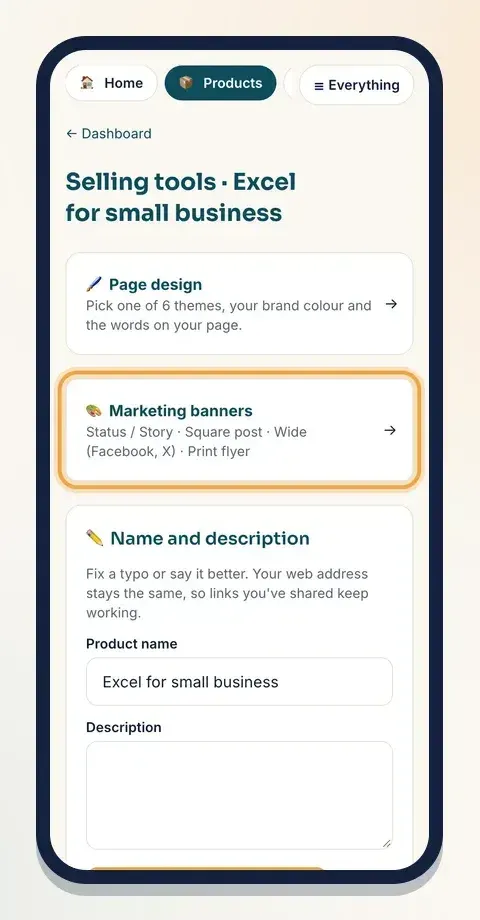
The product must be on sale first. If it's still a draft, the page says Put the product on sale first to make banners.
Step 2: Pick a size
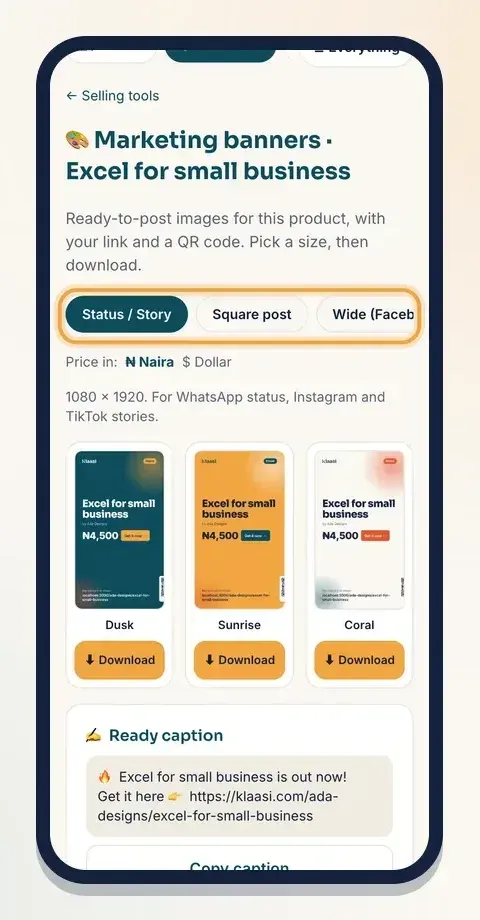
At the top of the banners page are four buttons. Each one is a size made for a different place:
- Status / Story (1080 × 1920): for WhatsApp status, Instagram stories and TikTok stories. Tall, fills the whole phone screen.
- Square post (1080 × 1080): for Instagram, Facebook and WhatsApp groups.
- Wide (Facebook, X) (1200 × 630): for Facebook, X and LinkedIn posts.
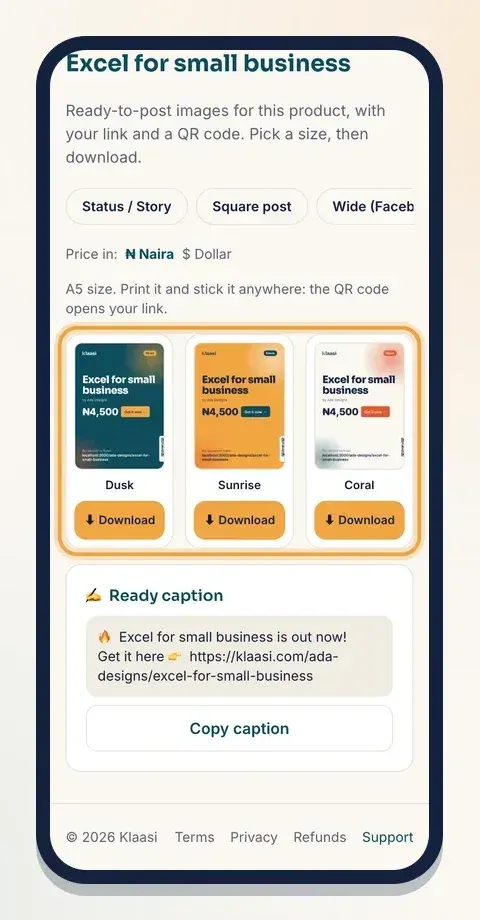
- Print flyer (A5 size): print it and stick it anywhere. The QR code opens your link, so people can buy straight from the paper.
Tap the size you need. Only one size loads at a time, so the page stays light even on a slow network.
Step 3: Choose the price currency
Under the sizes you'll see Price in: with ₦ Naira and $ Dollar. Choose the one your audience pays in.
- Posting to people in Nigeria? Choose ₦ Naira.
- Posting to people in Ghana, Kenya, the UK, the US or anywhere else? Choose $ Dollar.
You only set one price for your product. Klaasi works out the other one for you, so both banners always show a real price. And whatever the banner says, the product page shows each visitor the right price for where they are.
Step 4: Pick a style and download
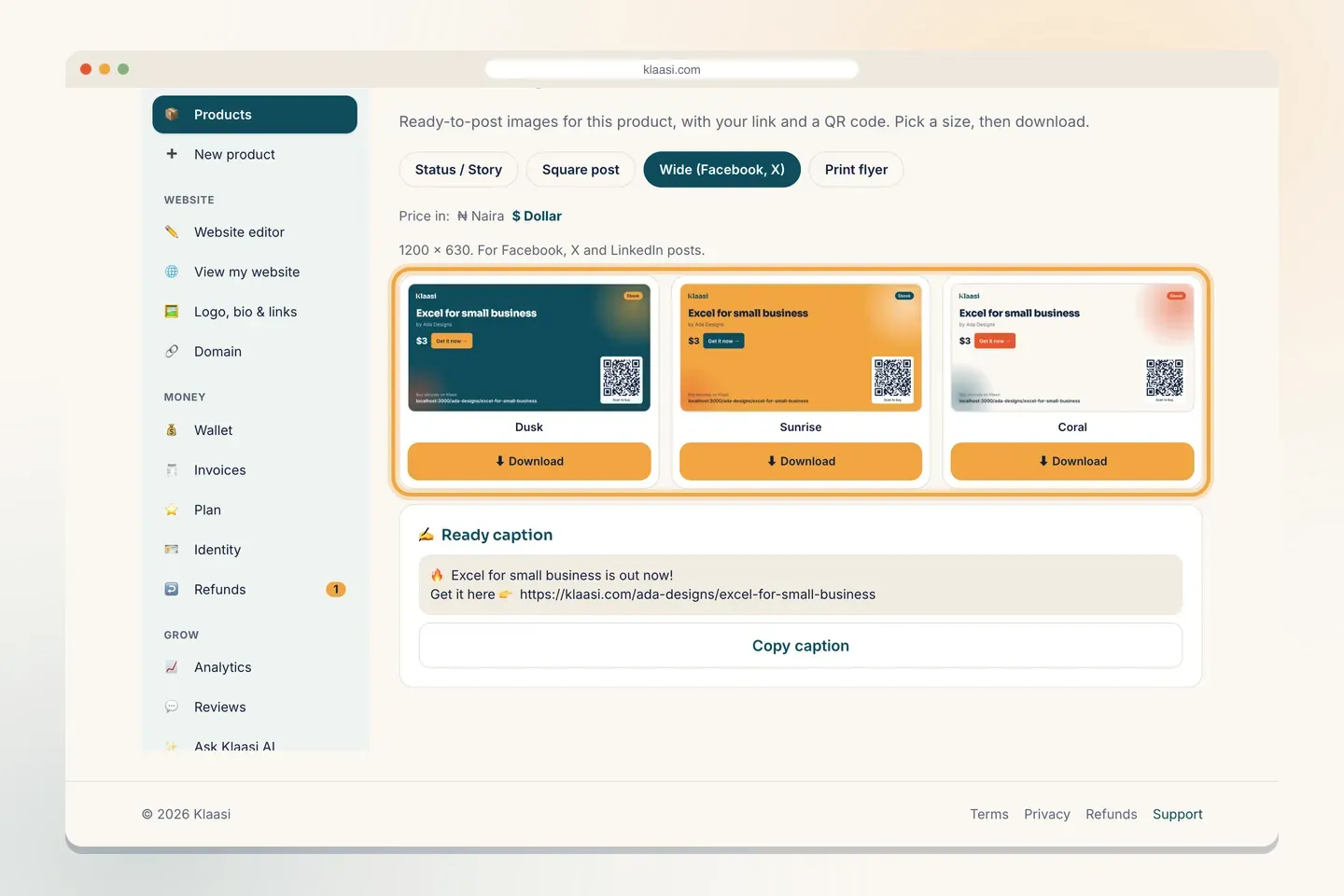
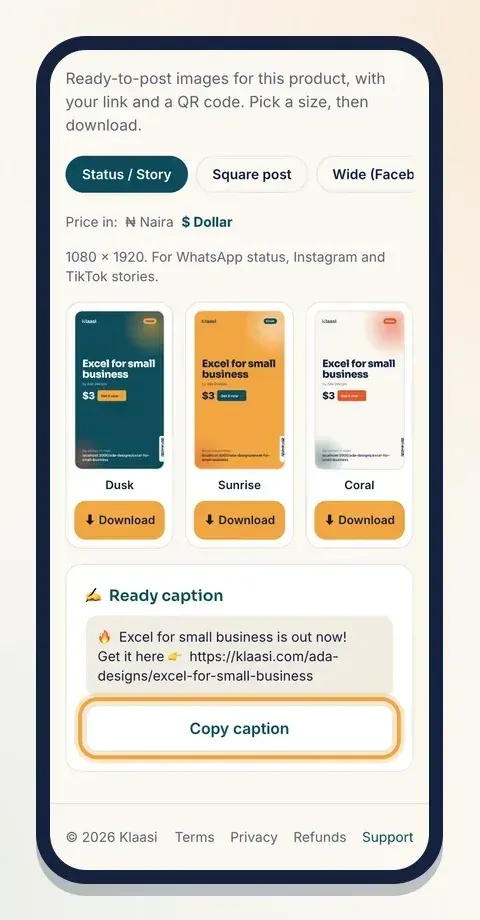
Each size comes in three colour styles, side by side:
- Dusk: deep teal with saffron. Calm and strong.
- Sunrise: warm saffron. Bright and easy to spot in a busy status feed.
- Coral: light cream with coral. Clean and simple.
Tap a banner to Open full size and look at it closely. When you like one, tap Download under it. The picture saves to your phone or computer, ready to post.
Tip: use a different style each day you post. People who scroll past the same picture twice stop seeing it.
Step 5: Copy the ready caption
Under the banners is a box called Ready caption. It has a short line about your product and your link, for example:
🔥 Your product name is out now! Get it here 👉 your link
Tap Copy caption, then paste it under your banner on WhatsApp, Instagram, Facebook or X. If copying doesn't work on your phone, the page says so: just hold the text and copy it by hand.
Where to post each banner
Here's a simple plan you can repeat every week:
- Monday: post the Status / Story banner on your WhatsApp status. It disappears after a day, so post a different style on Thursday.
- Tuesday: post the Square post in your WhatsApp groups and on Instagram. Paste the caption so the link is right there.
- Wednesday: post the Wide banner on Facebook, X or LinkedIn.
- Weekend: print a few Print flyers for your church, mosque, market, school or office notice board. People scan the QR code with their phone camera and land on your product.
If you're running a discount, the product page shows the old price crossed out. Post banners while the discount is on, so people act before it ends.
Banners for your partners
If you run affiliates on your product, your partners get banners too, and they don't need a paid plan. On their partner dashboard, each of their links has a Banners button. Their banners carry their own link and QR code, so every sale they bring is counted for them.
This is a big help: your partners can start promoting the same day, with pictures that look good and match your product.
On the Free plan?
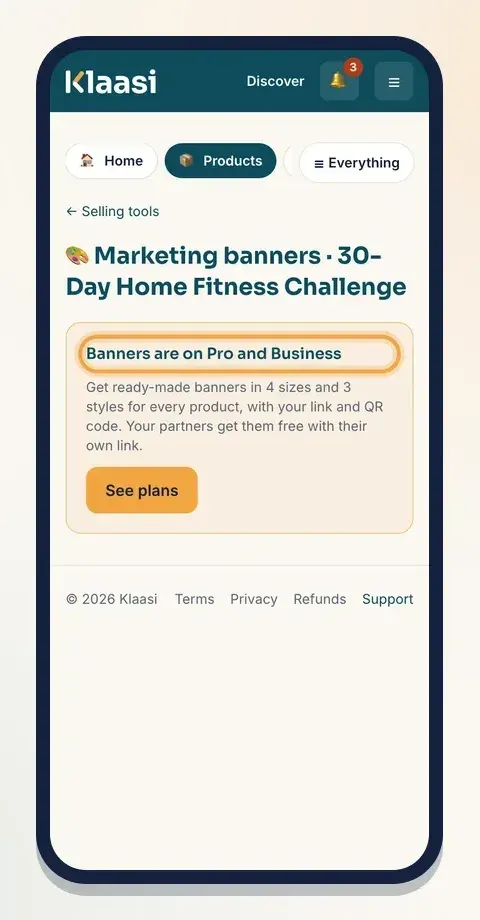
On Free, the banners page shows Banners are on Pro and Business and a See plans button. Pro also lowers your naira fees and unlocks pay in parts, email sequences and all 6 page designs. See how to choose and upgrade your plan.
Make your banners work harder
A banner gets attention. Your words make people act. A few simple habits:
- Say who it's for. "For small shop owners who sell on Instagram" works better than "Buy my course".
- Give one reason to buy now. A discount that ends on Friday, a live class date, or a bonus for the first ten buyers.
- Always add the link. The QR code is perfect for print and for people looking at your status on another phone, but most people on their own phone will tap a link. The ready caption has it.
- Reply to everyone who asks. Many sales happen in the chat after someone sees your banner. Answer quickly and send the link again.
- Check what worked. Open Analytics in your dashboard to see visits and sales, then post more of what brought buyers.
Common questions
Can I change the words on the banner? The banner uses your product's name and price. To change the words, rename the product in Selling tools → Name and description, and the banners update.
Will the QR code still work if I change the price? Yes. The QR code opens your product page, and the page always shows the current price.
Can I use my own design instead? Yes. Download a banner as a starting point, or use your own picture. Just make sure your post includes your product link.
What to do next
Start selling on Klaasi, free
Your shop, courses, live classes and community in one place. Buyers pay in naira or dollars.
Open my free shopKeep reading
How to use the Klaasi developer API, webhooks and AI tools (MCP)
Connect your shop to your own website, Zapier, Make or an AI assistant. Create an API key, pick its permissions, receive signed webhooks for every sale and check them safely.
How to handle refunds and support as a seller on Klaasi
Klaasi has one refund policy for every shop. Buyers message Support, you reply with your side, and Klaasi decides using real evidence. Here's how it works and how to answer a refund request.
How to add team members to your Klaasi shop (and what each role can do)
Invite a helper by email and give them the right role: Editor, Support or Finance. Each role sees only what it needs, and only you can move money. Here's how.