How to send email sequences and abandoned-cart emails on Klaasi
Set up emails that go out by themselves: a welcome after someone buys, tips over the next days, and a reminder when someone leaves checkout without paying.
Most buyers need a little help after they pay, and many people who start checking out get distracted before they finish. Writing to each of them by hand takes hours. Email sequences do it for you.
An email sequence is a set of emails that go out by themselves, at times you choose. On Klaasi you can start one:
- After someone buys: a welcome email, then tips, then a "how's it going?" a week later.
- When someone leaves checkout without paying: a friendly reminder that their spot is still there.
By the end of this guide you'll be able to make both, write each email, send yourself a test, and understand who receives what.
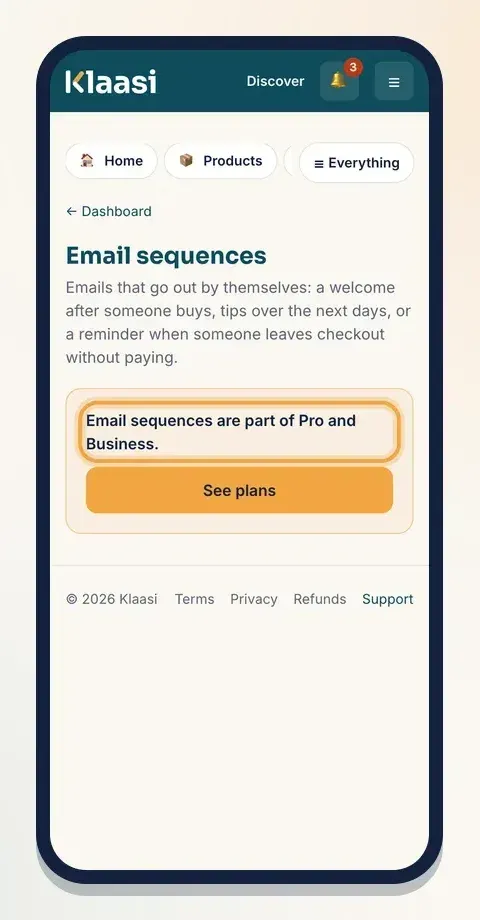
Email sequences are part of the Pro and Business plans. On the Free plan, the Emails page shows Email sequences are part of Pro and Business. with a See plans button.
Where to find it
Open your dashboard. In the menu, under Grow, tap Emails. The page is called Email sequences.
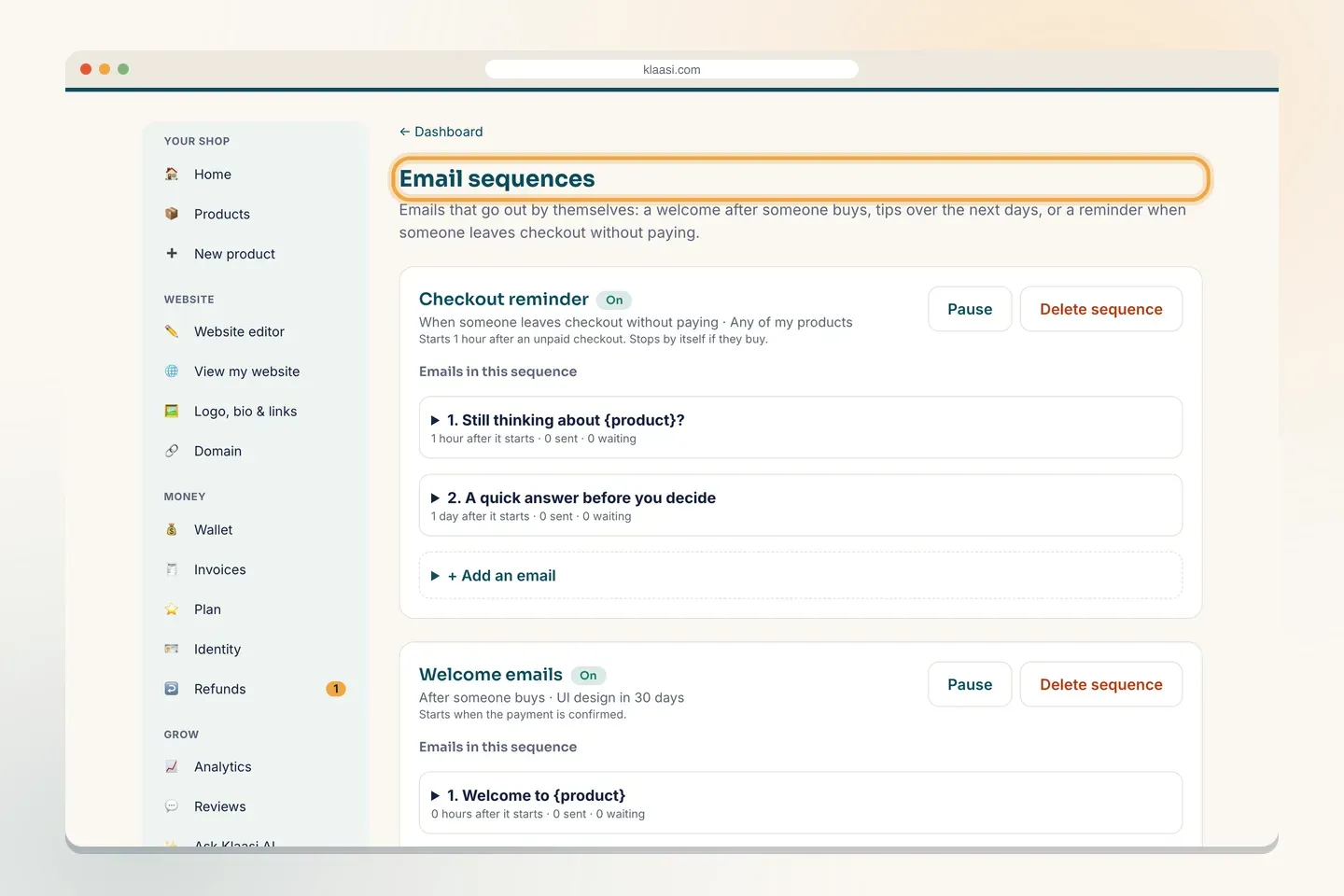
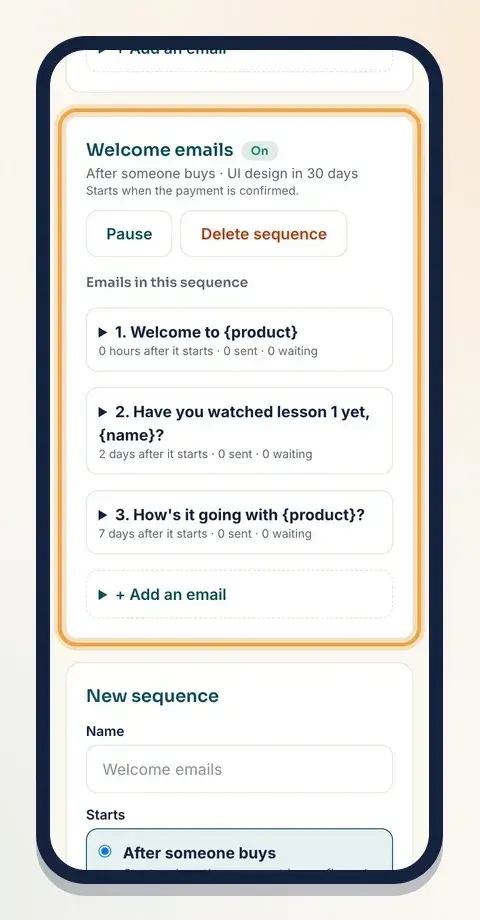
Each sequence shows its name, an On or Paused label, what starts it, which product it's for, and its emails.
Step 1: Create a sequence
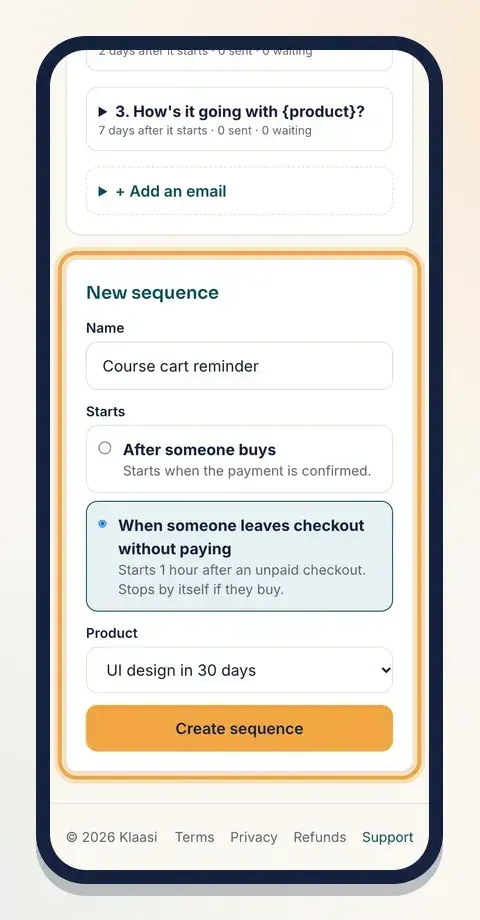
Scroll to the New sequence box at the bottom.
- Name: something you'll recognise, like "Welcome emails" or "Course cart reminder". Buyers don't see this.
- Starts: pick one:
- After someone buys (starts when the payment is confirmed), or
- When someone leaves checkout without paying (starts 1 hour after an unpaid checkout, and stops by itself if they buy).
- Product: choose Any of my products, or one product if the emails talk about it.
- Tap Create sequence.
Klaasi creates the sequence with a first email already written for you, so you never start from a blank page. You can change every word.
Step 2: Edit the emails
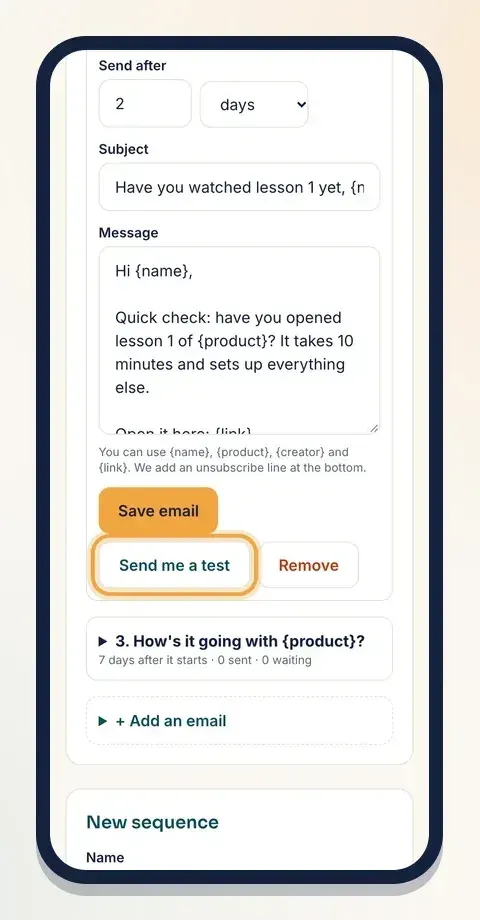
Under Emails in this sequence, tap an email to open it. Each email has:
- Send after: a number, then hours or days. For buyers it counts from the payment; for checkout reminders, from when they started checkout. 0 means straight away. The longest wait is 90 days.
- Subject: the email's title in the inbox.
- Message: what you want to say.
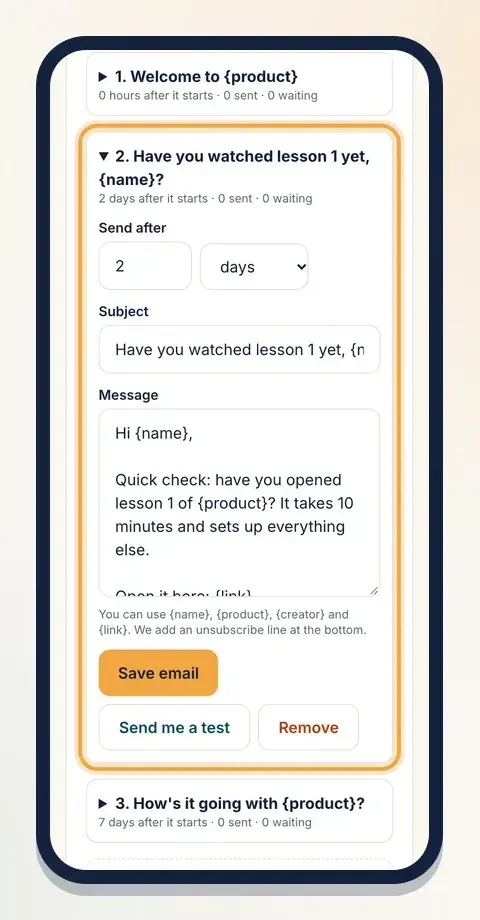
You can put these words in curly brackets, and Klaasi fills them in for each buyer:
- {name}: the buyer's first name.
- {product}: the product's name.
- {creator}: your shop's name.
- {link}: for buyers, the link to their library; for checkout reminders, the link back to your product page.
So "Hi {name}, thank you for getting {product}!" arrives as "Hi Tola, thank you for getting UI design in 30 days!".
Tap Save email when you're done.
Step 3: Add more emails
Tap + Add an email under the last one, fill in Send after, Subject and Message, and tap Save email.
A sequence can have up to 10 emails. Here's a simple welcome sequence that works for most courses:
- 0 hours: "Welcome! Here's where to start" with the {link}.
- 2 days: "Have you watched lesson 1 yet?" with one tip.
- 7 days: "How's it going?" Ask them to reply with a question.
- 14 days: "What's next": point to your next product.
Under each email you see how it's doing, for example 12 sent · 3 waiting. "Waiting" means it's booked for someone and goes out at its time.
Step 4: Send yourself a test
Open an email and tap Send me a test. Klaasi sends that email to your own address with "[Test]" in front of the subject, so you can read it the way a buyer will. You'll see Test email sent to you. on the page.
Abandoned-cart emails: who gets them
A checkout reminder is powerful, but it must only reach people who want to hear from you. A guest can type any address at checkout, so Klaasi sends checkout reminders only to:
- buyers who are signed in to Klaasi with an email they've confirmed with a sign-in code, or
- guests who ticked Send me news and offers from your shop at checkout.
That tick box only appears on your product pages once you've connected an email list (Mailchimp, Brevo or Kit) in Integrations. Without a connected list, reminders go to signed-in buyers only. This keeps your emails from reaching strangers.
A few more rules, all handled for you:
- The reminder sequence starts when a checkout has been left unpaid for 1 hour. Checkouts older than 3 days are left alone.
- Right before each email goes out, Klaasi checks again. If the buyer paid in the meantime, the sequence was paused, or they stopped your emails, the email isn't sent.
- Each email goes to a buyer once per product, even if they start checkout several times.
A simple checkout reminder sequence
Keep reminders short and few. Two or three are enough:
- 1 hour: "Still thinking about {product}?" with the {link} back to your page. (This is the email Klaasi writes for you.)
- 1 day: answer the most common question people ask before buying.
- 3 days: a last friendly note, maybe with a small coupon code.
If the buyer pays at any point, the rest of the reminders are not sent.
Unsubscribe: how buyers stop your emails
Every sequence email ends with a short line telling the buyer why they got it, and a link to stop emails from your shop. You don't need to add it; Klaasi does.
When a buyer taps it, they see Stop all emails from your shop, with a note that receipts still come. When they tap Yes, stop them, Klaasi cancels anything waiting for them from your sequences. Receipts and access emails for things they buy still arrive.
Respect this. A short, useful email gets read; too many emails get people to tap stop.
Pause, turn on, or delete
At the top of each sequence:
- Pause stops new emails from going out. Emails that were waiting are checked before sending, so they don't go out while it's paused.
- Turn on starts it again.
- Delete sequence removes it.
Emails also stop if your plan goes back to Free.
Writing tips
- One idea per email. One tip, one question, one link.
- Write like you talk. "Hi Tola" beats "Dear valued customer".
- Reminders should help, not push. "Any questions? Just reply" works better than "LAST CHANCE".
- Add a coupon to a reminder. A small code in the second reminder can bring buyers back. See how to create coupon codes.
What to do next
- Give returning buyers a reason to come back: How to create coupon codes on Klaasi
- See how many visitors turn into buyers: How to track sales with analytics, pixels and A/B tests
- Compare Pro and Business: How to choose and upgrade your Klaasi plan
Start selling on Klaasi, free
Your shop, courses, live classes and community in one place. Buyers pay in naira or dollars.
Open my free shopKeep reading
How to use the Klaasi developer API, webhooks and AI tools (MCP)
Connect your shop to your own website, Zapier, Make or an AI assistant. Create an API key, pick its permissions, receive signed webhooks for every sale and check them safely.
How to handle refunds and support as a seller on Klaasi
Klaasi has one refund policy for every shop. Buyers message Support, you reply with your side, and Klaasi decides using real evidence. Here's how it works and how to answer a refund request.
How to add team members to your Klaasi shop (and what each role can do)
Invite a helper by email and give them the right role: Editor, Support or Finance. Each role sees only what it needs, and only you can move money. Here's how.