How to add order bumps and bundles on Klaasi (and sell more to each buyer)
Offer a second product at a discount right before people pay, or put several products together in one bundle. Here's how to set up both on Klaasi.
The easiest sale is to someone who is already buying. They trust you, their card or bank app is open, and they've decided. Two tools on Klaasi help you use that moment:
- An order bump is a small box on your product page that says, for example, "Add the workbook for 30% less". The buyer ticks it and pays for both at once.
- A bundle is a new product made of several of your products, sold together for one price.
By the end of this guide you'll know how to add an order bump to any product, how buyers see it, and how to build a bundle from products you already sell. Both are on every plan, Free included.
Part 1: Order bumps
When an order bump works best
A bump works when the second product helps with the first one:
- A course + its printable workbook.
- An ebook + a set of templates that go with it.
- A live class + the recording pack from the last class.
Keep the bump smaller and cheaper than the main product. It should feel like an easy "yes", not a second big decision.
Step 1: Open Selling tools
- Go to your dashboard and tap Products.
- Find the main product (the one people come to buy).
- Tap Selling tools.
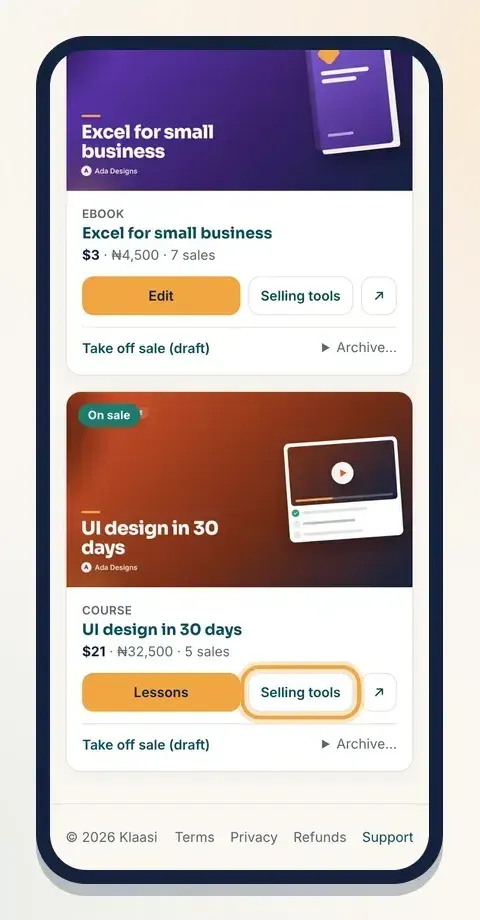
Scroll down to the Order bumps box. It says Offer another product at checkout, at a discount. You'll only see this box when your shop has at least one other product to offer.
Step 2: Set up the bump
The Order bumps box has three fields:
- Product to offer: pick the second product from the list. It shows your other products.
- Headline: the line buyers read next to the tick box, up to 120 characters. Make it about what they get, like "Add the 30-day content calendar" or "Yes, add the workbook".
- Discount %: how much off the bump product, from 0 to 90%. It starts at 30. Type 0 if you don't want a discount.
Tap Add bump.
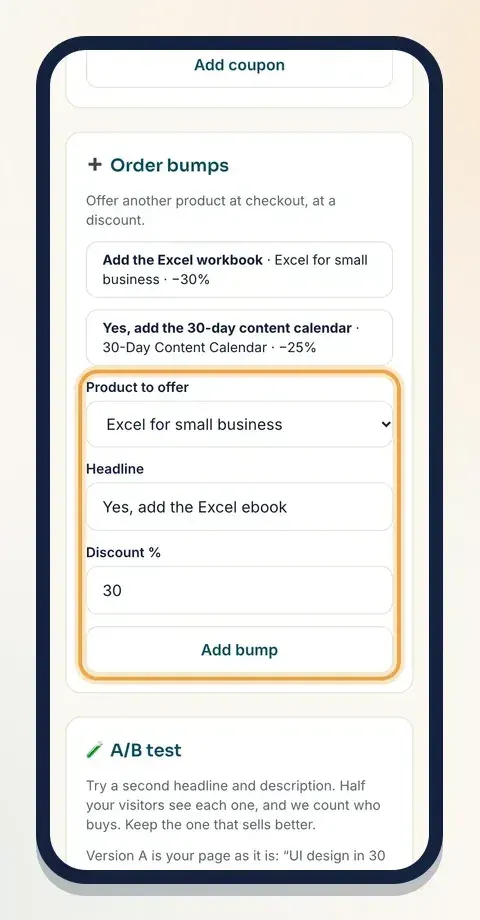
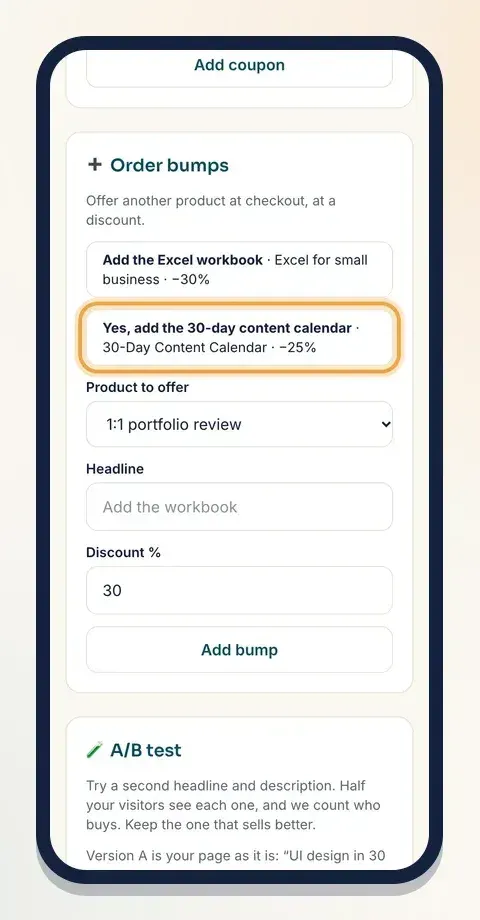
Your bump now shows in the box with its headline, the product's name and the discount. You can add more than one bump to the same product. Buyers can tick any of them.
Step 3: See it the way buyers do
Open your product page (tap View my website, then the product). Right above the buy button there's now an Add to your order section. Each bump has a tick box, your headline, the bump product's name, its normal price crossed out, the lower price and how much they save.
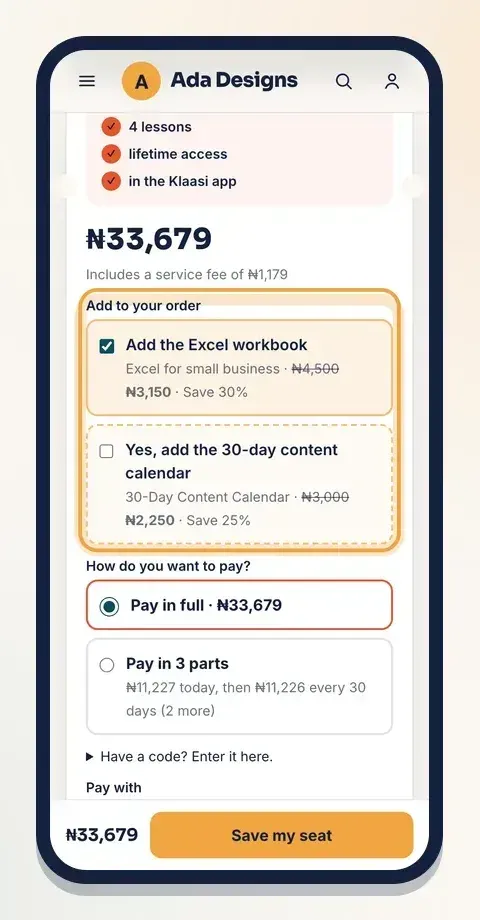
When a buyer ticks it, the bump's price is added to their order when they go on to pay. After one payment, both products land in their library at once.
A few rules Klaasi follows for you:
- A buyer who already owns the bump product doesn't pay for it again.
- The bump uses the same currency as the main product, so a buyer never pays in two currencies.
- The bump only shows while the bump product is live.
Part 2: Bundles
A bundle is a product of its own. It has its own name, price, page and Selling tools, and inside it are other products you already sell. When someone buys the bundle, they get every product you put in it.
Bundles are great for:
- "The complete kit": your course + ebook + templates for less than buying each one.
- A starter pack for beginners.
- A holiday or launch offer.
Step 1: Create the bundle product
- In your dashboard, tap New product.
- Under the first step, pick Bundle (the 🎁 card that says Several of your products together).
- Give it a name, like "Complete Shop Starter Kit", and a short description of what's inside.
- Set the price. Price it lower than the products added up, so the saving is clear.
- Save it.
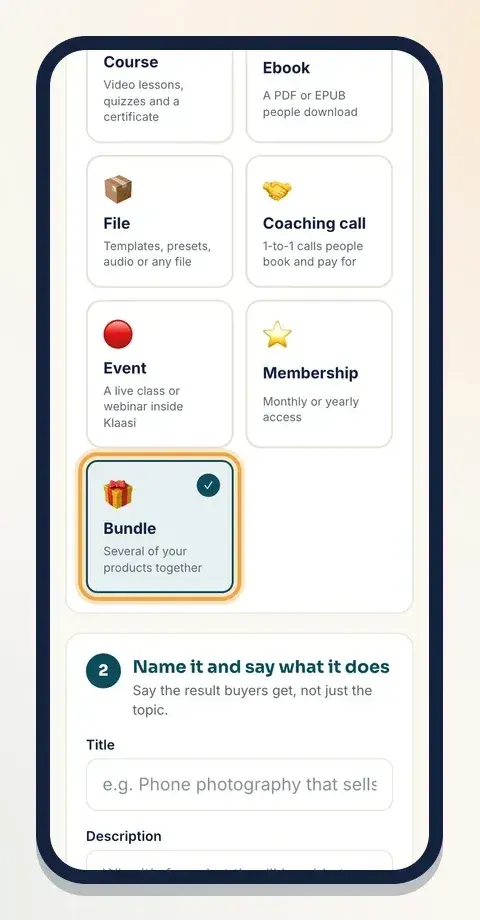
Like every product, you set one price, in naira or dollars. Buyers in Nigeria see naira and everyone else sees dollars; Klaasi works out the other one for you. See how to set prices and discounts.
Step 2: Choose what's inside
Open the bundle's Selling tools. You'll find a box called What's in this bundle, with the line Buyers get every product you tick.
- Tick each product you want inside.
- Tap Save bundle.
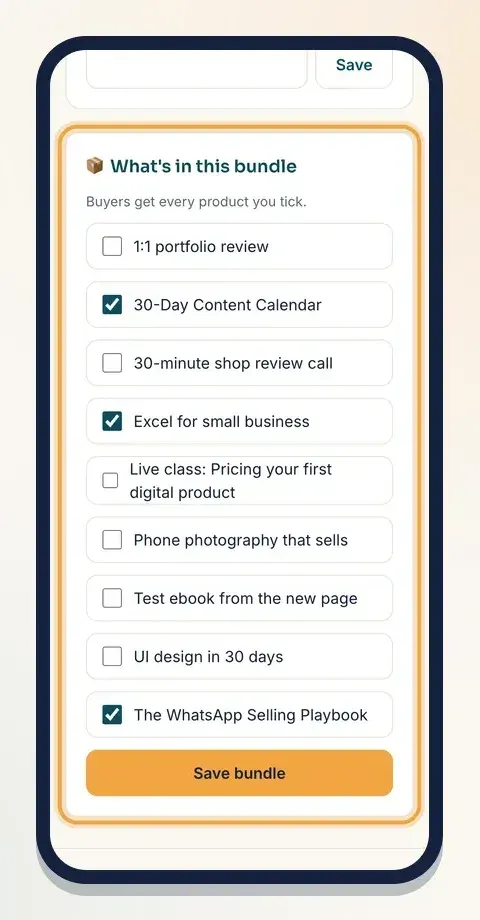
You can come back any time to add or remove products. Buyers who already bought the bundle keep what they got.
Step 3: Check the bundle page
Open the bundle's page on your website and check the name, price and description. Tell buyers exactly what's inside, and how much they save compared with buying each product on its own.
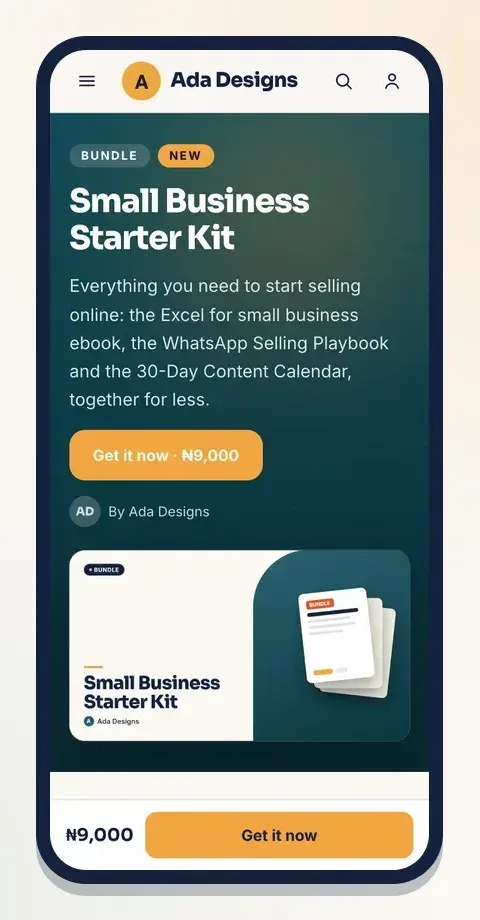
When someone buys the bundle, Klaasi gives them access to every product inside it: courses open in their library, ebooks and files are ready to download, and so on.
Bumps, bundles and the other selling tools
You can use these together with Klaasi's other tools:
- Coupons come off the main product's price. See how to create coupon codes.
- A bundle can have its own coupons and its own order bumps, just like any product.
- Your buyers can also add products to a cart and pay once. Bumps are a quick extra on one product's page; bundles are a fixed set at one price.
Tips that help these sell
- One good bump beats five weak ones. Offer the thing that makes the main product easier to use.
- Write the headline as a "yes". "Yes, add the workbook (save 30%)" reads better than "Workbook".
- Show the saving on a bundle. In the description, list each product and its normal price, then the bundle price.
- Use a cover that looks like a set. Upload a picture showing every product together, or pick an icon on Selling tools.
Common questions
Can I remove a bump? Yes. In the Order bumps box, tap Remove next to the bump. Buyers who already added it keep what they bought.
Can a bump be a coaching call or live class? You can pick any of your other products. Make sure it's something that doesn't need extra steps, like booking a time, so the buyer can just tick and pay.
Do bumps and bundles cost extra? No. They're on every plan. Klaasi's normal fee applies to what the buyer pays.
What to do next
- Give your best buyers a private code: How to create coupon codes on Klaasi
- Let buyers spread the cost: How to use pay what you want and pay in parts
- See which offer sells best: How to track sales with analytics, pixels and A/B tests
Start selling on Klaasi, free
Your shop, courses, live classes and community in one place. Buyers pay in naira or dollars.
Open my free shopKeep reading
How to use the Klaasi developer API, webhooks and AI tools (MCP)
Connect your shop to your own website, Zapier, Make or an AI assistant. Create an API key, pick its permissions, receive signed webhooks for every sale and check them safely.
How to handle refunds and support as a seller on Klaasi
Klaasi has one refund policy for every shop. Buyers message Support, you reply with your side, and Klaasi decides using real evidence. Here's how it works and how to answer a refund request.
How to add team members to your Klaasi shop (and what each role can do)
Invite a helper by email and give them the right role: Editor, Support or Finance. Each role sees only what it needs, and only you can move money. Here's how.