How to design your product page on Klaasi (6 page designs)
Every Klaasi product can wear one of 6 page designs: Classic, Course launch, Ebook, Live class, Coaching and Bold sales page. Here's how to pick one, add your brand colour and words, and preview each design before you choose.
Your product page is where a visitor decides to buy or leave. A course needs to show its lessons. An ebook needs a cover and a peek inside. A live class needs a date and a countdown. A coaching call needs your face and your free times. One plain layout can't do all of that well.
That's why every digital product on Klaasi can use one of 6 page designs, each built for a different kind of product. In this guide you'll learn how to open the page design screen, preview every design on your own product before you choose, pick a brand colour, fill in the words on your page and save.
The 6 page designs
- Classic: clean and simple. Good for anything. Included on every plan.
- Course launch: a preview video, what you'll learn, the outline built from your lessons, the teacher, reviews and a certificate.
- Ebook: a 3D cover, a sample page and the table of contents.
- Live class: a countdown to your next class, the time shown in the buyer's own time zone, and seats left.
- Coaching: your photo, your bookable times and what the session includes.
- Bold sales page: one long letter with a big headline, the problems your buyer has, bonuses, questions and answers, and a Buy bar that stays on screen.
On the Free plan your product pages use Classic. Pro and Business can use all 6 designs, pick a brand colour, choose which sections show and write the words for each part.
Your product page also wears your website theme: its colours, fonts and moving effects. So if your shop uses a dark theme, your product pages feel like part of the same shop. A brand colour you pick for a product (Pro and Business) wins over the theme's main colour on that page.
Step 1: Open Page design
- Open your dashboard and tap Products.
- On the product you want, tap Selling tools.
- At the top of Selling tools, tap 🖌️ Page design ("Pick one of 6 themes, your brand colour and the words on your page").
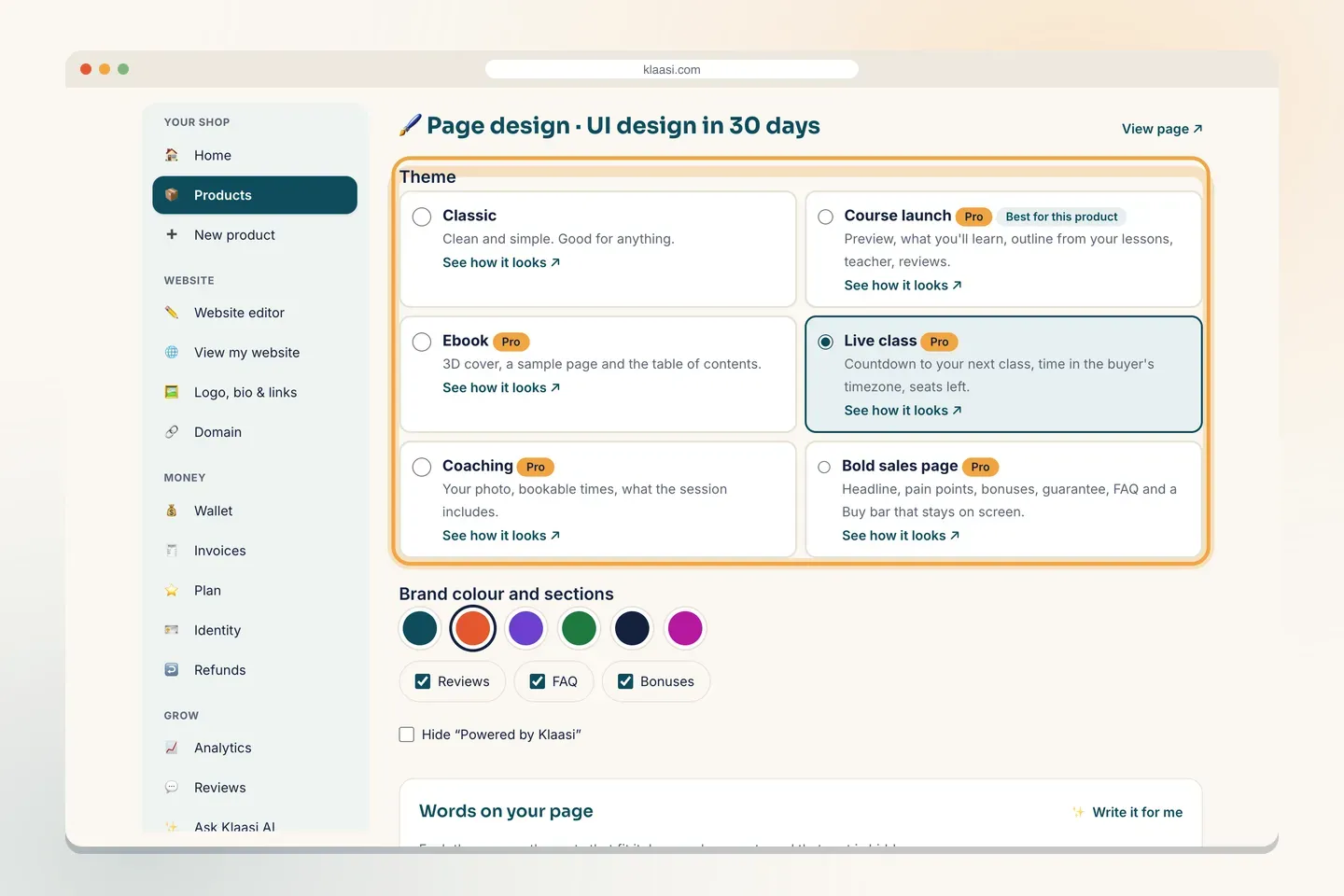
You'll see the 6 designs as cards. Each has a short description and a See how it looks ↗ link. The one that fits your type of product best says Best for this product: Course launch for a course, Ebook for an ebook, Live class for a live class, Coaching for a coaching call.
Step 2: Preview the designs on your own product
You don't have to imagine how a design will look. Tap See how it looks ↗ on any card. Your real product page opens in a new tab wearing that design, with your real title, cover, price and lessons. Nothing is saved, and only you see it.
Behind the scenes, this adds ?theme= to your product's address, for example ?theme=ebook. You can type it yourself too: classic, course, ebook, live, coaching or sales. It works for the owner of the shop only, so visitors never see a half-finished choice. Even on Free you can preview the Pro designs before you decide to upgrade.
Here is what each design looks like on real products in a demo shop.
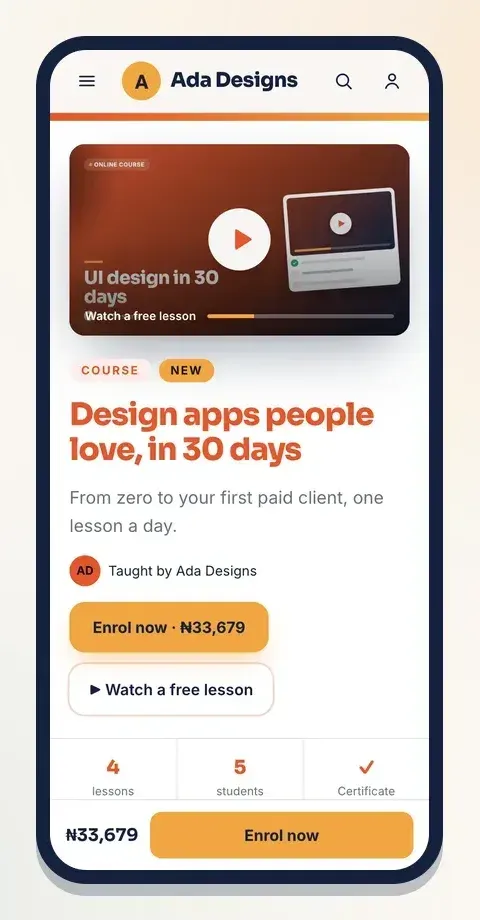
Course launch puts a video player at the top, then the price, a Watch a free lesson button and a stats bar with the number of lessons and students:
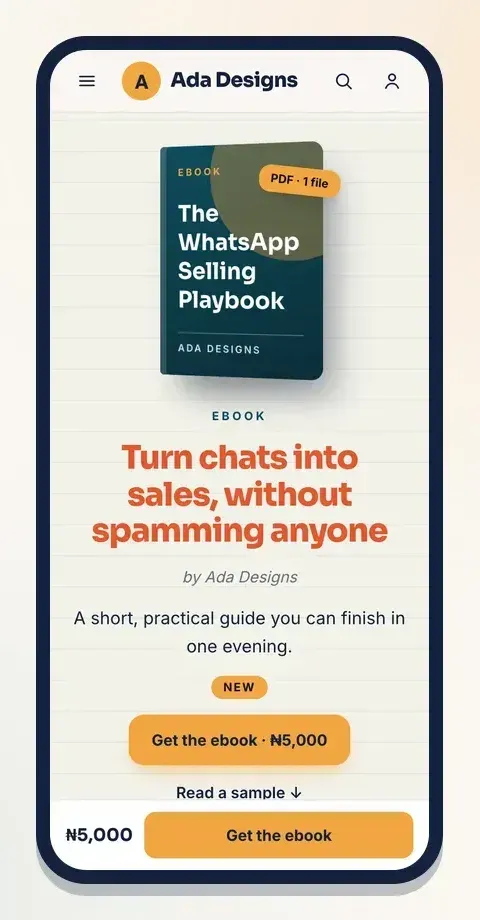
Ebook shows your cover as a 3D book on paper, then your headline, a short description and Read a sample:
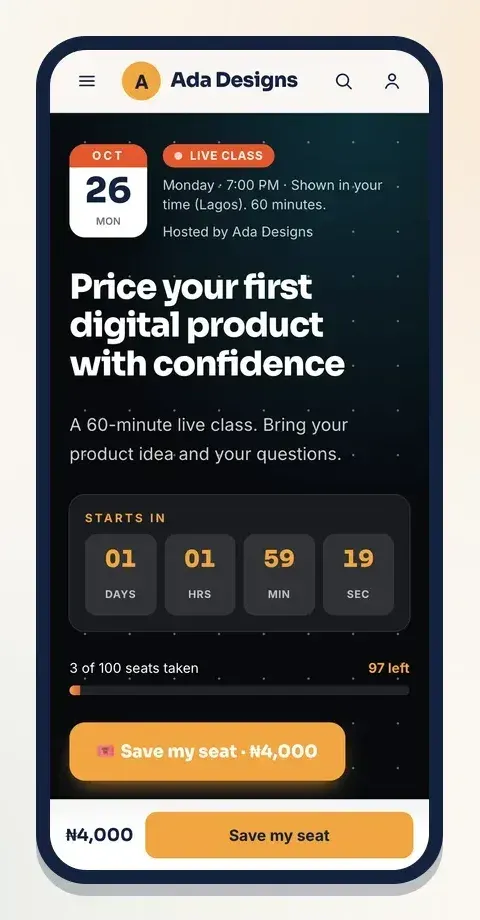
Live class is a night sky with the class date, the time in the buyer's own zone, a live countdown and how many seats are left:
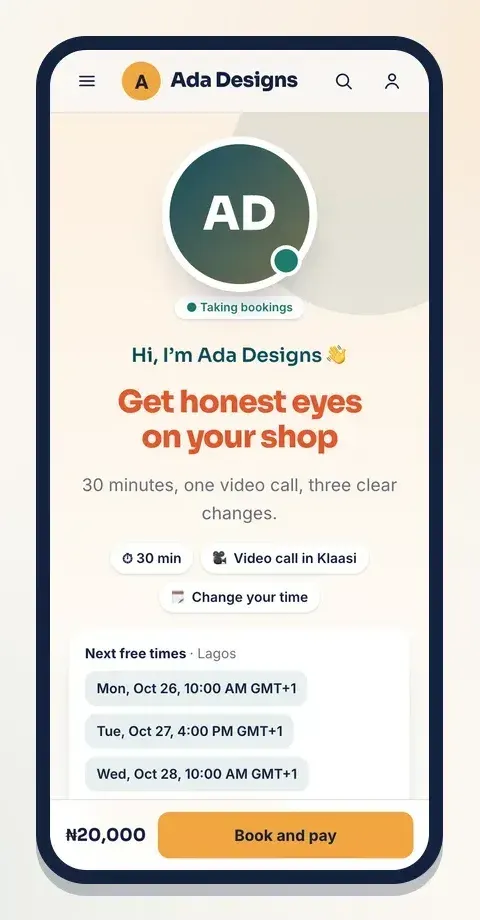
Coaching shows a big photo of you, "Hi, I'm…", how long the call is, and your next free times right at the top:
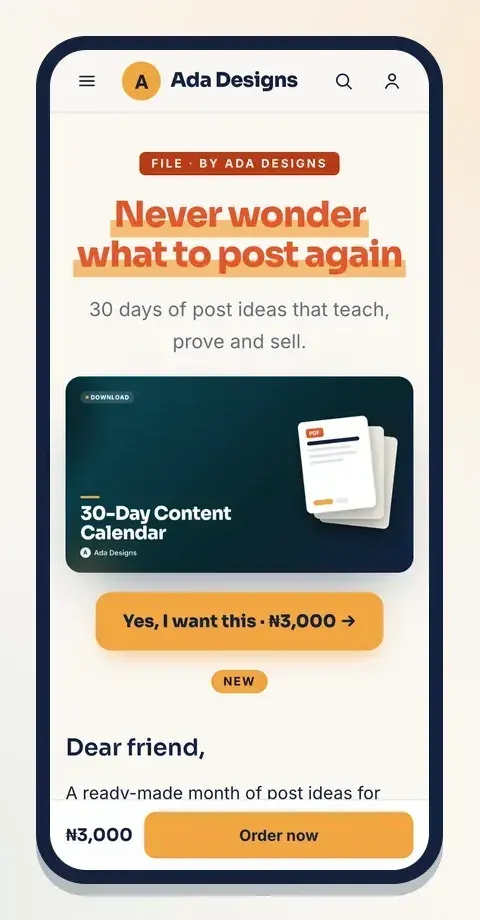
Bold sales page reads like a letter: a marker-style headline, "Dear friend," and a Buy bar fixed at the bottom of the screen:
Step 3: Choose the design
Back on Page design, tap the design you want. The selected card is highlighted. Designs other than Classic show a Pro label. On Free, those cards are greyed out and you'll see: "Your plan includes the Classic theme. Upgrade to Pro for all 6 themes, your brand colour and section controls."
Pick the design that matches how people buy your product:
- Selling a course with many lessons? Course launch shows what's inside.
- An ebook or guide? Ebook lets people see the cover and a sample.
- A one-time class? Live class creates urgency with the countdown and seats.
- One-to-one calls? Coaching puts your free times first.
- One product with a strong story, sold mostly from ads or WhatsApp? Try Bold sales page.
Step 4: Brand colour and sections
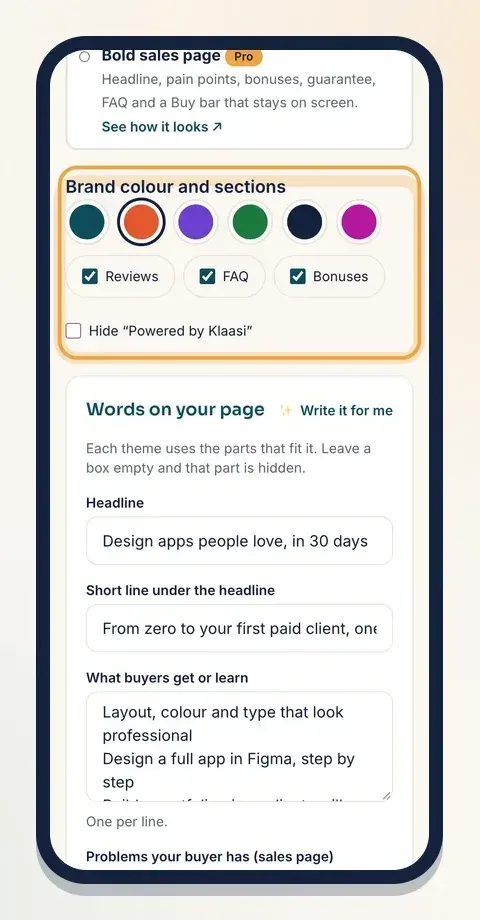
Under Brand colour and sections:
- Tap one of the 6 colour circles. Buttons and highlights on this product's page use it.
- Tick the sections you want to show: Reviews, FAQ and Bonuses. Untick one to hide it.
- On Pro and Business you can tick Hide "Powered by Klaasi".
Step 5: Write the words on your page
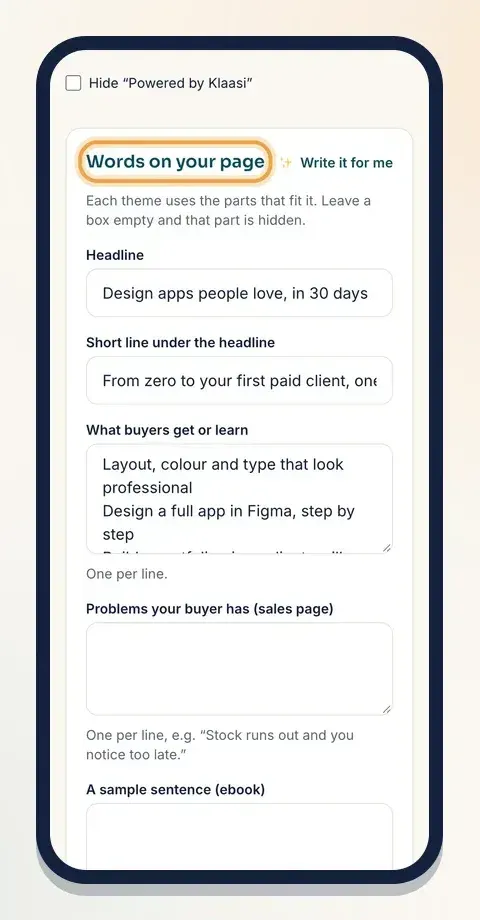
Under Words on your page, fill in the boxes. Each design uses the parts that fit it. Leave a box empty and that part is hidden, so you never show an empty heading.
- Headline: the big promise at the top. Up to 140 characters. If you leave it empty, your product's name is used.
- Short line under the headline: one sentence that says who it's for or what changes.
- What buyers get or learn: one point per line.
- Problems your buyer has (sales page): one per line, for example "Stock runs out and you notice too late."
- A sample sentence (ebook): one line from your book that makes people want more.
- Table of contents (ebook): one chapter per line. Add a page number after a | like this: Your first sheet | 4
- Bonuses (sales page): one per line, with its value after a |, like: Price list template | ₦2,000
- Questions and answers: one per line, like this: question | answer
Stuck for words? Tap ✨ Write it for me next to the heading. It opens Ask Klaasi AI with this product, ready to draft your headline, short line, what buyers get, problems and questions. Read the draft, then tap Use this on my page to put it into these boxes. You can change any word afterwards. It uses your monthly Klaasi AI allowance.
Then tap Save page. You'll see "Page saved." with a View page link.
If you move from Pro back to Free, your page shows Classic, but the words you wrote are kept. When you upgrade again, they come back.
Coaching times live here too
For a coaching product, the same page has 📅 Coaching times at the bottom. Add the dates and times you're free, and how many minutes each call lasts (15 to 240). Buyers pick one when they pay, and they see the times in their own time zone. Without times, buyers pay first and you agree a time with them. More in How to sell coaching calls on Klaasi.
Tips for a page that sells
- Lead with the result, not the product. "Know your real profit every day, in 10 minutes" beats "Excel course".
- Use the buyer's words. The problems box works best with real sentences people send you in DMs.
- Answer the top 3 questions in your FAQ: how long it takes, who it's for, how they get it.
- Add an intro video. People trust what they can see. See How to add an intro video to your product.
- Check on a phone before you share the link.
What to do next
- Add a short video that shows what buyers get: How to add an intro video to your product.
- Make a matching look for your whole shop: How to choose a website theme.
- Make banners for WhatsApp and Instagram: How to make marketing banners for your product.
Start selling on Klaasi, free
Your shop, courses, live classes and community in one place. Buyers pay in naira or dollars.
Open my free shopKeep reading
How to use the Klaasi developer API, webhooks and AI tools (MCP)
Connect your shop to your own website, Zapier, Make or an AI assistant. Create an API key, pick its permissions, receive signed webhooks for every sale and check them safely.
How to handle refunds and support as a seller on Klaasi
Klaasi has one refund policy for every shop. Buyers message Support, you reply with your side, and Klaasi decides using real evidence. Here's how it works and how to answer a refund request.
How to add team members to your Klaasi shop (and what each role can do)
Invite a helper by email and give them the right role: Editor, Support or Finance. Each role sees only what it needs, and only you can move money. Here's how.