How to set up your shop profile on Klaasi: photo, banner, bio and links
Add your logo or photo, a wide banner, a short bio, your social links and contact details, so buyers trust your Klaasi shop the moment they open it.
When someone taps your shop link, they decide in a few seconds if they trust you. A clear photo, a nice banner and two lines about you make a big difference. This guide shows you how to set up your shop profile on Klaasi: your profile photo or logo, your banner, your shop name and bio, your social links, your contact details and your shop's web address.
You can do all of it on your phone in about ten minutes. You don't need a designer.
Where to find your shop profile
- Sign in and open your dashboard.
- In the menu, under Website, tap Logo, bio & links.
This opens the Shop profile page. At the top it says what this page is for: what buyers see at the top of your shop. On the right there's a View my shop button, so you can check your changes as a buyer would.
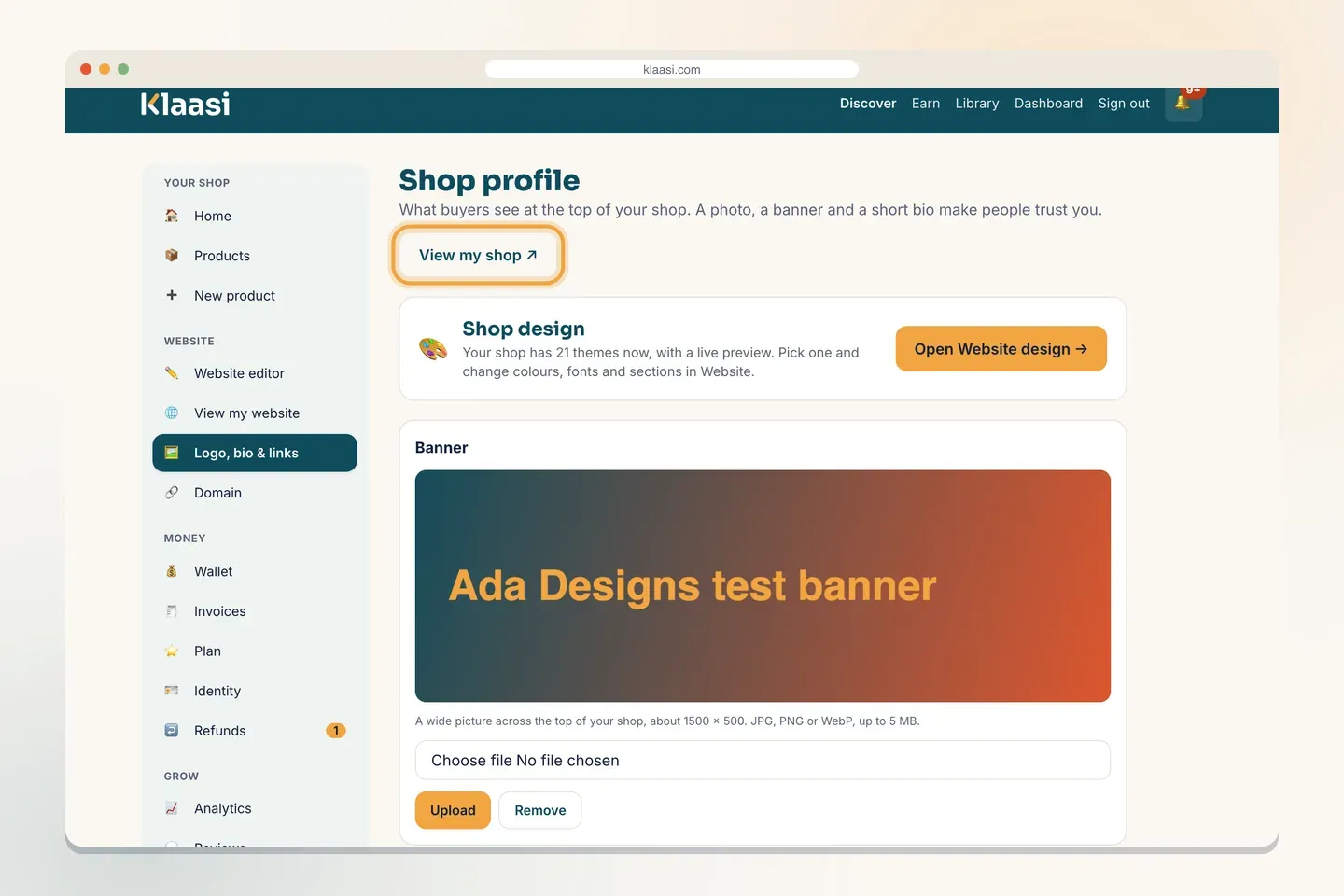
Further down the page you'll see a box called Shop design with an Open Website design button. Themes, colours and fonts live in the Website editor now, so this page is only about you: your pictures, your words and how to reach you.
Step 1: Add a banner
The banner is the wide picture across the top of your shop. Think of it as the sign above a shop door.
- In the Banner box, tap the file button and choose a picture from your phone or computer.
- Tap Upload.
- You'll see Banner updated. and the new picture in the box.
What works well:
- Size: about 1500 × 500 pixels (three times wider than it is tall).
- Type: JPG, PNG or WebP, up to 5 MB.
- Content: your products, your workspace, or simple colours with your brand name. Keep important things in the middle, because phones cut a little off the sides.
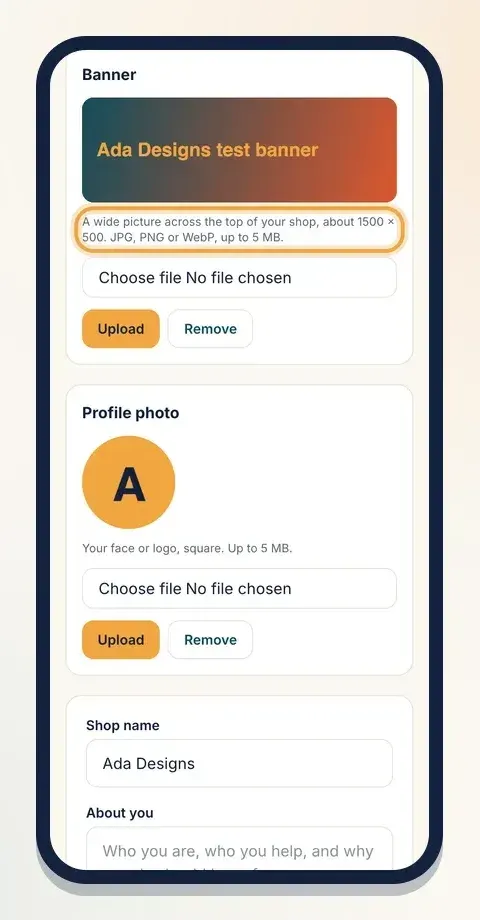
Changed your mind? Tap Remove to take the banner off. Your shop then shows a plain colour band instead.
Step 2: Add your profile photo or logo
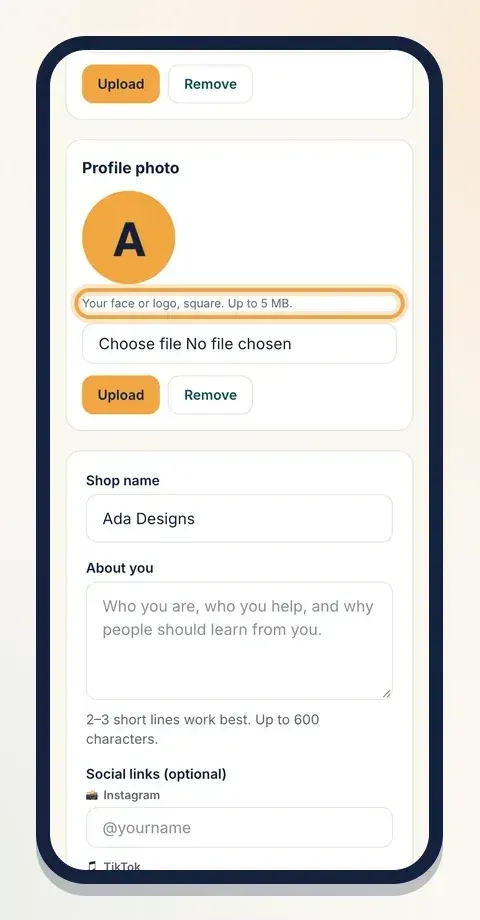
Your profile photo sits in a circle near your shop name. Buyers see it at the top of your shop.
- In the Profile photo box, choose a picture.
- Tap Upload. You'll see Profile photo updated.
Use a square picture, up to 5 MB. If you sell as yourself (a coach, a teacher, a creator), use a clear, friendly photo of your face. If you sell as a brand, use your logo on a plain background.
Until you add a picture, Klaasi shows the first two letters of your shop name in a coloured circle. It works, but a real photo or logo builds much more trust.
Step 3: Check your shop name and write your bio
Scroll down to the main form.
Shop name
Shop name is the name buyers see at the top of your shop and on your products. You typed it when you opened your shop, and you can change it here any time. Use the name people already know you by, up to 80 characters.
About you
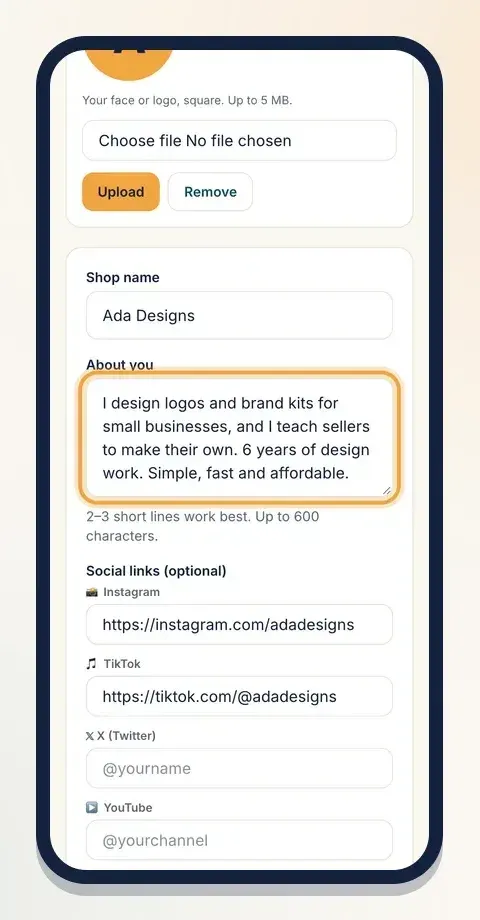
About you is your short bio. The page gives a good hint: who you are, who you help, and why people should learn from you (or buy from you).
- Keep it to 2–3 short lines. You have up to 600 characters, but short reads better on a phone.
- Say who it's for and what they get.
- Add one fact that builds trust: years of experience, how many people you've served, or what makes your work different. Only write what's true.
Here's an example:
I design logos and brand kits for small businesses. 6 years, 300+ brands. I keep it simple, fast and affordable.
Step 4: Add your social links
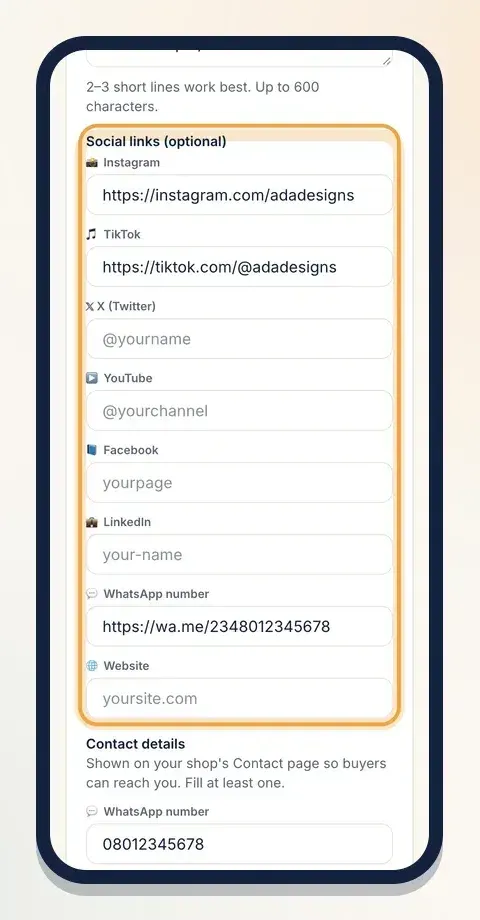
Under Social links (optional) you can add:
- Instagram, TikTok, X (Twitter) and YouTube: type your handle, like @yourname.
- Facebook: your page name.
- LinkedIn: the end of your profile address.
- WhatsApp number: with your country code and no plus sign, like 2348012345678.
- Website: if you have another website, like yoursite.com.
When you save, Klaasi turns each handle into a full link (for example @yourname becomes your Instagram address), so you'll see the links in the boxes next time.
Fill in only the ones you really use. An empty, forgotten account looks worse than no link at all. Your links show as small icons on your shop, so buyers can see you're real and follow you.
Step 5: Add your contact details
Under Contact details, add how buyers can reach you. These show on your shop's Contact page. Fill at least one:
- WhatsApp number
- Phone
- Address (optional, useful for shops people can visit)
Then tap Save profile. You'll see Profile saved.
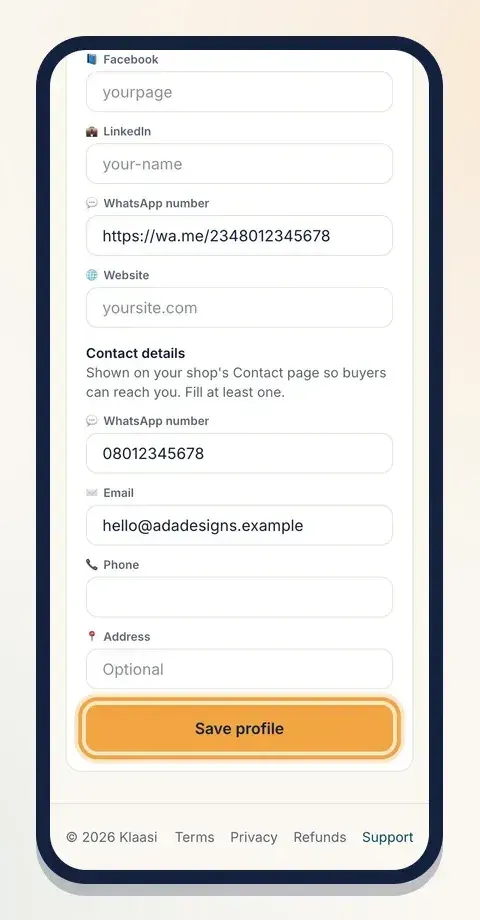
Tip: if you use a business WhatsApp number, put the same number in both places, so buyers always reach the right phone.
Step 6: Know your shop's web address
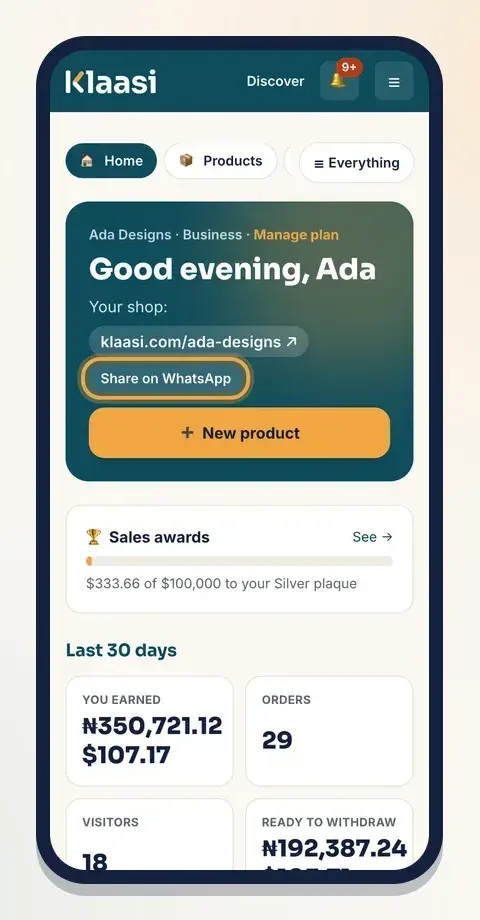
Your shop's web address was chosen when you opened your shop. It looks like klaasi.com/yourname, and it's the link you share everywhere. You'll find it on your dashboard home next to Your shop:, with a Share on WhatsApp button beside it.
A few things to know:
- The address uses lowercase letters, numbers and dashes, 3 to 30 characters.
- Some words are kept for Klaasi's own pages (like "pricing" or "blog"), so they can't be shop addresses.
- You can't change the address yourself from the profile page. Your old links keep working, so choose well and keep it. If you really need a different one, send us a message from the Support page.
Want your own domain?
On the Pro and Business plans you can open your shop on your own name, like yourbrand.com. Open Domain in the menu to search for one. See How to connect a domain to your shop.
Step 7: Look at your shop as a buyer
Tap View my shop at the top of the Shop profile page. Your shop opens in a new tab. Check:
- Is the banner sharp, with nothing important cut off?
- Does your photo or logo look clear in the small circle?
- Does your bio read well in a few seconds?
- Do your social icons open the right accounts?
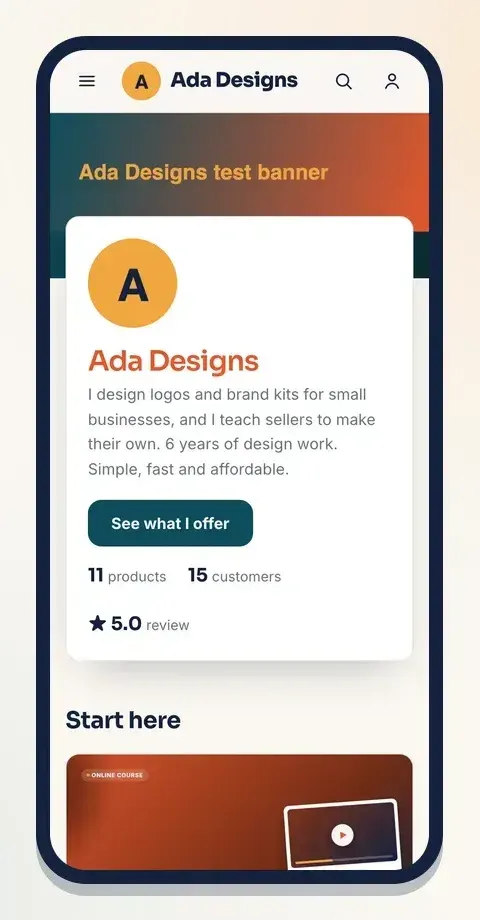
If something looks off, go back, change it and save again. Changes on this page show straight away. You don't need to publish anything.
Tips for a profile that sells
- Use the same photo everywhere. If your Instagram and WhatsApp use the same picture, buyers know they're in the right place.
- Show your face if you teach or coach. People buy from people.
- Say who you help, not just what you do. "I help new sellers take product photos with a phone" is clearer than "Photographer".
- Keep it fresh. Change the banner for a sale, a new collection or a new course.
What to do next
Your profile is the first step. Next, make your whole website look like your brand:
Ready? Open your shop profile and add your photo, banner and bio today.
Start selling on Klaasi, free
Your shop, courses, live classes and community in one place. Buyers pay in naira or dollars.
Open my free shopKeep reading
How to use the Klaasi developer API, webhooks and AI tools (MCP)
Connect your shop to your own website, Zapier, Make or an AI assistant. Create an API key, pick its permissions, receive signed webhooks for every sale and check them safely.
How to handle refunds and support as a seller on Klaasi
Klaasi has one refund policy for every shop. Buyers message Support, you reply with your side, and Klaasi decides using real evidence. Here's how it works and how to answer a refund request.
How to add team members to your Klaasi shop (and what each role can do)
Invite a helper by email and give them the right role: Editor, Support or Finance. Each role sees only what it needs, and only you can move money. Here's how.