How to run a paid live class on Klaasi (no Zoom needed)
Sell seats to a live class or webinar and teach it inside Klaasi with camera, mic and screen sharing. Set the class time, let Klaasi send the reminders, and buyers join from their library.
A live class is one of the fastest ways to earn from what you know. You pick a date, people pay for a seat, and you teach them live. On Klaasi there is no Zoom link to send and no separate app to install. The class room is inside Klaasi, your buyers get email reminders, and they join with one tap from their library.
This guide shows you how to create a paid live class, schedule the time, run the room with camera, mic and screen sharing, and what your buyers see from the moment they pay.
What you need
- A topic and a promise. "Price your first digital product with confidence" is clearer than "Pricing class".
- A date and time. Pick a time that suits most of your buyers. Klaasi shows each buyer the time in their own time zone.
- A phone or computer with a camera and mic. A computer is best if you want to share your screen.
- Earphones. They give the clearest sound and stop echo.
Step 1: Create the live class product
- Open your dashboard and tap New product.
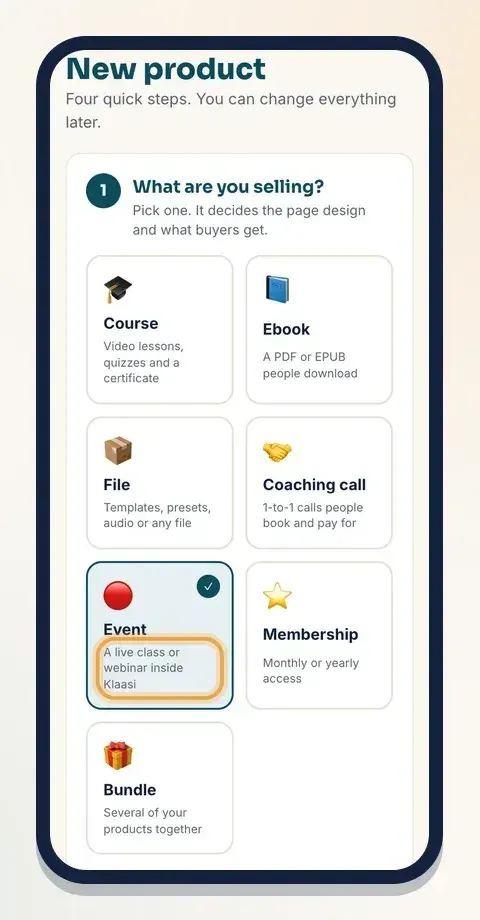
- Under What are you selling?, tap Event: "A live class or webinar inside Klaasi".
- Type the Title and Description. Say who it's for, what they'll be able to do after the class, and how long it is.
- Under Set your price, choose ₦ Naira or $ Dollars and type one price. Klaasi works out the other currency for you.
- Choose Who pays the Klaasi fee? and tap Create product.
Step 2: Set the class date and time
Right after you create it, Klaasi opens the Live classes page for your product. (Later, tap the class in Products to come back to it.)
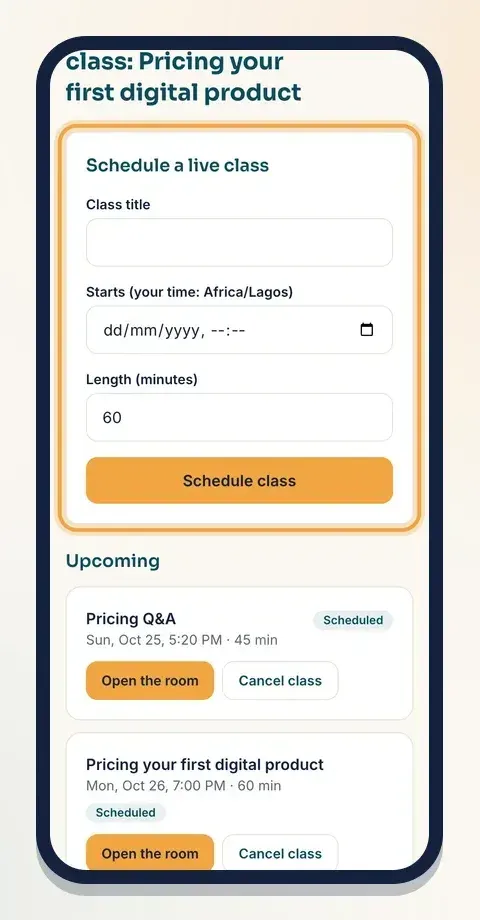
In Schedule a live class:
- Type the Class title, for example "Pricing your first product".
- Pick the date and time in Starts. The label shows your own time zone, so you always know which time you're setting.
- Set the Length (minutes): anything from 15 to 360 minutes. The usual is 60.
- Tap Schedule class.
You'll see "Class scheduled. Students will be reminded 24 hours and 1 hour before."
Running the same class more than once? Schedule another time below it. You can also make Cohorts, like "November 2026", with a start date and an optional number of seats, then choose which cohort each class is for.
Step 3: Make the page sell your seats
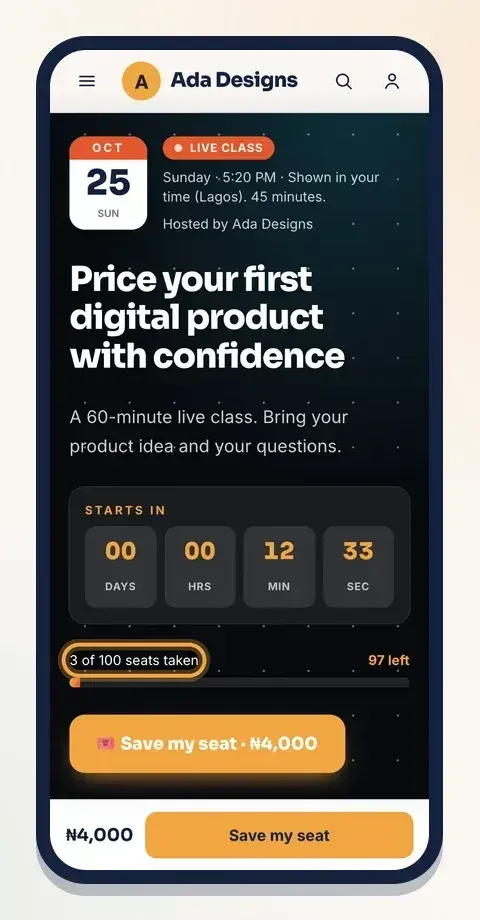
Go to Selling tools → Page design and pick the Live class theme. Klaasi marks it Best for this product. It shows a countdown to your next class, the time in the buyer's own time zone and how many seats are left. The other themes and your brand colour are on Pro and Business; Classic works on every plan.
In Words on your page, fill in What buyers get or learn (one point per line) and a few Questions and answers, like "What if I miss it? | The recording is added after class."
Share the page link on WhatsApp, Instagram and anywhere your audience is. The countdown makes people act.
Step 4: Klaasi sends the reminders
You don't need to message every buyer. For each class, Klaasi emails everyone who bought:
- 24 hours before the class, and
- 1 hour before the class.
Each reminder shows the time in the buyer's own time zone and has the link to join. If you have to cancel a class time, tap Cancel class and then Yes, cancel this class. Everyone who bought gets an email that this class time is cancelled, so no one waits in an empty room.
Step 5: What your buyer sees
After paying, the buyer's thank-you page has See your class time. In My library, the class shows under Live & calls with Class times & join, and the next class time is shown on the card.
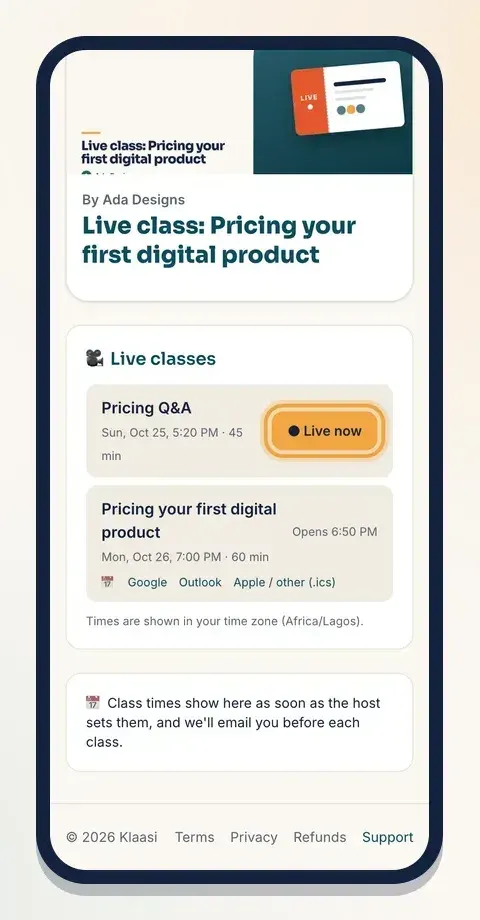
The class page lists every class time. Under each one there are buttons to add it to Google, Outlook or Apple / other (.ics) calendars. The times are shown in the buyer's own time zone.
The room opens 10 minutes before the start. Before that, the buyer sees when it opens, like "Opens 6:50 PM". Once it's open, a Join class button appears, and while you're teaching it shows Live now.
Step 6: Teach the class
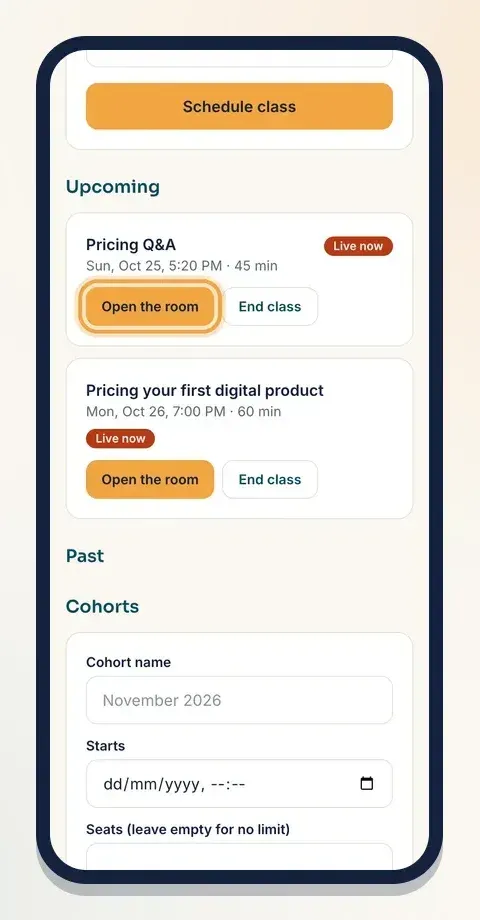
On your Live classes page, each upcoming class has Open the room. As the host, you can open it early to get ready. The room stays open until 30 minutes after the planned end, so you can take extra questions.
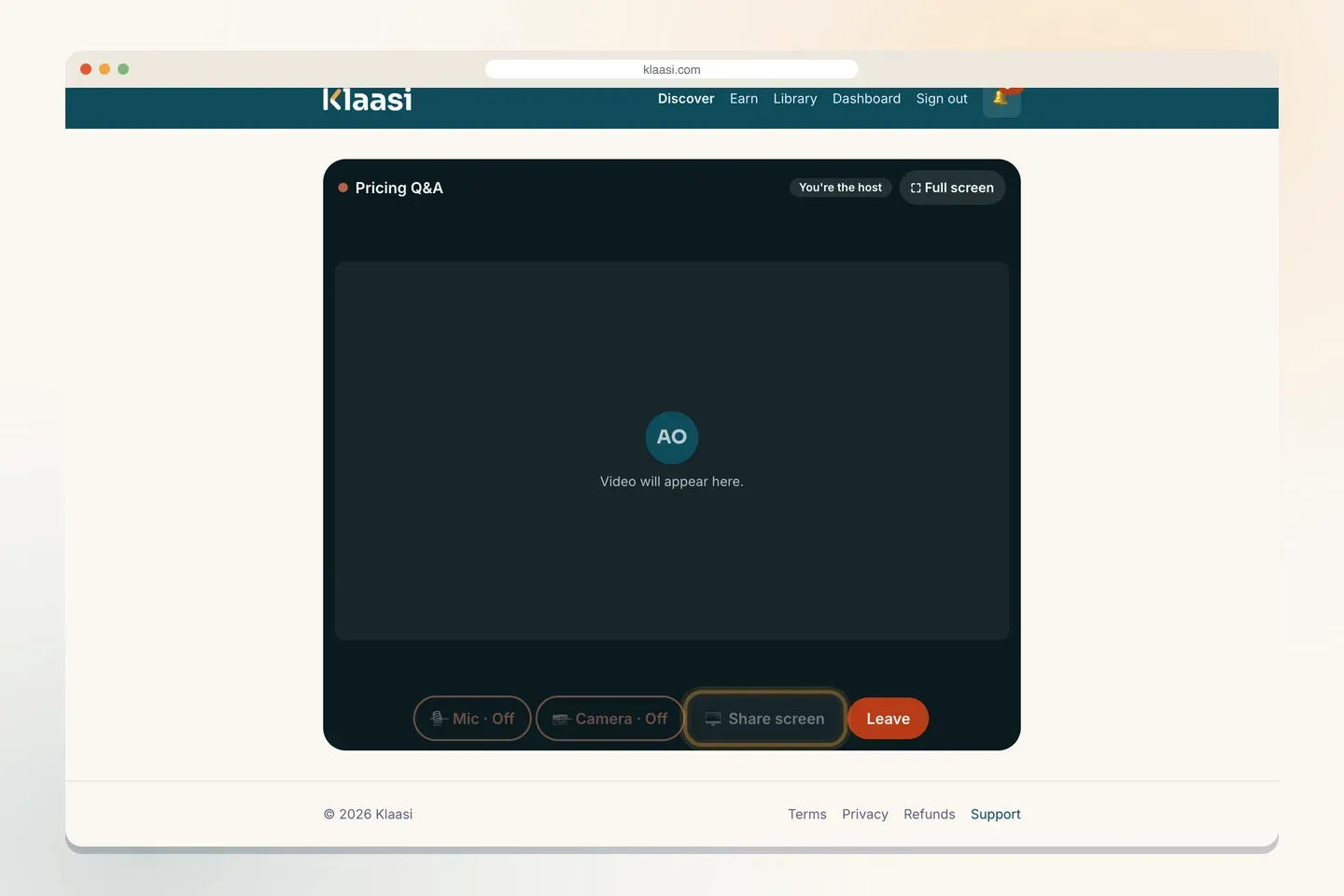
Inside the room:
- Your camera and mic start on because you are the host. You'll see "You're the host" at the top.
- Students join to watch and listen. If they want to speak or be seen, they tap Mic or Camera. Each button shows On or Off, so everyone can see who's talking.
- Share screen shows your slides, a spreadsheet or a website. It works in desktop browsers (Chrome, Edge, Firefox, Safari). A shared screen shows big and first. Tap Stop sharing when you're done.
- Full screen fills the whole screen with the class.
- Leave takes you out of the room.
If someone has blocked their camera or mic in the browser, Klaasi shows a tip on how to allow it, instead of an error.
Tip: ask everyone to use earphones and mute their mic when they're not talking. Klaasi shows the same tip in the room.
Step 7: After the class
When you're done, tap End class on the Live classes page. The class moves to Past, with how many people attended.
Recorded the class? Paste the link in Recording link (https://…) and tap Add to course. Klaasi adds it as a lesson, so buyers who missed it can watch it later.
A quick checklist before you go live
Run through this list 15 minutes before the start:
- Charge your phone or plug in your laptop. A class drains the battery fast.
- Test your internet. Sit close to the router, or use mobile data with a strong signal.
- Open your slides or the website you'll show, so Share screen is one tap away.
- Find a quiet room with light in front of you, not behind you, so students can see your face.
- Open the room early. As the host you can go in before the students and check your camera and mic.
- Have a plan for questions. Many hosts answer questions in the last 15 minutes.
Ideas that work well
- A paid workshop on one clear skill, 60 to 90 minutes.
- A monthly Q&A for your course students.
- A launch class: teach live, then offer your course at the end.
- Cohorts for a programme that starts on a fixed date, with limited seats.
Good to know
- Buyers join in the browser on a phone or computer, with no app to download.
- A buyer can only join if they bought the class (or are in the right cohort).
- You can schedule as many class times as you need for the same product.
- Your earnings move to your wallet as normal. See how to get paid and withdraw.
What to do next
- Offer one-to-one sessions too: how to sell coaching calls on Klaasi.
- Turn your class into a full course: how to create and sell a course.
- Fill seats faster with coupon codes.
Start selling on Klaasi, free
Your shop, courses, live classes and community in one place. Buyers pay in naira or dollars.
Open my free shopKeep reading
How to use the Klaasi developer API, webhooks and AI tools (MCP)
Connect your shop to your own website, Zapier, Make or an AI assistant. Create an API key, pick its permissions, receive signed webhooks for every sale and check them safely.
How to handle refunds and support as a seller on Klaasi
Klaasi has one refund policy for every shop. Buyers message Support, you reply with your side, and Klaasi decides using real evidence. Here's how it works and how to answer a refund request.
How to add team members to your Klaasi shop (and what each role can do)
Invite a helper by email and give them the right role: Editor, Support or Finance. Each role sees only what it needs, and only you can move money. Here's how.