How to sell an ebook on Klaasi (step by step, with pictures)
Turn your PDF or EPUB into a product people can buy and download in minutes. Create the ebook, upload the file, pick a cover and use the Ebook page design.
By the end of this guide you will have an ebook on sale in your Klaasi shop. You will know how to create the product, upload your PDF or EPUB, give it a cover, dress the page with the Ebook design, and check what your buyer gets after paying.
You don't need a website, a designer or any special software. If you have the finished file on your phone or computer, you can be selling it today.
Before you start
Have these ready:
- Your ebook file. A PDF works on every phone. EPUB is fine too.
- A title that says the result. "The WhatsApp Selling Playbook" is good. "Turn chats into sales, without spamming anyone" as a short line under it is even better.
- Your price. One price, in naira or in dollars. Klaasi works out the other one for you.
- A cover picture (optional). If you don't have one, Klaasi designs one from your title, or you can pick an icon picture.
Step 1: Create the ebook
Open your dashboard and tap New product (it is also in the menu, under Products). The page walks you through four quick steps on one screen.
- Under What are you selling?, tap Ebook. It says "A PDF or EPUB people download".
- Under Name it and say what it does, type the Title and a short Description. Say who it's for, what they'll be able to do and what's inside. Short paragraphs read best on phones.
- Under Set your price, pick ₦ Naira or $ Dollars and type one price. More on this below.
- Choose Who pays the Klaasi fee? Most sellers pick I pay it (buyers see a clean price).
- Leave Put it on sale now ticked if you want it live straight away, then tap Create product.
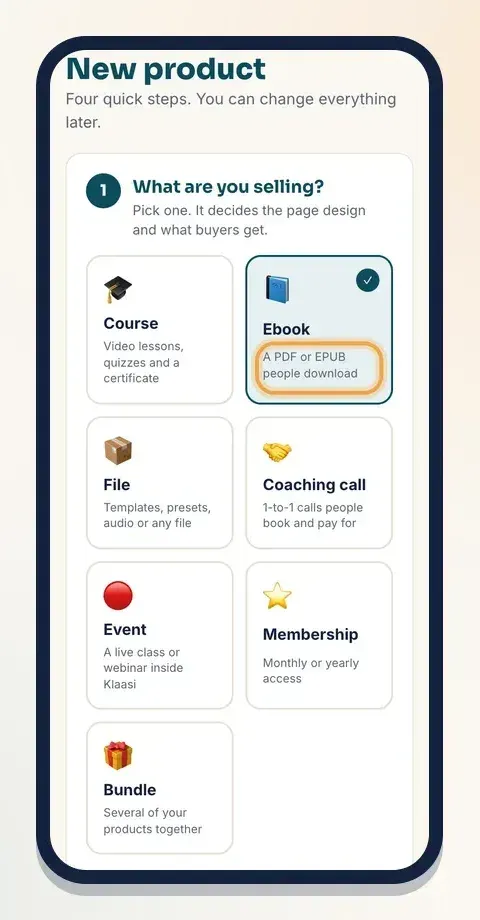
About the price
You set one price. If you type it in naira, buyers in Nigeria pay that naira price and buyers everywhere else pay in dollars, worked out at Klaasi's rate. If you type it in dollars, it works the other way round. The box under the price tells you who pays in which currency, and that you still get your own price (minus fees). For the full story, read how to set prices and discounts.
Step 2: Upload your ebook file
After you tap Create product, Klaasi takes you to Selling tools for your ebook. Scroll to Cover and files.
- Find Files buyers download.
- Tap the file box and choose your PDF or EPUB.
- Tap Upload file.
You'll see "File uploaded. Buyers can download it from their library." and your file appears in the list with its size.
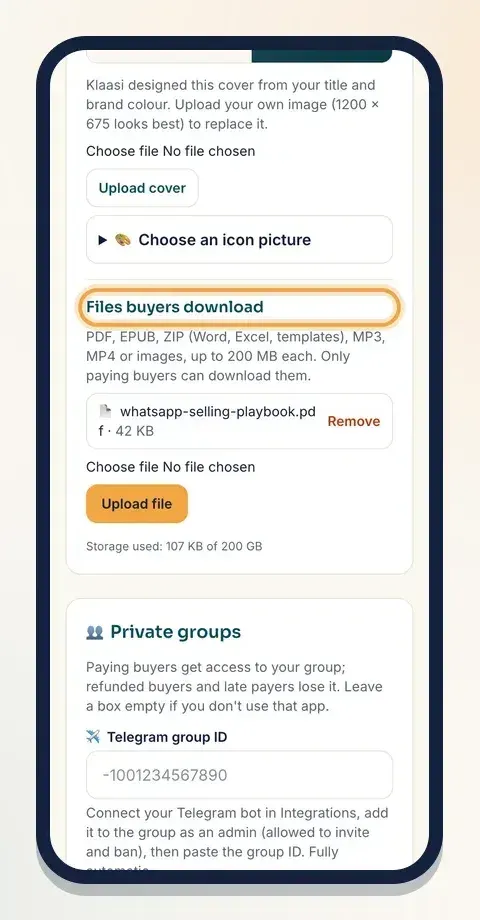
A few things worth knowing:
- Each file can be up to 200 MB. PDF, EPUB, ZIP, Word, Excel, PowerPoint, MP3, MP4 and pictures are allowed.
- You can add more than one file, for example the ebook plus a printable worksheet.
- Only paying buyers can download. The file is not public.
- Files count toward your plan's storage. The line under the box shows how much you've used. Free has 2 GB, Pro 50 GB and Business 200 GB.
Important: an ebook with no file is hidden from your shop and can't be bought. Klaasi does this so no one pays for an empty product. Upload the file first.
Step 3: Give it a cover
Your cover shows on your product page, in your shop, on Discover and when someone shares the link. You have three choices, all in the same Cover and files box:
- Do nothing. Klaasi has already designed a cover from your title and brand colour.
- Upload your own picture. Tap the cover file box, choose an image and tap Upload cover. A wide picture of 1200 × 675 looks best. An uploaded photo always wins.
- Pick an icon picture. Open Choose an icon picture, tap a group like "🎓 Courses & learning" or "💰 Money & business" and pick an icon. Klaasi draws it big on your product's colour. It's a quick way to get a clean cover without a designer.
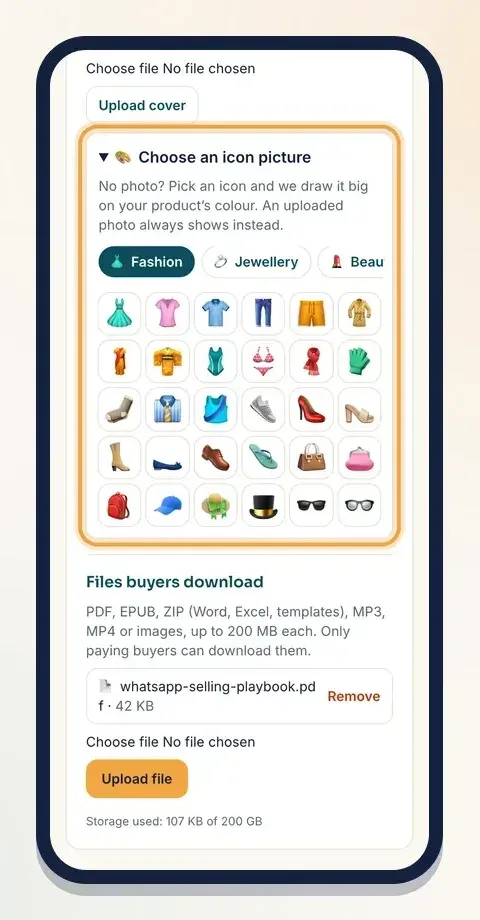
You can also add up to 6 extra pictures under More pictures, such as sample pages or screenshots. They show on your product page.
Step 4: Use the Ebook page design
At the top of Selling tools, tap Page design. Here you choose how your product page looks.
- Under Theme, pick Ebook. Klaasi marks it Best for this product. It shows a 3D cover, a sample page and the table of contents.
- Tap See how it looks to open a preview in a new tab before you save.
- Pick a brand colour if you like.
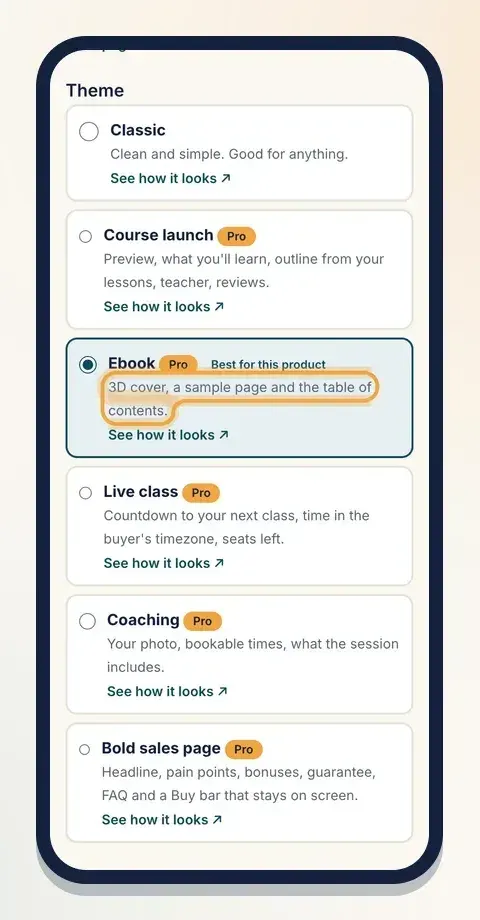
The Classic theme is on every plan. The other five themes, including Ebook, your brand colour and the section switches are on Pro and Business.
Step 5: Fill in the words buyers read
Still on Page design, scroll to Words on your page. Each theme uses the parts that fit it, and empty boxes are simply hidden. For an ebook, these matter most:
- Headline and Short line under the headline. The promise of the book in a few words.
- What buyers get or learn. One point per line.
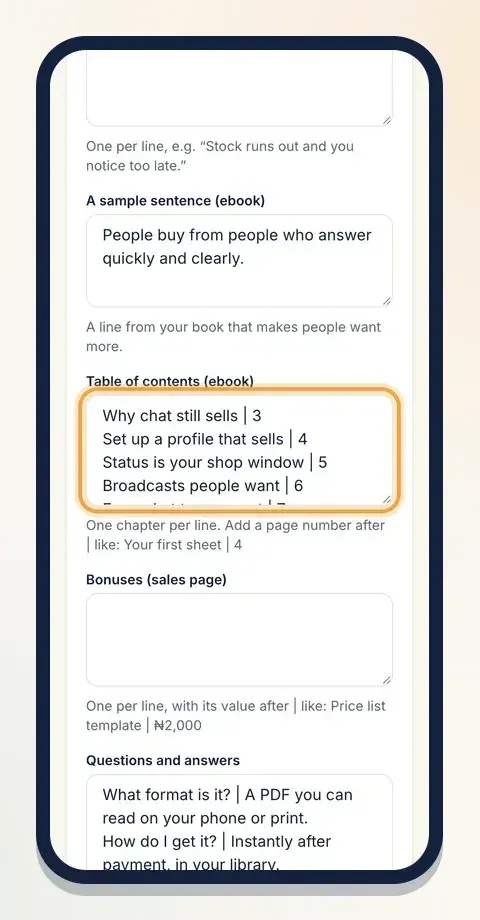
- A sample sentence (ebook). One line from your book that makes people want more. It shows as "Read a page first".
- Table of contents (ebook). One chapter per line. Add a page number after a | sign, like "Why chat still sells | 3".
- Questions and answers. One per line: question | answer. For example "What format is it? | A PDF you can read on any phone."
Stuck for words? Tap Write it for me and Klaasi AI drafts them from your product. Read and edit before you save. Then tap Save page.
Step 6: Check your live page
Tap View page to see what buyers see. With the Ebook theme your page shows the cover as a 3D book, the chapter list, your sample line, what they'll learn and the buy box. The buy box also says how many files are included and "lifetime access".
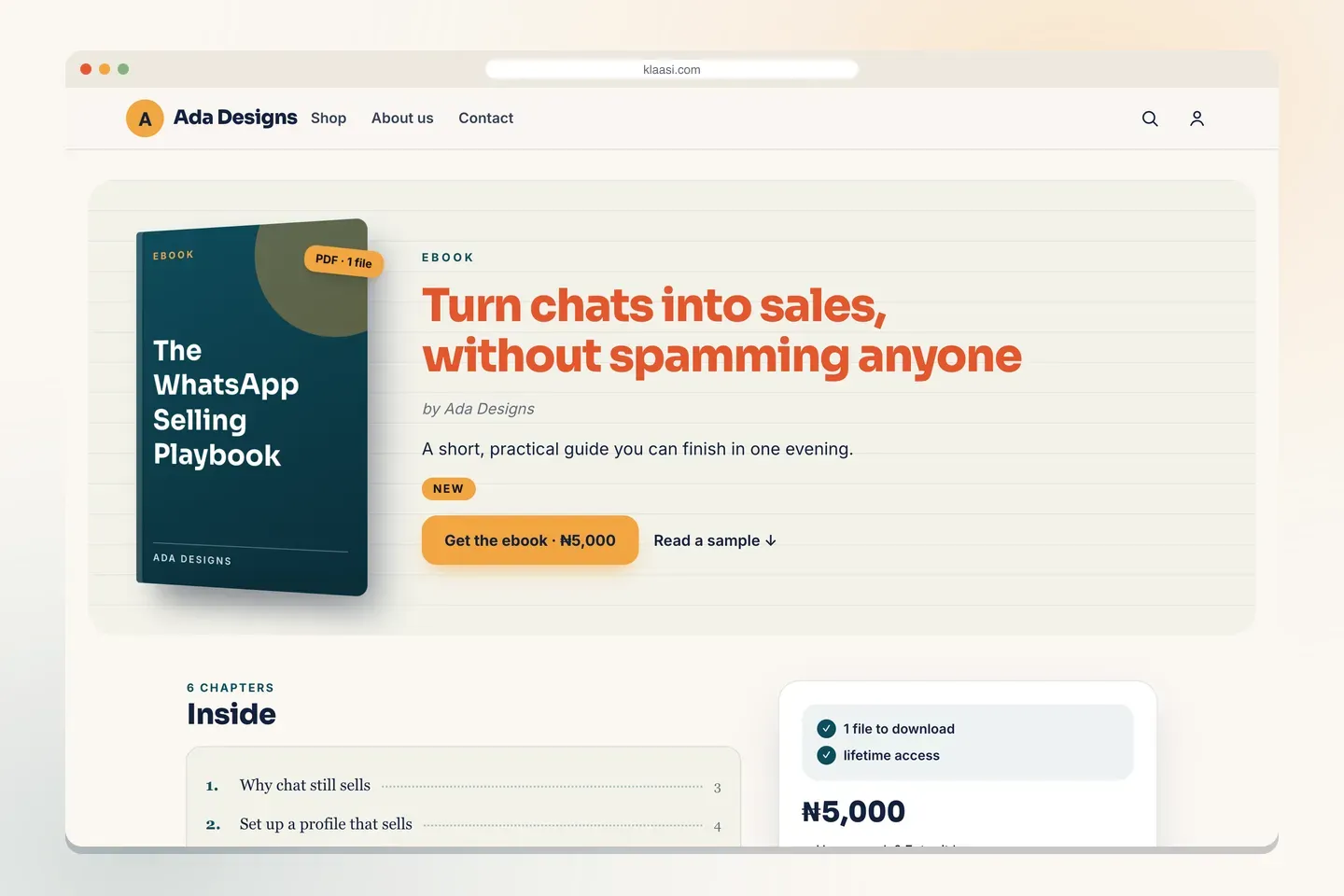
Scroll down and buyers see the chapter list under Inside, your sample line under Read a page first, and the buy box beside them.
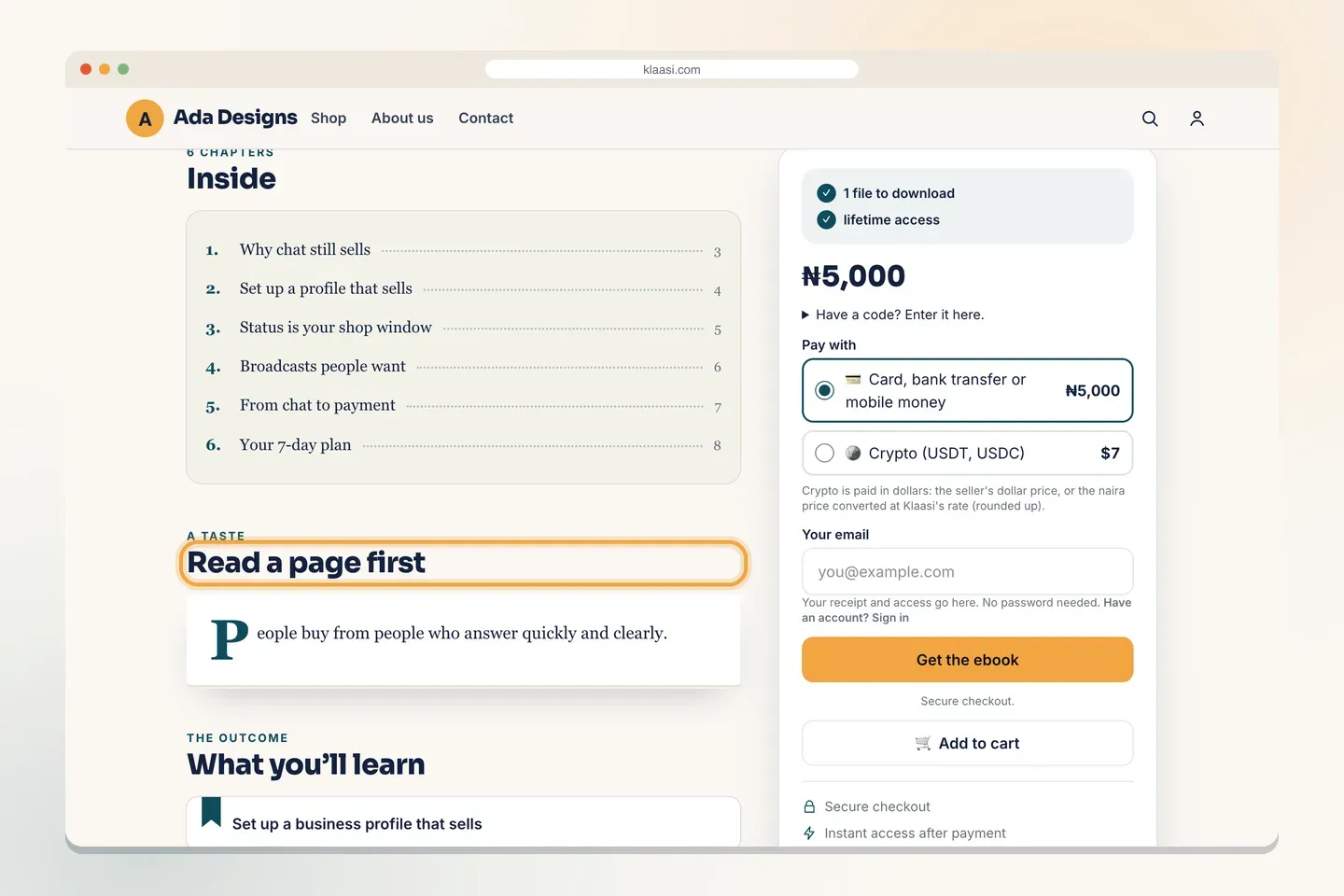
Buyers can pay by card, bank transfer or mobile money, or with crypto if it's switched on, through secure checkout. They can also tap Add to cart and buy your ebook together with other products from your shop in one payment.
What your buyer gets
As soon as the payment is confirmed:
- The thank-you page says Payment confirmed with an Open it now button.
- A receipt goes to their email.
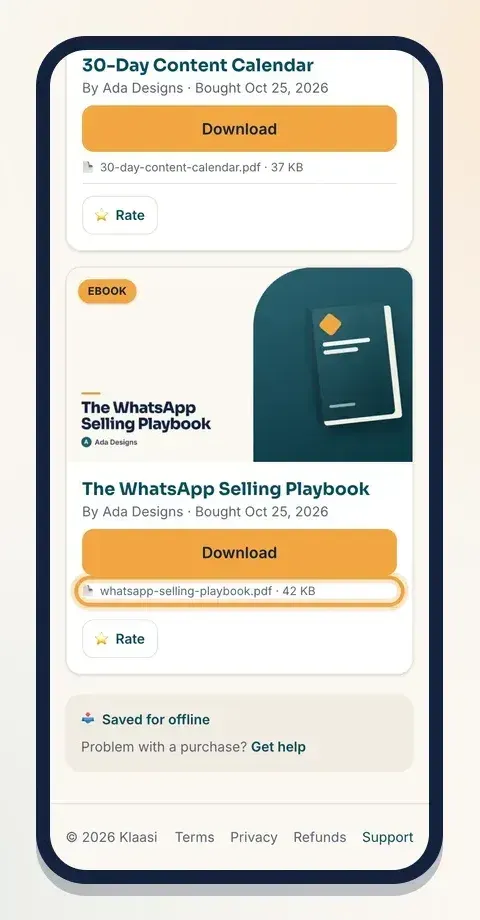
- The ebook is in My library, under the Downloads tab, with a big Download button. If you added several files, each one is listed with its size.
Buyers don't need a password. They sign in with their email and a 6-digit code, on any phone or computer, and can download the book again any time.
Tips that help ebooks sell
- Sell the result, not the topic. "Sell more on WhatsApp in 7 days" beats "WhatsApp marketing".
- Show the inside. A table of contents and one sample line remove doubt.
- Keep it focused. A short, practical ebook people can finish in one evening is easier to buy than a huge one.
- Share the link everywhere. Your page link is
klaasi.com/your-shop/your-ebook. Put it in your bio, status and broadcasts. - Add an intro video. A one-minute video of you flipping through the book builds trust. See how to add an intro video.
What to do next
- Give buyers a reason to act now with prices and discounts.
- Make your page look its best with how to design your product page.
- Let others sell your ebook for a commission: how to set up affiliates for your product.
Start selling on Klaasi, free
Your shop, courses, live classes and community in one place. Buyers pay in naira or dollars.
Open my free shopKeep reading
How to use the Klaasi developer API, webhooks and AI tools (MCP)
Connect your shop to your own website, Zapier, Make or an AI assistant. Create an API key, pick its permissions, receive signed webhooks for every sale and check them safely.
How to handle refunds and support as a seller on Klaasi
Klaasi has one refund policy for every shop. Buyers message Support, you reply with your side, and Klaasi decides using real evidence. Here's how it works and how to answer a refund request.
How to add team members to your Klaasi shop (and what each role can do)
Invite a helper by email and give them the right role: Editor, Support or Finance. Each role sees only what it needs, and only you can move money. Here's how.