How to build a community for your course on Klaasi
Turn on a private community for your course: buyers post questions and wins, earn points and levels, and you can open lessons when they reach a level. Here's how.
People finish courses when they don't feel alone. A Klaasi community is a private space, inside your course, where your buyers ask questions, share their wins and push each other on. By the end of this guide you'll know how to turn a community on, write your first post, moderate it, and use points and levels to keep students coming back.
The pictures come from a demo course called "UI design in 30 days" by Ada Designs.
What a Klaasi community is
- Private. Only people who bought the course can get in. If a buyer is refunded, they're taken out.
- One per course. Each community belongs to one product, so the talk stays on topic.
- Built in. No app to install and no group link to share. Buyers open it from their library.
- Rewarding. Members earn points for taking part, move up levels and appear on a leaderboard. You can even keep a lesson locked until someone reaches a level.
How many you can have depends on your plan:
- Free: 1 community, up to 30 members.
- Pro: 3 communities, no member limit.
- Business: as many as you want, no member limit.
A community on an archived product doesn't count toward your limit. To compare plans, see How to choose and upgrade your Klaasi plan.
Step 1: Turn on the community
- Go to Products and tap Lessons on your course.
- Near the top you'll see a box called Give your buyers a place to meet, with a short list of what a community does.
- Tap Turn on community.
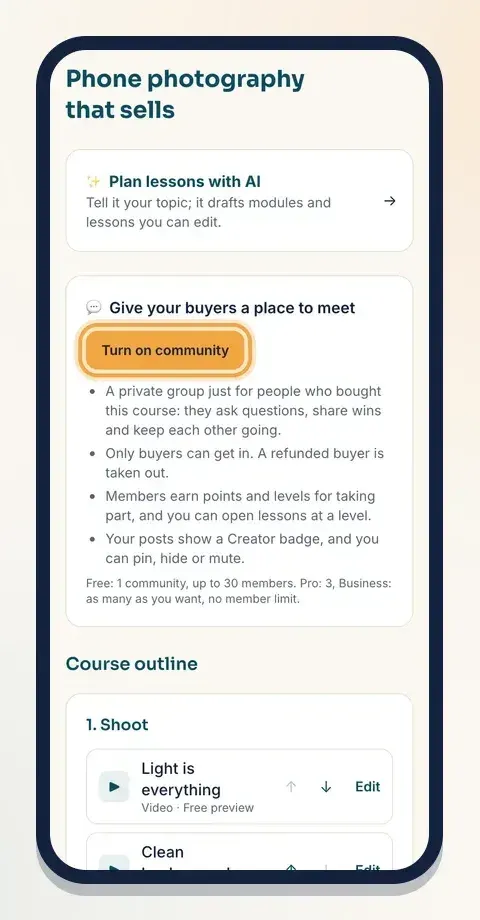
You'll see "Community is on. Buyers can join from their library." The box now has an Open community button. The community takes your course's name, and starts with three topics: General, Questions and Wins.
Haven't made your course yet? Start with How to create and sell a course on Klaasi.
Step 2: Get to know the community page
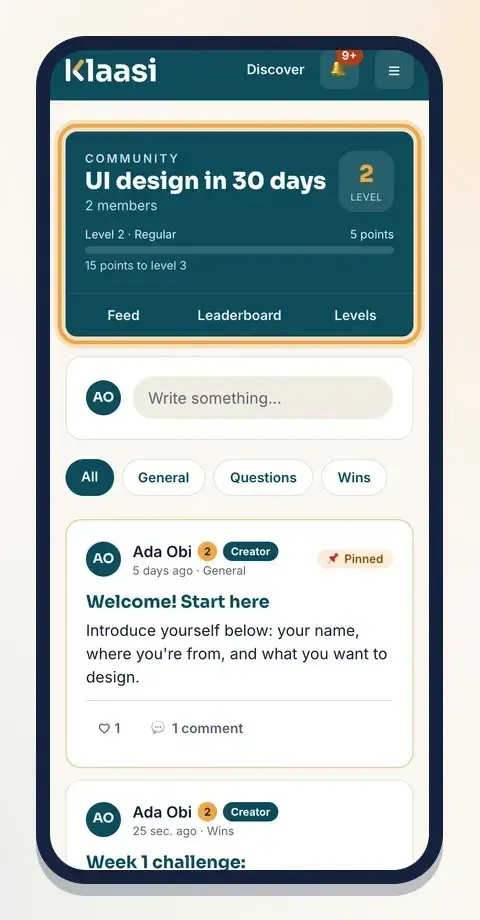
Tap Open community. At the top is a coloured header with:
- the community's name and how many members it has,
- your level (for example Level 2 · Regular) and your points,
- a bar showing how many points you need for the next level,
- three tabs: Feed, Leaderboard and Levels.
Under the header is the box to write a post, and the topic buttons (All, General, Questions, Wins) that filter the feed.
The first time someone opens the community, Klaasi asks them to Pick the name others will see, so members can use a display name instead of their email.
Step 3: Write a welcome post
An empty room is awkward. Post first, so your buyers know what to do.
- Tap Write something….
- Add a Title (optional), like "Welcome! Start here".
- Write your message in the big box: who you are, what the community is for, and one easy thing to do now ("Introduce yourself below").
- Pick a Topic.
- Tap Post.
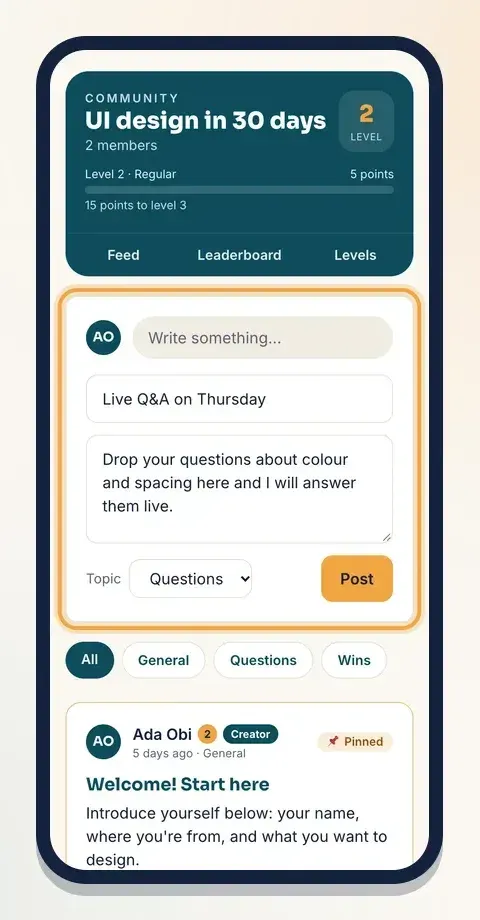
Posts can be up to 5,000 characters. Members can like a post (♡) and reply under it.
Ideas for posts that get replies:
- A weekly challenge: "Share your first screen and one thing you'd change."
- A question: "What's the hardest part of lesson 3 for you?"
- A win: share a student's result (with their permission).
Step 4: Your Creator badge
Every post and reply you write shows a Creator badge next to your name, so members can tell your answers apart from everyone else's. Each member also shows their level number beside their name.
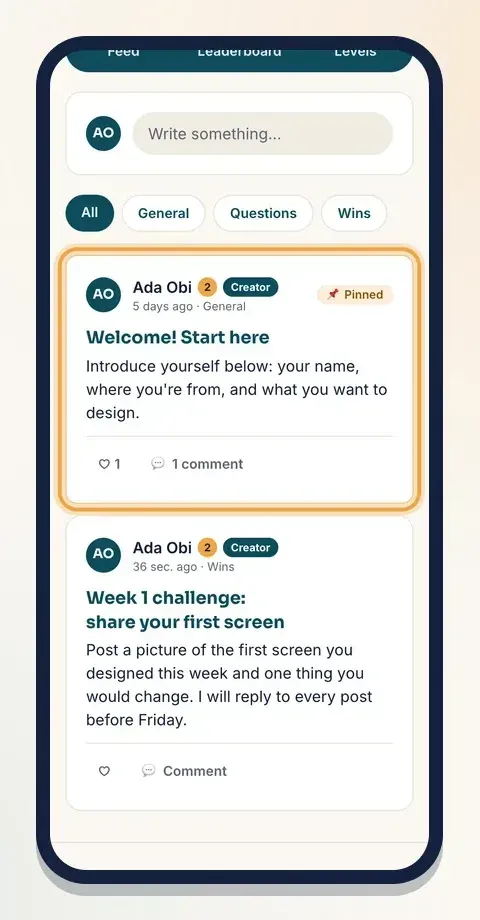
If a member has the moderator role, their posts show a Moderator badge instead. There isn't a button in your dashboard to choose moderators yet, so plan to do the moderating yourself.
Step 5: Keep it friendly (pin, hide and mute)
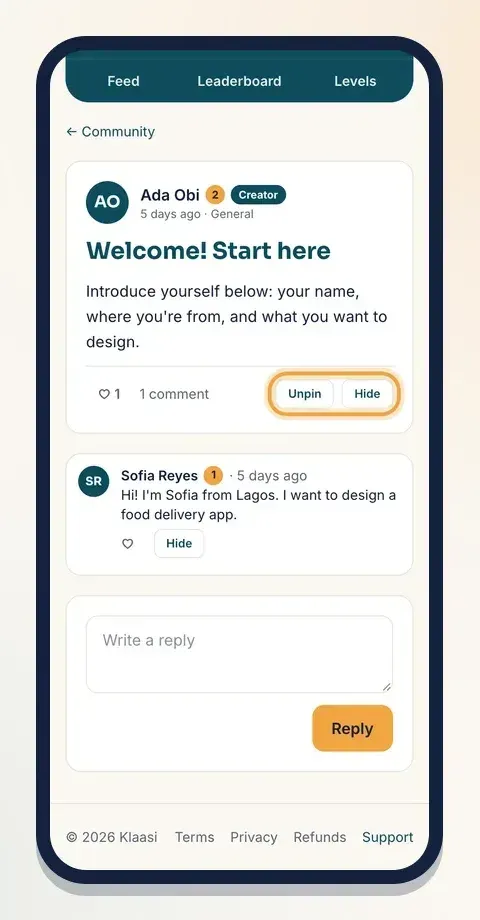
Open any post to see its replies. As the creator, you'll see extra buttons:
- Pin keeps an important post at the top of the feed. Tap Unpin to undo it. Pin your welcome post and your rules.
- Hide removes a post or a reply from the feed.
- Mute author 7 days stops a member from posting for a week. Use it for spam or rudeness.
Members can tap Report under a post, write What's wrong? and tap Send report. Reports go to Klaasi's team, who look at them.
Answer questions within a day or two when you can. A community grows when people feel heard.
Step 6: Points, levels and the leaderboard
Members earn points for taking part:
- +1 for each like they receive,
- +2 for a post (up to 5 a day),
- +1 for a reply (up to 10 a day),
- +2 for each lesson they finish.
The daily limits stop people from posting empty messages just to farm points.
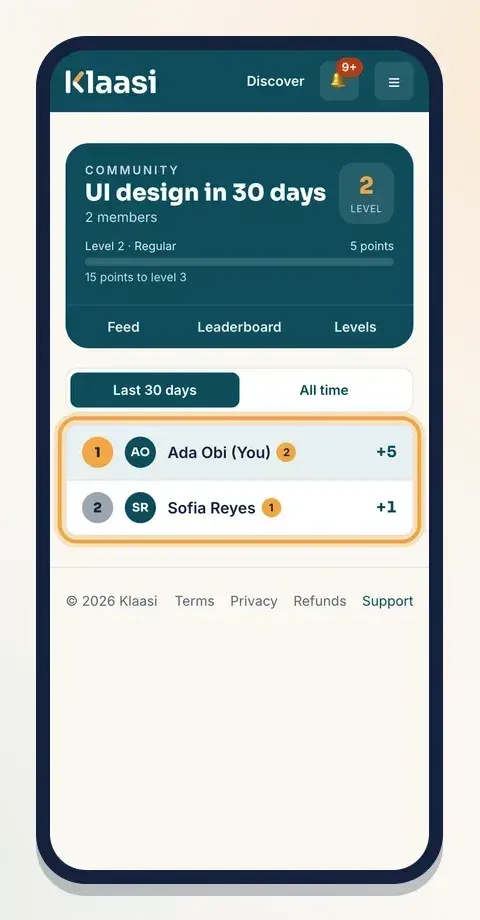
The Leaderboard tab shows the top 10 members for the Last 30 days or All time, with each person's level.
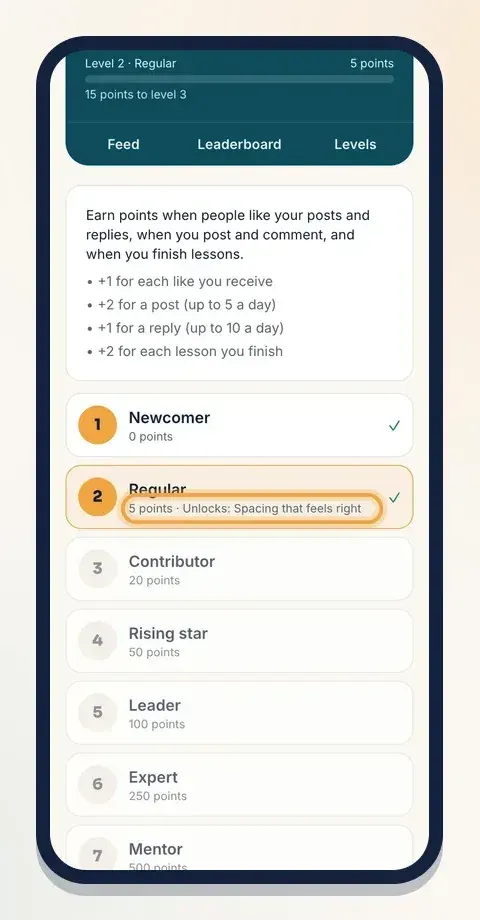
The Levels tab lists all 9 levels and the points each one needs: Newcomer (0), Regular (5), Contributor (20), Rising star (50), Leader (100), Expert (250), Mentor (500), Champion (1,000) and Legend (2,500). If a lesson opens at a level, it's listed beside that level.
Step 7: Open a lesson at a community level
This is a simple way to reward students who join in.
- Go to your course and tap Edit on a lesson.
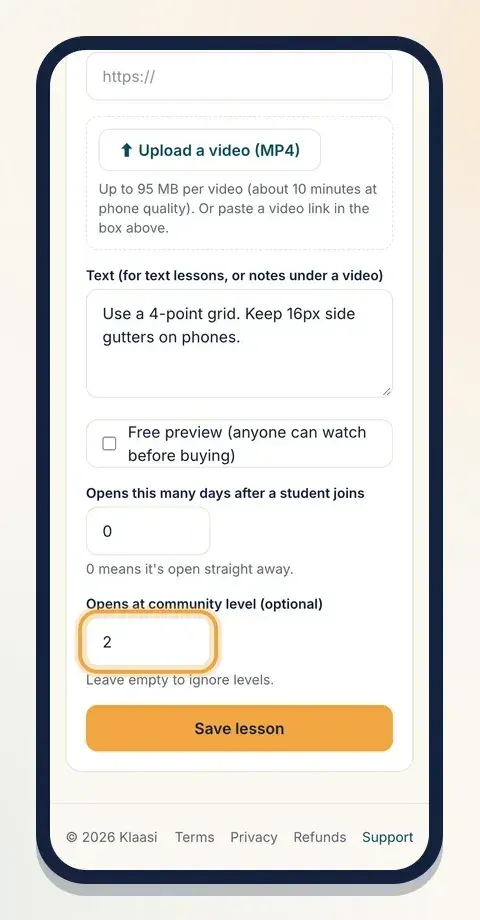
- Find Opens at community level (optional).
- Type a level from 2 to 9. Leave it empty to ignore levels.
- Tap Save lesson.
In your course outline, that lesson now shows "Level 2". Students who haven't reached the level see "Unlocks at community level 2. Join the conversation to level up!" Pick a bonus lesson for this, not a lesson people need to finish the course.
You can also use Opens this many days after a student joins on the same screen to release lessons one week at a time.
How buyers find the community
After buying, a student sees 💬 Community on the course card in their library, next to Start course. Tell new buyers about it in your welcome lesson or welcome email, too. See How to buy on Klaasi and find your library for what buyers see.
Prefer a group on WhatsApp, Telegram or Discord as well? You can give paying buyers a private link: How to connect WhatsApp, Telegram and Discord groups.
Common questions
Can I turn the community off later? There's no off switch yet. If you stop using it, pin a post telling members where to find you instead.
Do buyers get an email for new posts? No. Remind them in your lessons and emails to check the community.
What to do next
Start selling on Klaasi, free
Your shop, courses, live classes and community in one place. Buyers pay in naira or dollars.
Open my free shopKeep reading
How to use the Klaasi developer API, webhooks and AI tools (MCP)
Connect your shop to your own website, Zapier, Make or an AI assistant. Create an API key, pick its permissions, receive signed webhooks for every sale and check them safely.
How to handle refunds and support as a seller on Klaasi
Klaasi has one refund policy for every shop. Buyers message Support, you reply with your side, and Klaasi decides using real evidence. Here's how it works and how to answer a refund request.
How to add team members to your Klaasi shop (and what each role can do)
Invite a helper by email and give them the right role: Editor, Support or Finance. Each role sees only what it needs, and only you can move money. Here's how.