How to use Ask Klaasi AI and AI product videos on Klaasi
Let Klaasi AI draft your sales page, plan a course, turn your notes into lessons, write a quiz and make a short video from your product photos. Here's how each tool works and what each plan includes.
Writing a sales page, planning a course or making a video for your status can take a whole evening. Ask Klaasi AI does the first draft for you in a minute, and you stay in charge of every word.
By the end of this guide you'll know where to find Ask Klaasi AI, what each tool writes, how many drafts and video minutes your plan includes, and how to make a short product video for WhatsApp status, Reels and TikTok from photos you already have.
Klaasi AI drafts; you decide. Nothing it writes goes live until you choose to use it, and everything stays editable.
Where to find Ask Klaasi AI
Open your dashboard. In the menu, look under Grow. You'll see two items:
- Ask Klaasi AI: the writing tools.
- AI videos: the product video maker.
At the top of the Ask Klaasi AI page there's also a card called New: product videos. Tap it to jump straight to the video maker.
Under the card is a row of tools you can swipe through: Sales page writer, Course outline, Document to course, Quiz maker and Quick help. Tap one to open it.
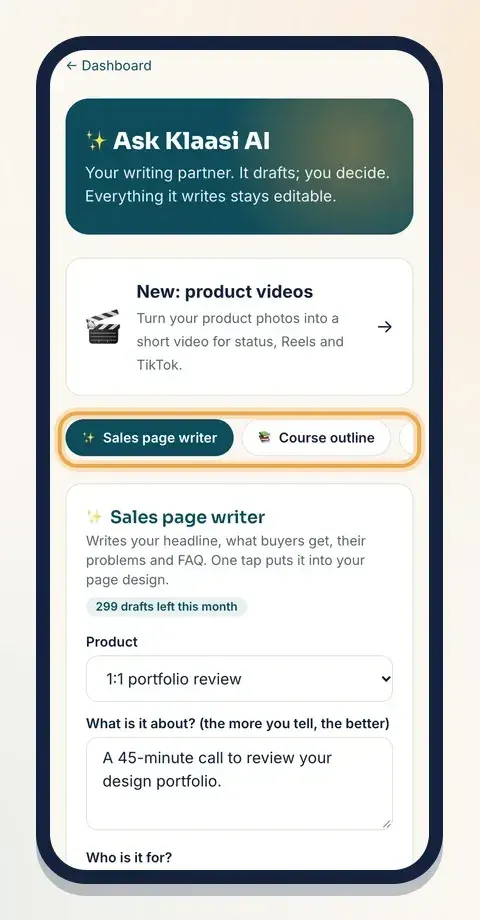
Shops that only sell goods or food see the tools that fit them: the course tools are hidden if you don't sell courses, classes or services.
What your plan includes
Every tool shows how much you have left this month, right beside its name, for example "299 drafts left this month". Allowances start again on the 1st of each month.
These are the monthly allowances at the time of writing:
- Drafts (Sales page writer, Course outline, Document to course, Quiz maker): Free 0, Pro 50, Business 300.
- Quick help questions: Free 30, Pro 100, Business 300.
- Product videos: Free none, Pro 5 minutes, Business 20 minutes of finished video.
Some tools need a certain plan:
- Quick help works on every plan.
- Sales page writer, Course outline and Quiz maker are on Pro and Business.
- Document to course is on Business.
If a tool isn't on your plan, the page tells you which plan has it. If you run out, you'll see "You've used this month's AI allowance. It resets on the 1st, or upgrade for more."
"Build my website for me" is a separate tool with its own allowance. It has its own guide: how to build your website with Klaasi AI.
Step 1: Write your sales page with the Sales page writer
This is the tool most sellers start with. It writes the words that help a visitor decide to buy.
- Tap Sales page writer.
- Under Product, pick the product you want words for.
- In What is it about? (the more you tell, the better), check the description. Add details: who made it, what's inside, how long it takes, what changes for the buyer.
- In Who is it for?, describe your buyer in a few words, for example "small shop owners in Lagos and Accra".
- Tap Write it.
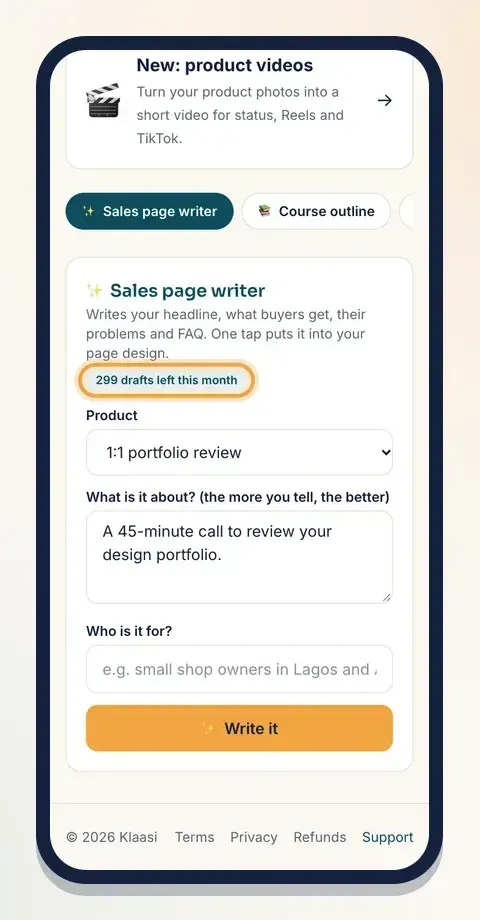
The draft has a headline, a short line under it, what buyers get, the problems your product solves and a few questions and answers (FAQ). Read it carefully. If you like it, tap Use this on my page and the words go into your product page design. You can change any of them afterwards on the design page; see how to design your product page.
Step 2: Plan a course with Course outline
Have a course idea but no plan? Course outline drafts the modules and lessons for you.
- Tap Course outline.
- In What will the course teach?, write the result your students want, for example "Teach total beginners to design a mobile app screen in Figma".
- Fill in Who is it for?.
- Choose the Level: Beginner, Intermediate or Advanced.
- Choose the Size: Short (3 modules), Medium (4–5 modules) or Long (6–8 modules).
- Tap Write it.
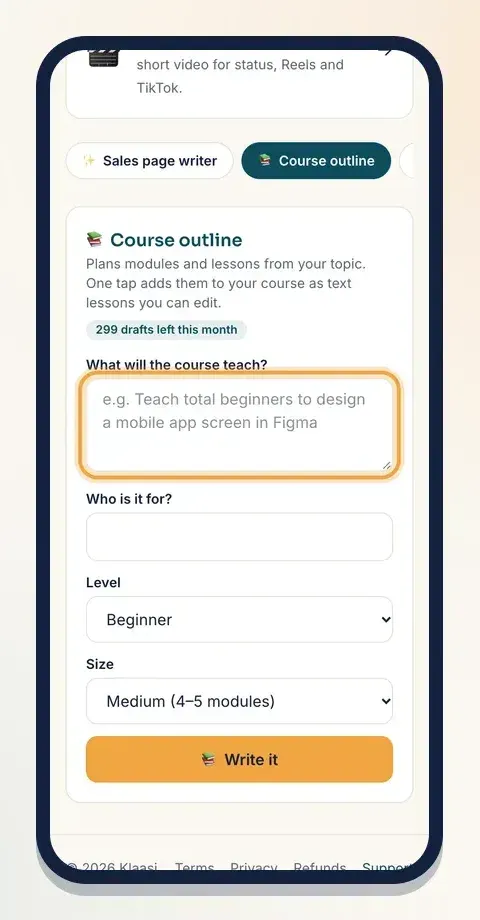
You get a list of modules, each with lessons and a one-line summary. Under Add to, pick your course and tap Add to course. The lessons are added at the end of your course as text lessons you can edit, record or delete. No course yet? Create one first; our guide on how to create and sell a course walks you through it.
You can also start this from inside your course builder: look for Plan lessons with AI.
Step 3: Turn your notes into a course with Document to course (Business)
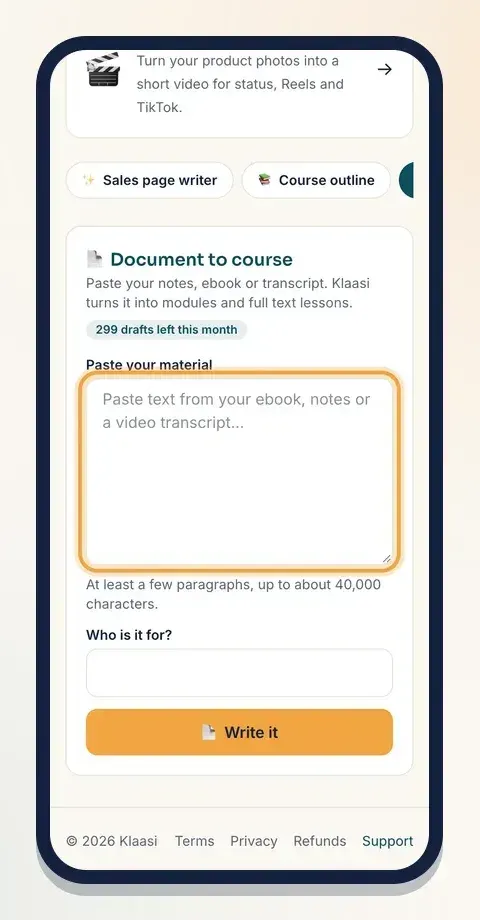
Already wrote an ebook, a training manual or a long video transcript? Document to course turns it into modules and full text lessons.
- Tap Document to course.
- Paste your material into Paste your material. It needs at least a few paragraphs and can take up to about 40,000 characters.
- Fill in Who is it for?.
- Tap Write it, then add the result to a course the same way as above.
Only paste material you own or have the right to use.
Step 4: Make a quiz with Quiz maker
Quizzes help students check what they learned. Quiz maker writes 5 multiple-choice questions from a lesson, using only what the lesson says.
- Tap Quiz maker.
- Type the Lesson title and paste the Lesson text (at least 100 characters).
- Tap Write it.
The easiest way is from the lesson itself: in your course builder, open a lesson and tap Make a quiz from this lesson with AI. Klaasi fills the lesson in for you, and when the questions are ready you can tap Add as a quiz after the lesson.
Step 5: Ask Quick help anything about Klaasi
Stuck on a setting? Tap Quick help, type your question in Your question (for example "How do I let buyers pay in parts?") and tap Write it. You get a short answer in plain words.
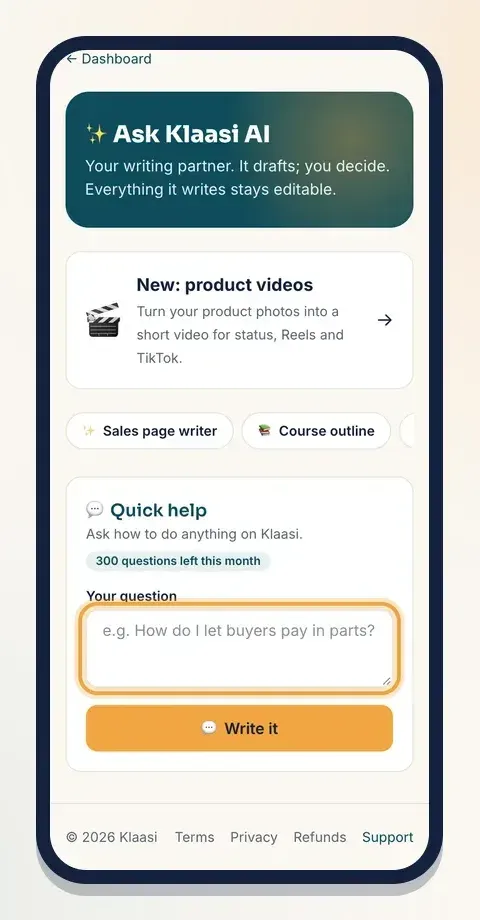
Quick help is on every plan, including Free. Filling an invoice from one sentence also counts as a quick help question.
Step 6: Make a product video from your photos
Short videos sell. The AI videos page turns your product photos into a short video with moving pictures, words that grab attention, your price and a buy button. You download it and post it wherever you like.
Open AI videos in the menu, or tap the New: product videos card. At the top you'll see how much video time you have left, for example "20 min of 20 min left this month".
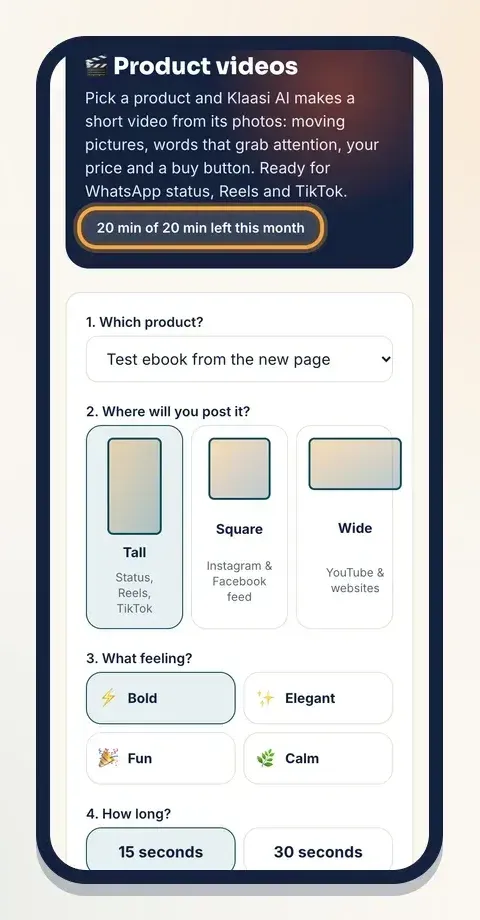
The video is made from your product's photos, so the product needs at least one photo first. If none of your products has one, the page tells you and gives you a Go to my products button.
Then fill in the form, one numbered question at a time:
- Which product? Pick it from the list.
- Where will you post it? Choose Tall (status, Reels, TikTok), Square (Instagram and Facebook feed) or Wide (YouTube and websites).
- What feeling? Choose Bold, Elegant, Fun or Calm.
- How long? Choose 15 seconds or 30 seconds.
- Show the price? Choose Yes, in naira, Yes, in dollars or No price.
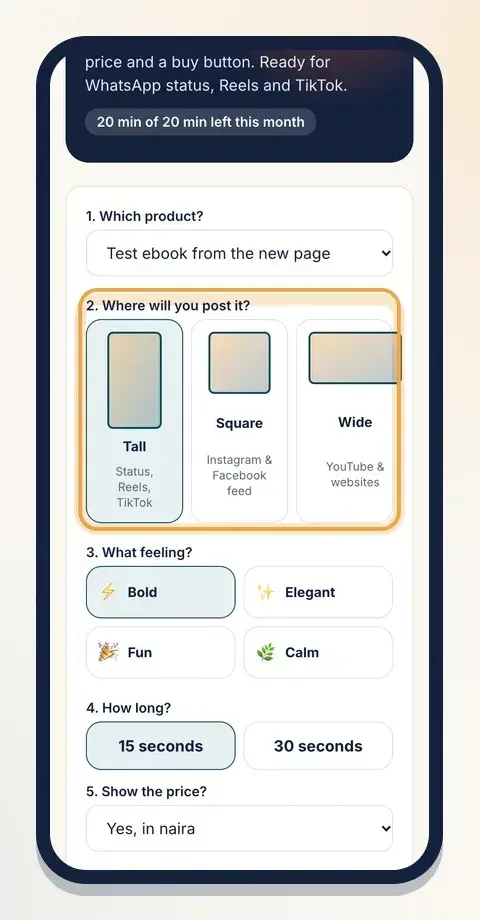
There's one optional box: Anything the video should say? Use it for true details only, such as "New colours just in". The AI never invents discounts or promises.
When you're ready, tap Make my video.
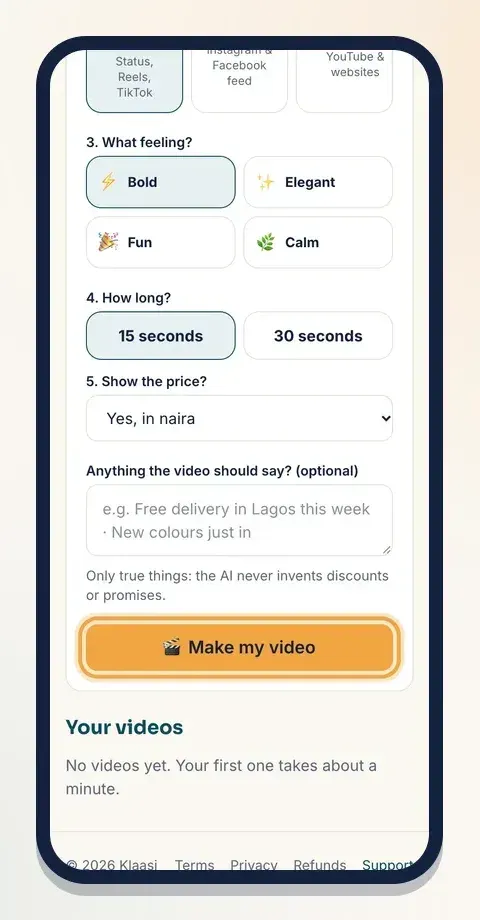
Klaasi starts making it and the page updates by itself. It's usually ready in under a minute. While it's being made, the button says your last video is still being made, so you make one video at a time.
Your finished videos appear under Your videos. Each one shows its shape, feeling and length. Tap the scene list to see the words used in each scene. Tap Download to save the MP4 to your phone, then post it to your status, Reels or TikTok with your shop link. Tap Delete to remove one you don't need.
If a video doesn't work out, it says so, and the seconds are not taken from your allowance. Just try again.
Tips for better results
- Give real detail. The AI drafts from what you type. Specific, true facts make a better page than general praise.
- Always read before you use. A draft is a starting point. Fix anything that doesn't sound like you or isn't accurate.
- Use clear photos. Bright, sharp product photos make better videos. A plain background helps.
- Match the shape to the place. Tall for status and Reels, Square for feeds, Wide for YouTube.
What to do next
Put your new words and video to work:
- How to design your product page
- How to make marketing banners for your product
- How to grow sales on Klaasi
Want more drafts or video time? Compare plans in how to choose and upgrade your Klaasi plan.
Start selling on Klaasi, free
Your shop, courses, live classes and community in one place. Buyers pay in naira or dollars.
Open my free shopKeep reading
How to use the Klaasi developer API, webhooks and AI tools (MCP)
Connect your shop to your own website, Zapier, Make or an AI assistant. Create an API key, pick its permissions, receive signed webhooks for every sale and check them safely.
How to handle refunds and support as a seller on Klaasi
Klaasi has one refund policy for every shop. Buyers message Support, you reply with your side, and Klaasi decides using real evidence. Here's how it works and how to answer a refund request.
How to add team members to your Klaasi shop (and what each role can do)
Invite a helper by email and give them the right role: Editor, Support or Finance. Each role sees only what it needs, and only you can move money. Here's how.