How to sell food online with a Klaasi menu (restaurants, home kitchens and caterers)
Put your dishes on an online menu with pictures, proteins and extras, set opening hours and delivery areas, and take paid orders for delivery or pick-up.
Whether you run a restaurant, cook from home or cater small parties, a Klaasi menu lets customers choose a dish, pick their protein and extras, pay, and get it delivered or come to collect it. By the end of this guide you'll be able to add a dish with a picture and add-ons, sort your menu into sections, set your delivery areas and hours, and handle a food order from "new" to "delivered".
The pictures come from a demo shop called Mama Put Kitchen.
Before you start
You need a Klaasi shop. If you're new, follow Getting started on Klaasi. When Klaasi asks What do you sell?, choose food. Your dashboard then speaks your language: Menu items, New menu item, and a Restaurant group with Menu sections, Customers and Delivery & hours.
Good to know:
- You set one price per dish, in naira or in dollars. Buyers in Nigeria see naira; everyone else sees dollars.
- Customers pay online by card, bank transfer or mobile money. Klaasi holds the money until the food reaches them, then pays you. For food, that wait is short (see Step 7).
- The Free plan allows up to 3 products. Pro and Business have no product limit. See How to choose and upgrade your Klaasi plan.
Step 1: Open Menu items and tap Add a dish
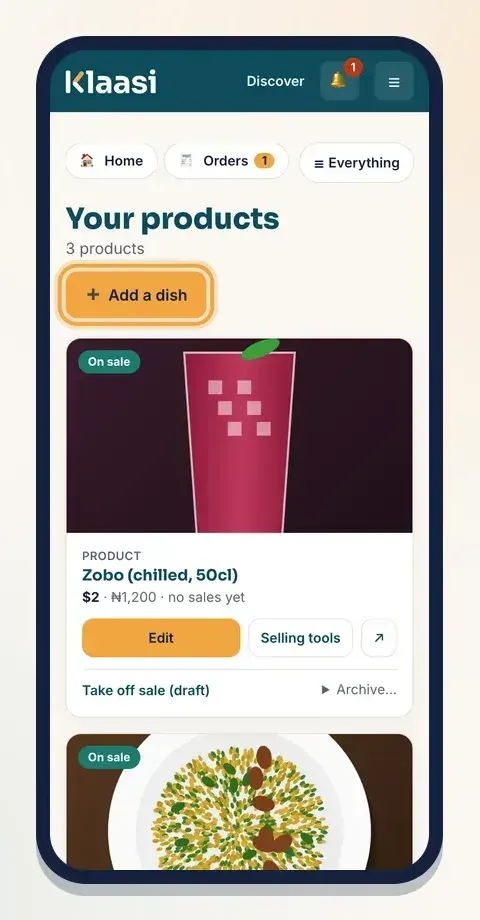
Tap Menu items in your dashboard. Each dish shows its price, how many sold, and Edit and Selling tools buttons. Tap ➕ Add a dish (or New menu item in the menu).
Step 2: Name the dish and describe it
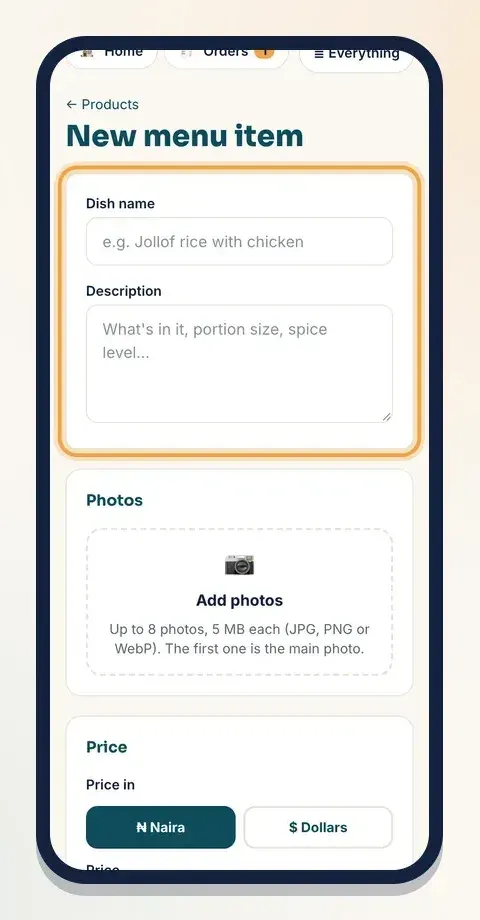
- Type the Dish name, for example "Jollof rice with chicken".
- In Description, say what's in it, the portion size and how spicy it is. People ordering food want to know exactly what arrives.
Step 3: Add a picture (or let Klaasi draw one)
Under Photos, tap Add photos and choose up to 8 pictures (5 MB each, JPG, PNG or WebP). The first one is the main picture.
No photo yet? Klaasi draws a simple picture for the dish from its name, so jollof rice gets a plate of rice instead of an empty box. You can also choose an icon picture under 🎨 Choose an icon picture on the dish's page. A real photo always shows instead once you add one.
Step 4: Set the price and how many portions you have
Under Price, choose ₦ Naira or $ Dollars and type the price. You can show a discount with Old price ₦ (shown crossed out) and stop it on a date with Discount ends (optional).
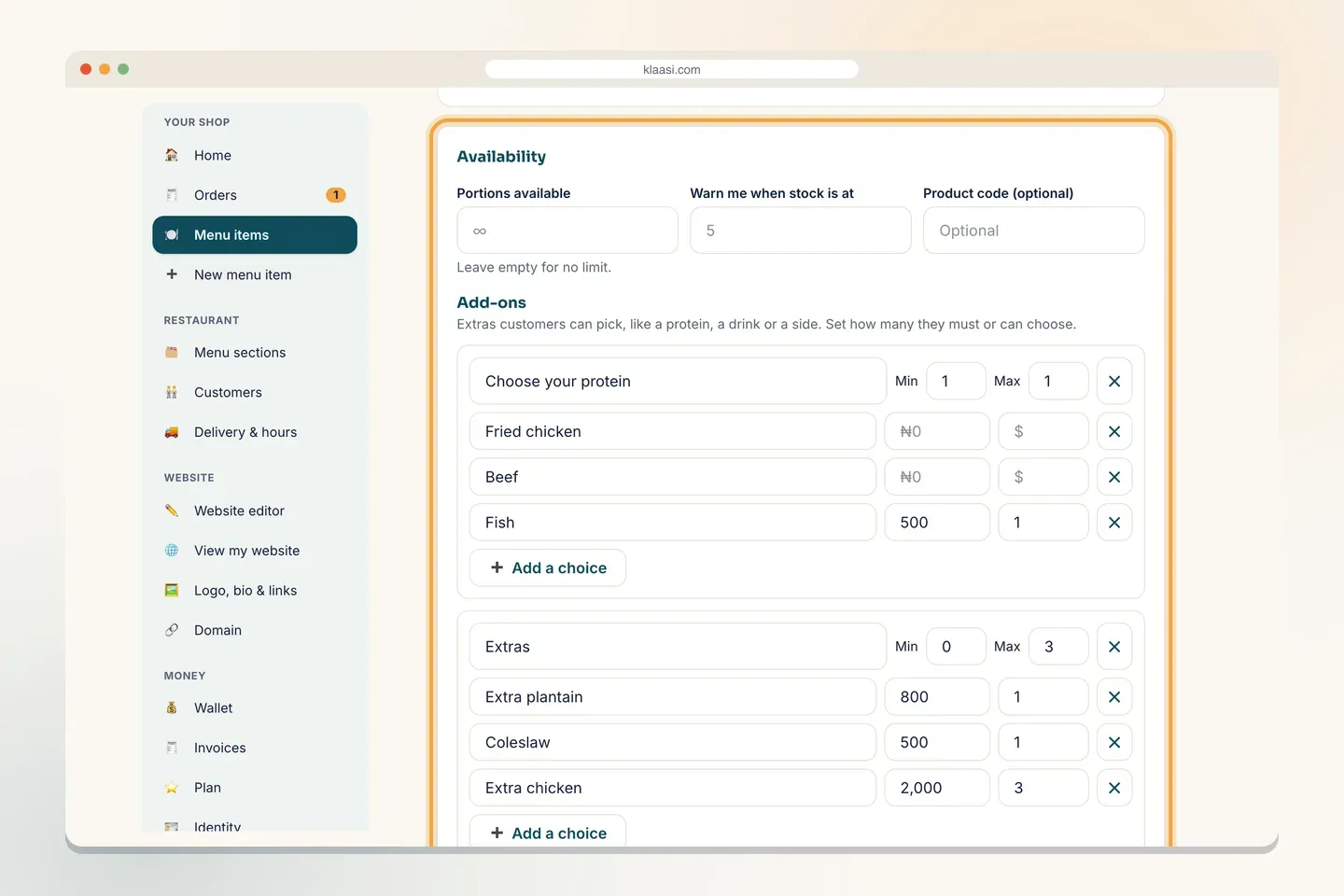
Under Availability, Portions available is how many you can cook today. Leave it empty for no limit. When it reaches 0, customers can't order that dish. Warn me when stock is at sends you a heads-up before you run out.
Step 5: Add proteins, drinks and extras (add-ons)
Add-ons are the choices people make when they order: which protein, which drink, extra plantain. Under Add-ons:
- Tap ➕ Add an add-on group. The first one is named "Choose a protein". Rename it if you like.
- Set Min and Max. Min 1 and Max 1 means the customer must pick exactly one. Min 0 and Max 3 means they can pick up to three, or none.
- Type each Choice (for example Chicken, Beef, Fish).
- If a choice costs more, type the extra price. Leave it empty if it's included.
- Tap ➕ Add a choice for more options, and ✕ to remove one.
You can have up to 8 groups, each with up to 20 choices.
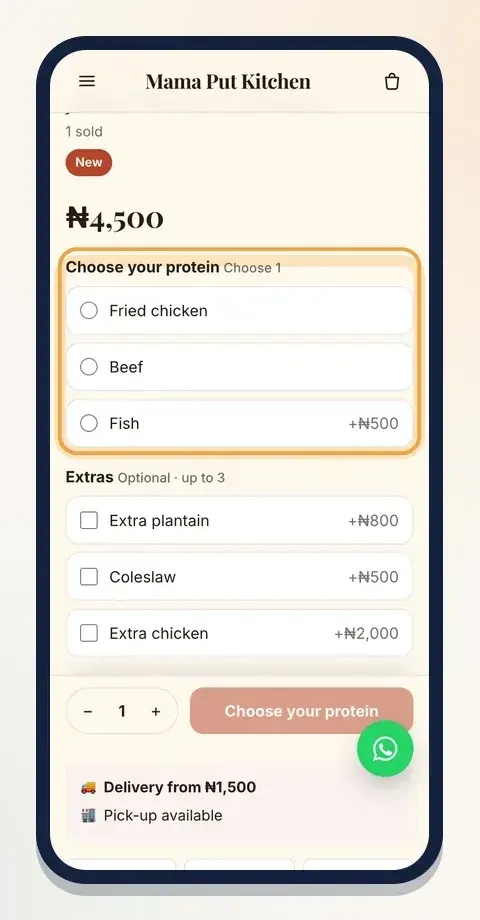
On your menu, the customer sees these as tick boxes, with the extra price beside each one. They can't add the dish to the cart until they've made the required choices.
Under Menu section, tick the section the dish belongs to, or type a new one (for example "Rice dishes"). Keep Show it on my website ticked and tap Add to menu.
Step 6: Sort your menu into sections
Tap Menu sections. Type a name in Add a menu section (for example "Soups & swallow" or "Drinks") and tap + Add. Each section can have a number for its order and a Short description (optional). Tap Save after a change, or Delete to remove a section.
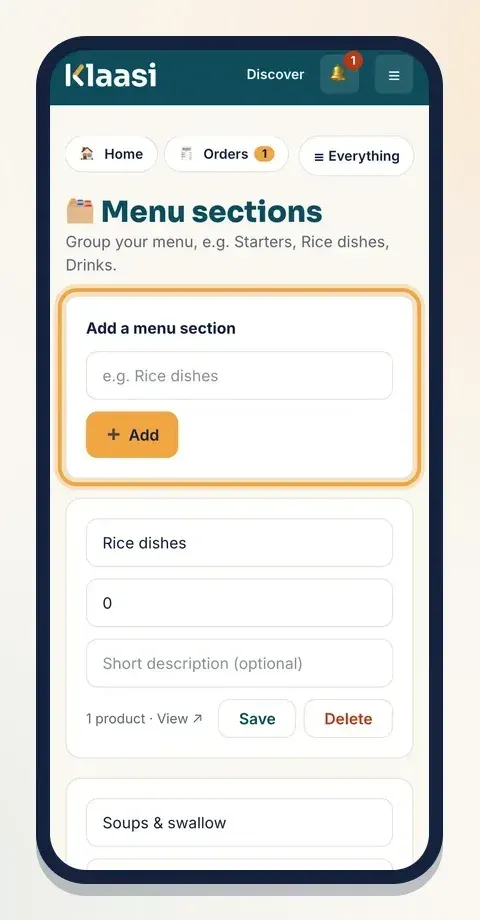
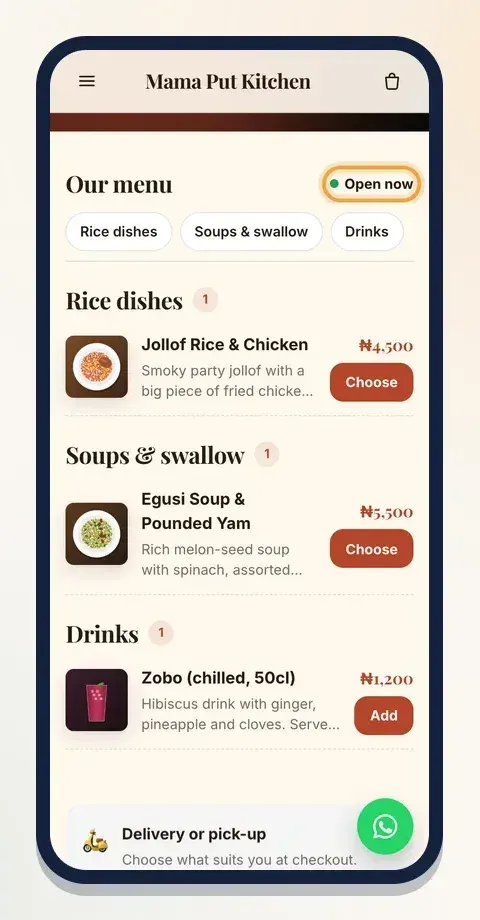
Customers see your sections as tabs at the top of the menu, so they can jump straight to drinks or soups.
Step 7: Set delivery, pick-up and opening hours
Tap Delivery & hours.
Taking orders? Pick ✅ Open – take orders or ⏸️ Paused – no new orders. Use Paused when you're sold out for the day, travelling or the gas has finished. Your menu still shows, but nobody can order until you switch it back.
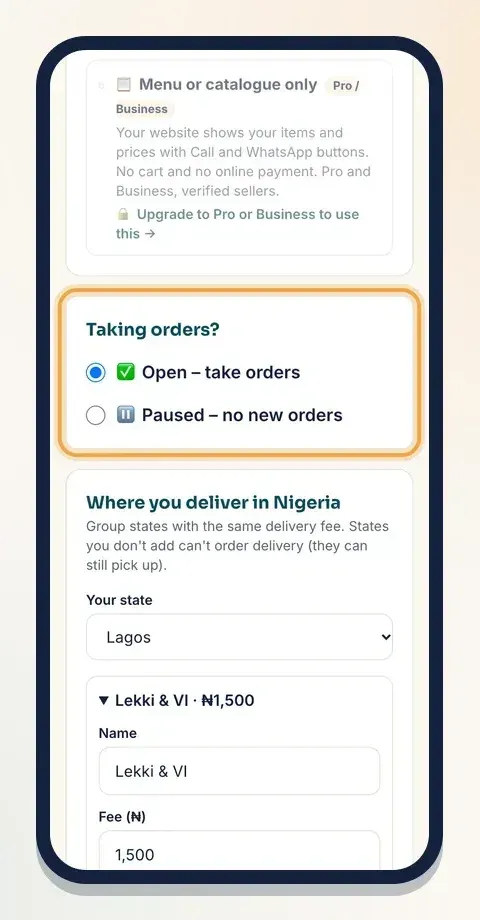
Where you deliver. Pick Your state, then make delivery areas. Each area has a Name (for example "Lekki & VI"), a Fee (₦), How long it takes and the states it covers. Checkout adds the right fee by itself. Tap Save to get another empty area.
Pick-up. Type your Pick-up address if customers can collect. Leave it empty if you only deliver. You can also set Free delivery over (₦).
Opening hours. Tick Opening hours and set the open and close time for each day, or tick Closed. Customers can only order while you're open, and your menu shows Open now when you are.
How customers reach you. Add your phone, WhatsApp number and address. On Pro and Business, verified sellers can also choose 💬 Order on WhatsApp or 📋 Menu or catalogue only under How customers order. On the Free plan, customers pay online.
Tap ✓ Save.
Step 8: Handle a food order
When someone orders, you get an alert and the order appears in Orders under To do. Open it to see exactly what to cook under What to prepare (tap Print order slip if you cook from paper), with the protein and extras under the dish name, the delivery fee, what the customer paid and what you get after Klaasi's fee.
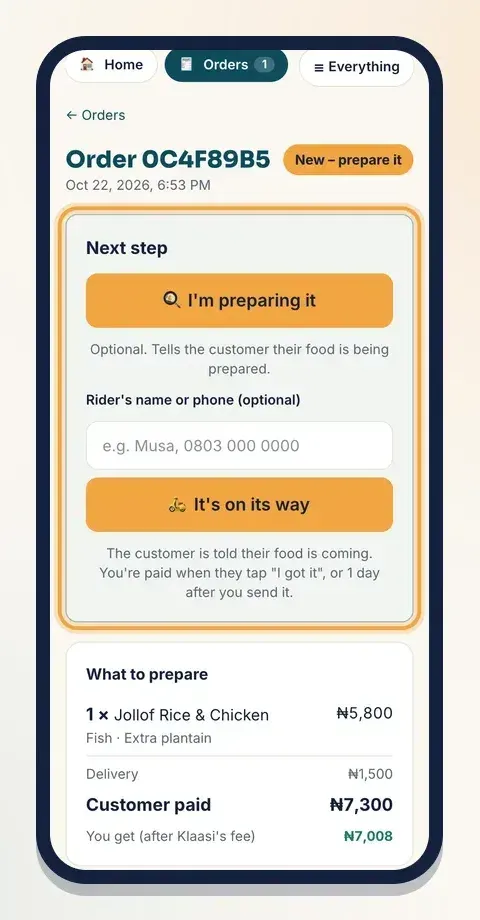
- Tap I'm preparing it when you start on the order (optional). The customer sees "Being prepared".
- When the rider leaves, type the Rider's name or phone if you like, then tap It's on its way. The customer sees "Out for delivery".
- For pick-up orders, tap 🏬 It's ready for pick-up, then 🤝 Customer collected it when you hand it over.
The customer taps I got it when the food arrives, and your money is released. If they don't report a problem, food orders are paid 1 day after you send them. The full order flow is in How to manage orders and delivery on Klaasi.
Tips for food sellers
- Set portions every morning. It stops you selling 40 plates when you cooked 25.
- Use add-ons for upsells. A drink or extra protein at checkout adds to every order.
- Pause, don't disappear. If you're closed today, pause orders so customers aren't left waiting.
- Ask for reviews. Happy customers can rate the dish once it's delivered. See How to collect and show reviews on Klaasi.
What to do next
Start selling on Klaasi, free
Your shop, courses, live classes and community in one place. Buyers pay in naira or dollars.
Open my free shopKeep reading
How to use the Klaasi developer API, webhooks and AI tools (MCP)
Connect your shop to your own website, Zapier, Make or an AI assistant. Create an API key, pick its permissions, receive signed webhooks for every sale and check them safely.
How to handle refunds and support as a seller on Klaasi
Klaasi has one refund policy for every shop. Buyers message Support, you reply with your side, and Klaasi decides using real evidence. Here's how it works and how to answer a refund request.
How to add team members to your Klaasi shop (and what each role can do)
Invite a helper by email and give them the right role: Editor, Support or Finance. Each role sees only what it needs, and only you can move money. Here's how.