How to sell templates, presets and other files on Klaasi
Sell spreadsheets, planners, Canva templates, Lightroom presets, audio and any other file. Create a File product, upload what buyers get and let Klaasi handle payment and downloads.
Templates and files are some of the easiest things to sell online. You make them once, and people can buy and download them any time, even while you sleep. This guide shows you how to put any file on sale in your Klaasi shop: a budget spreadsheet, a content calendar, a CV template, Lightroom presets, a Canva design, beats or a sound pack.
By the end you'll know how to create a File product, upload what buyers get, make the page look good, and check exactly what your buyer sees after paying.
What can you sell as a file?
On Klaasi, a File product is for "Templates, presets, audio or any file". Some ideas:
- Spreadsheets: budgets, stock trackers, price calculators (Excel or a ZIP of several sheets).
- Planners and calendars: a 30-day content calendar, a weekly planner, a study timetable (PDF).
- Business documents: invoices, contracts, proposals, CVs (Word).
- Design files: Canva templates, social media packs, logo kits.
- Photo presets: Lightroom presets in a ZIP.
- Audio: beats, voice notes, guided meditations (MP3).
- Short video files such as a stock clip pack (MP4).
The files Klaasi accepts are PDF, EPUB, ZIP, Word, Excel, PowerPoint, MP3, MP4 and pictures (JPG, PNG, WebP). Each file can be up to 200 MB.
What about Canva templates and Google Sheets?
These live on another website, so you share them with a link. Put the "use template" or "make a copy" link inside a short PDF, with a line or two on how to open it, and upload that PDF as your file. Your buyer downloads the PDF and taps the link. This keeps the link away from people who haven't paid.
Step 1: Create the File product
- Open your dashboard and tap New product.
- Under What are you selling?, tap File.
- Under Name it and say what it does, type a Title that says the result, like "Never wonder what to post again: 30-Day Content Calendar". In the Description, say who it's for and what's inside.
- Under Set your price, choose ₦ Naira or $ Dollars and type one price. Klaasi works out the other currency for buyers abroad or in Nigeria.
- Choose Who pays the Klaasi fee?
- Tap Create product.
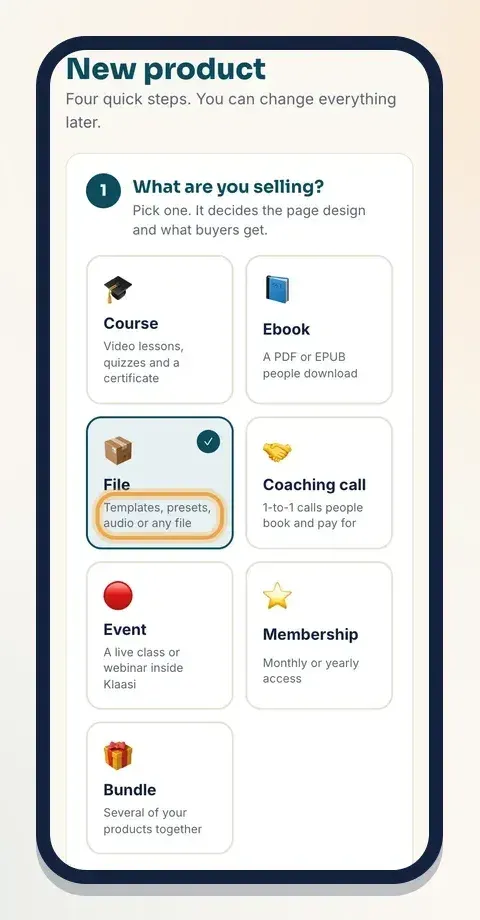
Tip: if you sell a template that's also useful as a guide, you could pick Ebook instead. Both deliver downloads. The difference is the page design: Ebook shows a 3D book and a table of contents.
Step 2: Upload the files buyers get
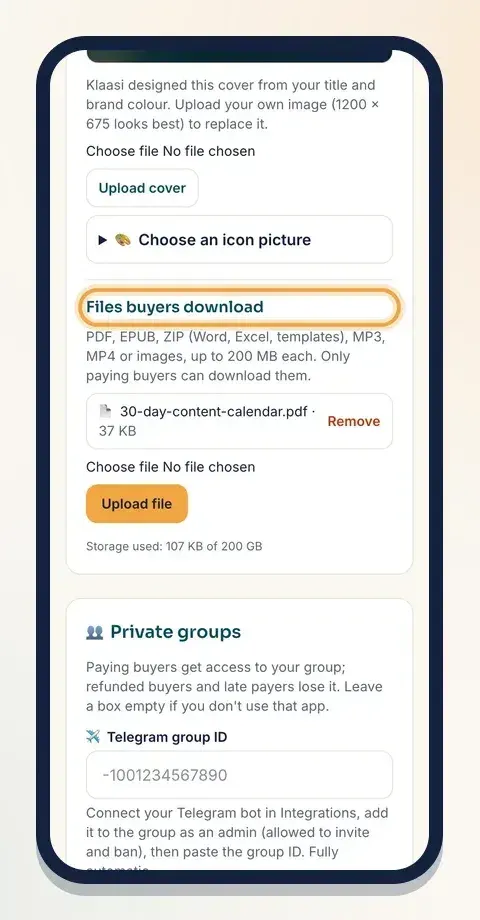
After you create the product, Klaasi opens Selling tools. Scroll to Cover and files and find Files buyers download.
- Tap the file box and choose your file.
- Tap Upload file.
- Repeat for each extra file. For example: the Excel template, a PDF "how to use it" guide and a ZIP of bonus sheets.
Each file appears in the list with its name and size. To swap a file, tap Remove and upload the new one.
Good to know:
- Only paying buyers can download. Your files are never public.
- A File product with no file is hidden from your shop and can't be bought, so no one pays for nothing. You'll see "No files yet: buyers won't get anything until you upload one." until you add one.
- Files use your plan's storage: 2 GB on Free, 50 GB on Pro, 200 GB on Business. The line at the bottom of the box shows what you've used.
- Many small files? Put them in one ZIP. One clean download is easier for buyers on a phone.
Step 3: Show what's inside with pictures
People want to see a template before they pay. Klaasi gives you two places for pictures.
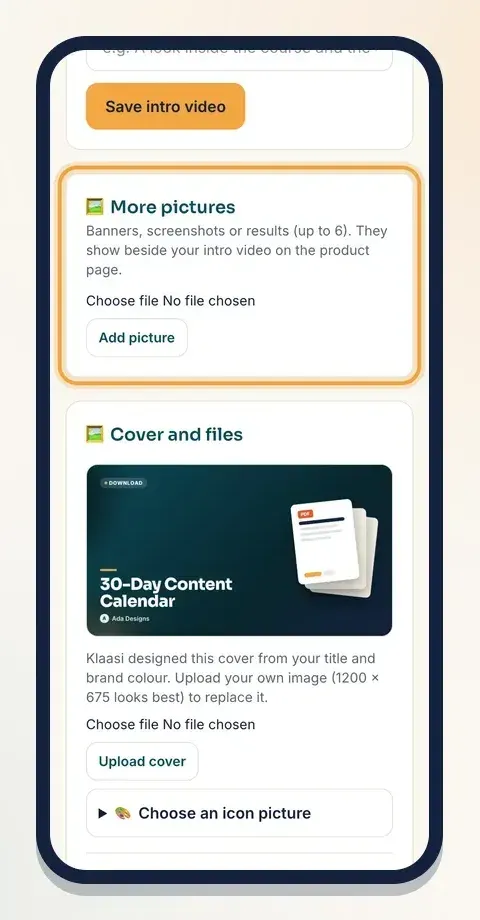
The cover. In Cover and files, upload a wide picture (1200 × 675 looks best) and tap Upload cover. No picture? Klaasi already made a cover from your title, or you can open Choose an icon picture and pick an icon.
More pictures. Just above, in More pictures, add up to 6 screenshots: the spreadsheet open, a page of the planner, a before-and-after of your preset. They show beside your intro video on the product page.
Step 4: Fix the name and description any time
Selling tools has a Name and description box. Use it to fix a typo or say it better. Your web address stays the same, so links you've already shared keep working. Tap Save name and description when you're done.
A good description for a file product answers three questions:
- Who is it for? "For creators who sell online."
- What will it do for them? "You'll never stare at a blank screen again."
- What exactly do they get? "One PDF calendar, a weekly planning page and a Canva link."
Step 5: Pick a page design
At the top of Selling tools, tap Page design. Pick a theme and tap See how it looks to preview it. Classic works on every plan. Pro and Business can also use the other themes, such as Bold sales page: a big headline, the problems your buyer has, what they get, bonuses and a Buy bar that stays on screen. It suits templates well.
In Words on your page, fill in the parts the theme uses:
- Problems your buyer has (sales page), one per line.
- What buyers get or learn, one per line.
- Bonuses (sales page), one per line with a value after |, like "Weekly planning page | $5".
- Questions and answers, like "Does it work in Google Sheets? | Yes, upload the Excel file to Google Drive and open it."
Tap Save page. For more on themes, see how to design your product page.
Step 6: Check the page buyers see
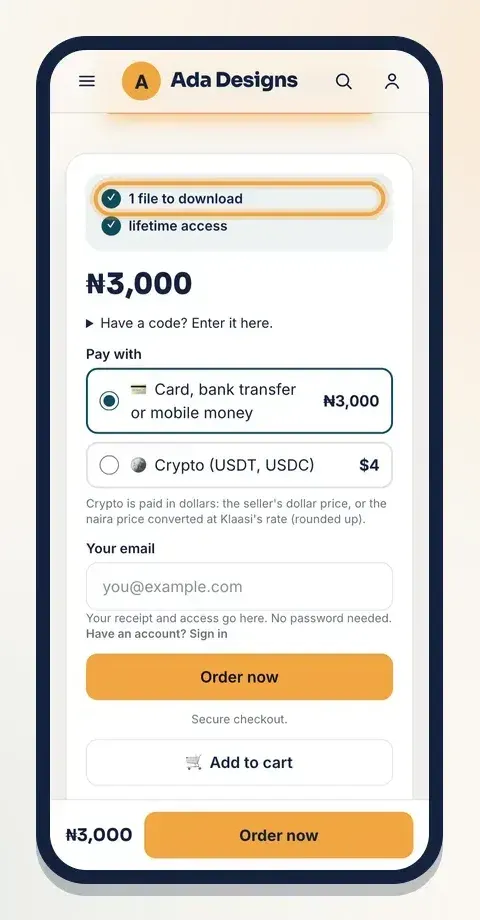
Tap View page. The buy box shows the price and how many files are included, for example "1 file to download" and "lifetime access". Buyers can pay by card, bank transfer or mobile money, or with crypto when it's on, through secure checkout.
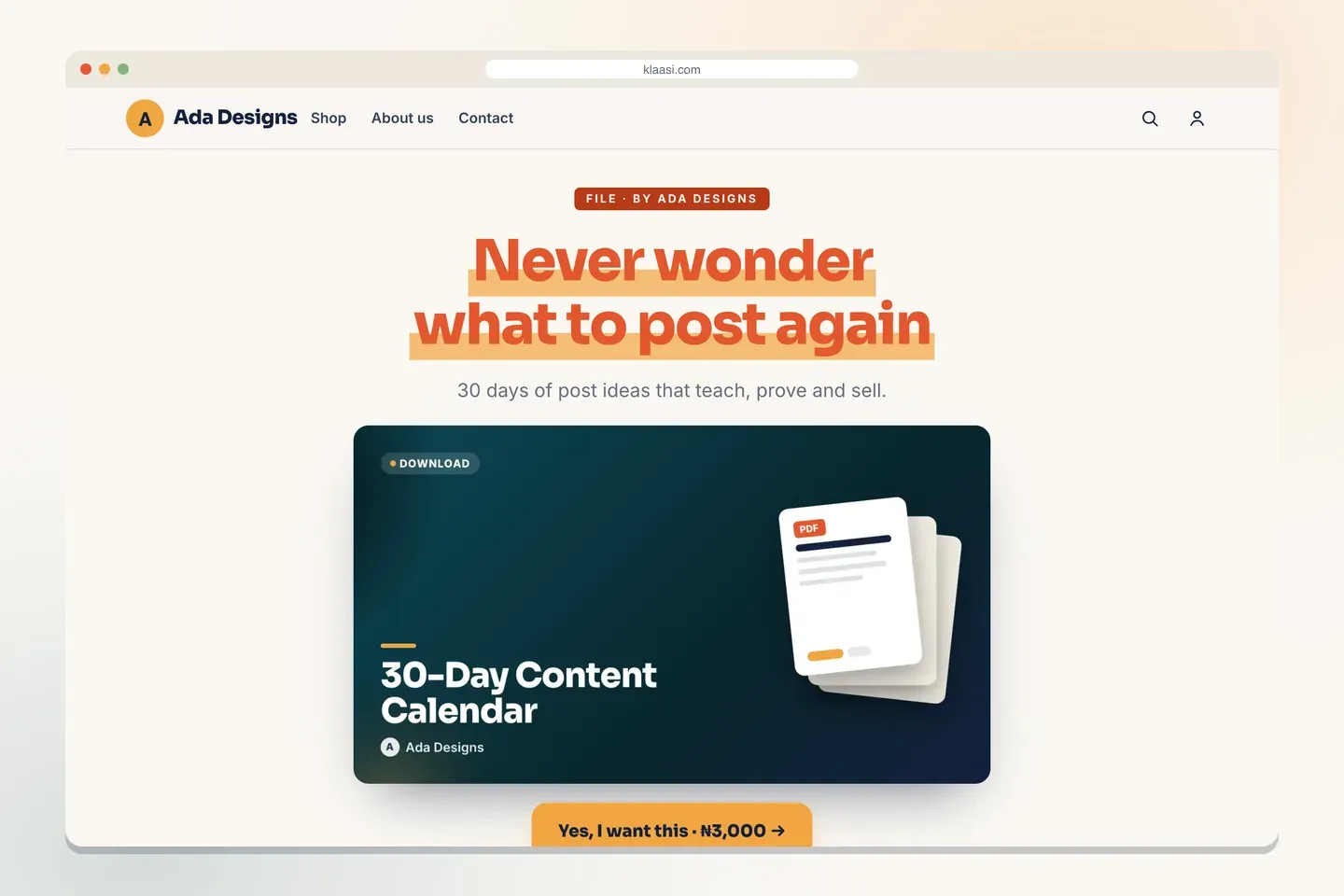
On a phone, the buy box is right there with Add to cart, so buyers can bundle your calendar with your other products and pay once.
What your buyer gets
- After paying, the thank-you page says Payment confirmed and offers Open it now. A receipt goes to their email.
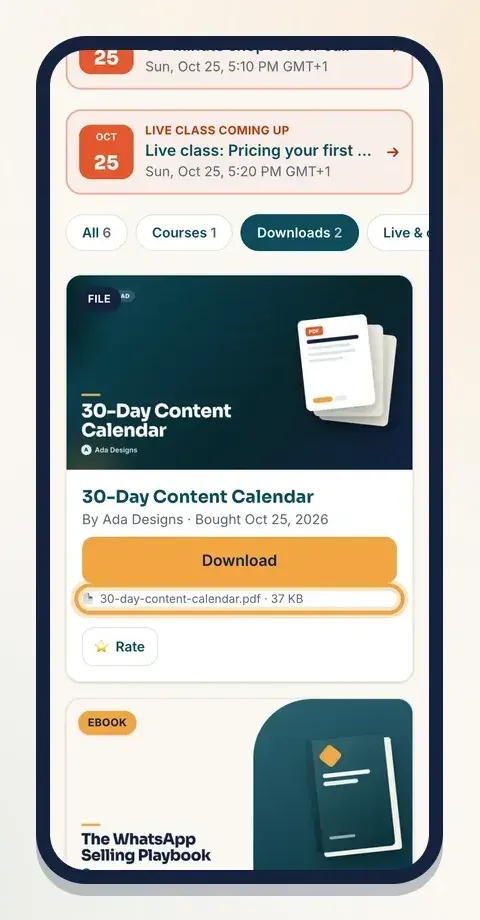
- In My library, the product shows under Downloads. One file means one big Download button. Several files are listed one by one, each with its size.
- They can come back and download again any time, on any phone or computer. They sign in with their email and a 6-digit code, with no password to remember.
Tips for selling templates
- Show it working. A screenshot of the filled-in template sells better than a blank one.
- Add a "how to use" page. Buyers ask fewer questions and are happier.
- Bundle related files. A budget sheet plus a savings tracker plus a price calculator can sell as one pack. See order bumps and bundles.
- Run a launch discount. An old price crossed out with an end time gets people to act. See prices and discounts.
What to do next
- Selling a longer guide instead? Read how to sell an ebook on Klaasi.
- Make social media pictures for your template with marketing banners.
- Get your first sale faster with coupon codes.
Start selling on Klaasi, free
Your shop, courses, live classes and community in one place. Buyers pay in naira or dollars.
Open my free shopKeep reading
How to use the Klaasi developer API, webhooks and AI tools (MCP)
Connect your shop to your own website, Zapier, Make or an AI assistant. Create an API key, pick its permissions, receive signed webhooks for every sale and check them safely.
How to handle refunds and support as a seller on Klaasi
Klaasi has one refund policy for every shop. Buyers message Support, you reply with your side, and Klaasi decides using real evidence. Here's how it works and how to answer a refund request.
How to add team members to your Klaasi shop (and what each role can do)
Invite a helper by email and give them the right role: Editor, Support or Finance. Each role sees only what it needs, and only you can move money. Here's how.