How to sell physical products on Klaasi (clothes, shoes, beauty and more)
Add your items with photos, sizes and colours, set your stock and delivery fees, and take orders that are paid before you send anything. Here's every step.
If you sell things you can hold, like clothes, shoes, perfume, hair, bags or gadgets, Klaasi gives you an online shop where customers pick a size, pay, and wait for you to deliver. By the end of this guide you'll be able to add a product with photos, set sizes and colours with their own stock, choose your delivery fees, add a size guide and see what your customer sees.
We'll use a demo clothing shop called Kulture Rack in the pictures, so you can follow along.
Before you start
You need a Klaasi shop. If you don't have one yet, follow Getting started on Klaasi first. When Klaasi asks What do you sell?, pick physical products. Your dashboard menu then shows a Store group with Inventory, Collections, Customers and Delivery.
A few things to know:
- The Free plan lets you have up to 3 products (archived products don't count). Pro and Business have no product limit. See How to choose and upgrade your Klaasi plan.
- You set one price, in naira or in dollars. Buyers in Nigeria always see naira and everyone else sees dollars; the other currency is worked out for you.
- When a customer pays online, Klaasi holds the money until the order reaches them, then pays you. That keeps buyers confident to pay a shop they have never met.
Step 1: Open Products and tap Add a product
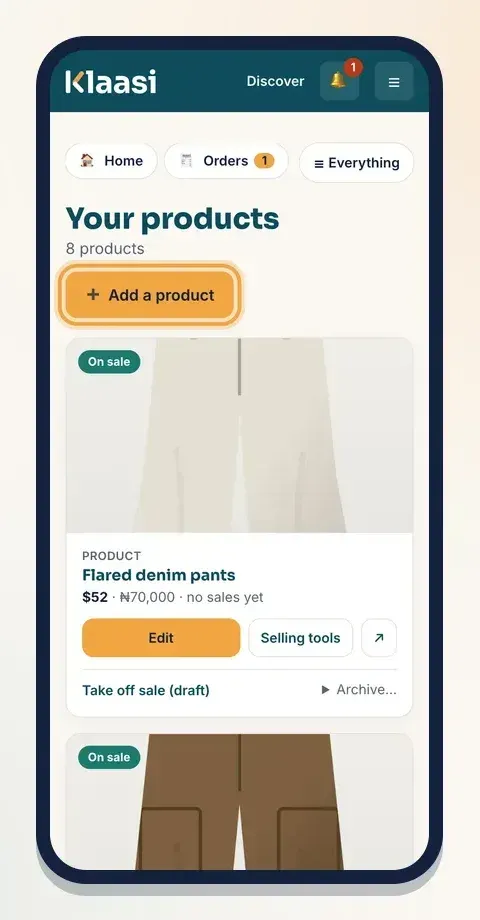
In your dashboard, tap Products. You'll see every item in your shop, with its price, how many sold, and buttons to Edit, open Selling tools, or Take off sale (draft).
Tap ➕ Add a product at the top. You can also tap New product in the menu.
Step 2: Name it and add photos
At the top of the form, type the Product name (for example "Eko Heat hoodie") and a Description. Say what it is, the size, the material and how to care for it. Short, honest descriptions sell better than long ones.
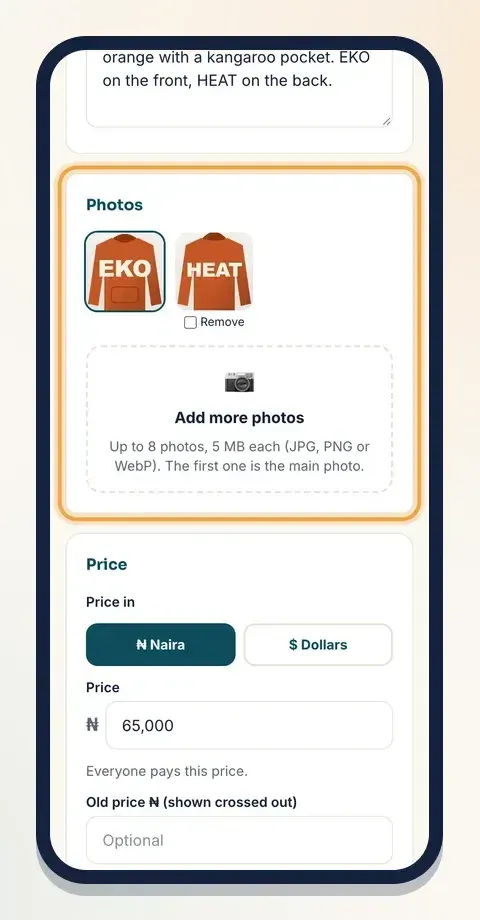
Then add your pictures under Photos:
- Tap Add photos.
- Choose up to 8 photos, 5 MB each, in JPG, PNG or WebP.
- The first photo is the main photo. It shows on your shop and in search results.
Later, when you edit the product, you can tick Remove under any photo to take it off, or tap Add more photos.
Tip: take photos in daylight, against a plain wall, and show the item from the front, the back and close up. One photo of someone wearing it helps a lot.
Step 3: Set your price (and a discount if you want)
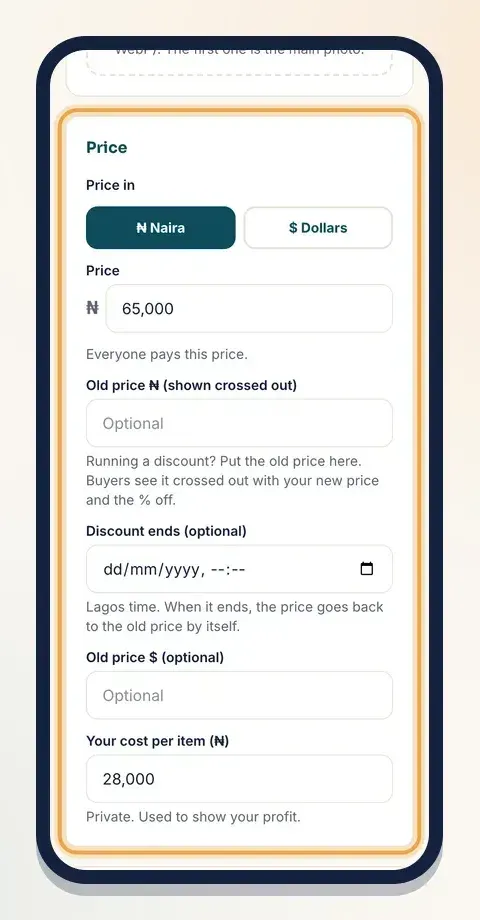
Under Price:
- Choose Price in: ₦ Naira or $ Dollars.
- Type your Price. Use numbers only, like 25000.
- Running a sale? Put the old price in Old price ₦ (shown crossed out). Buyers see the old price crossed out next to your new price, with the % off.
- Want the sale to stop by itself? Pick a date in Discount ends (optional). When it ends, the price goes back to the old price on its own.
- Your cost per item (₦) is private. Klaasi uses it to show your profit. Customers never see it.
There's a whole guide on this: How to set prices and discounts on Klaasi.
Step 4: Add sizes, colours and stock
This is the part that makes a clothing or shoe shop work. Scroll to Stock.
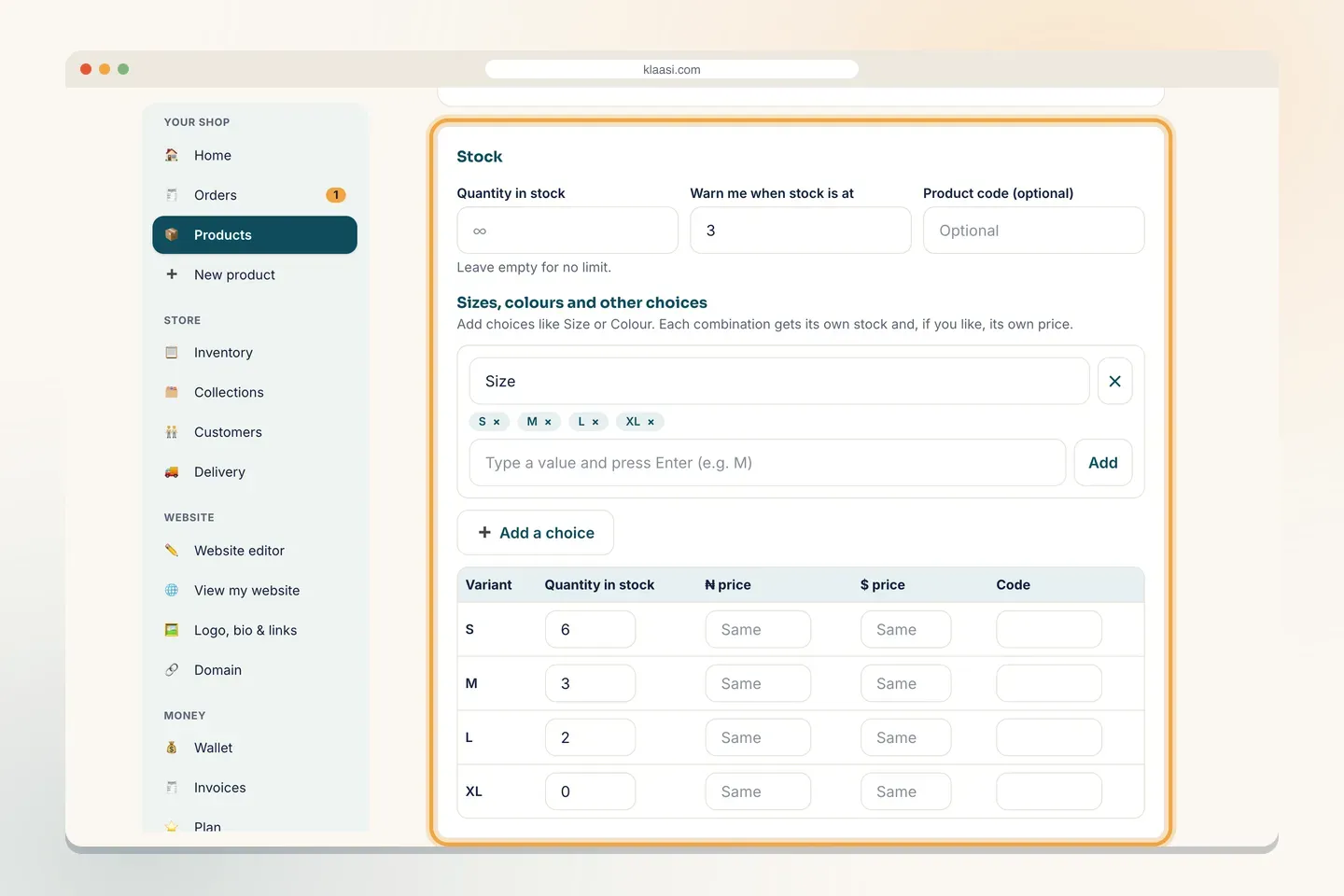
If your item has no sizes or colours, just type the Quantity in stock. Leave it empty for no limit. Fill Warn me when stock is at (for example 3) and Klaasi warns you before you run out.
If your item comes in sizes or colours:
- Under Sizes, colours and other choices, tap ➕ Add a choice. The first one is called Size; the second is called Colour. You can rename them (for example "Shoe size" or "Scent").
- Type a value and press Enter (or tap Add): S, then M, then L, and so on. Tap × on a value to remove it.
- Klaasi makes a row for every combination, like "Black / M" or "Red / L". You can have up to 3 choices.
- In the table, type the Quantity in stock for each row. A size with 0 shows as sold out on your shop, so customers can't pick it.
- Does one size cost more? Type it in the ₦ price or $ price box for that row. Leave it on Same to use the main price.
- Code is optional. Use it if you label your stock with product codes.
Under Collections, tick the groups this item belongs to (for example "Tops" or "Outerwear"), or type a new one in Add a new collection. Collections become the "Shop by category" tiles on your website.
Finally, keep Show it on my website ticked to put it on sale, or untick it to save a draft. Tap Add product (or Save changes when editing).
Step 5: Set your delivery fees
Tap Delivery in the menu. This page decides what customers pay for delivery. Checkout adds the right fee automatically.
How customers order. 💳 Pay online (recommended) is on for everyone: customers pay by card, transfer or mobile money, and Klaasi holds the money until they get their order. On Pro and Business, sellers who have verified their identity can also choose 💬 Order on WhatsApp or 📋 Menu or catalogue only.
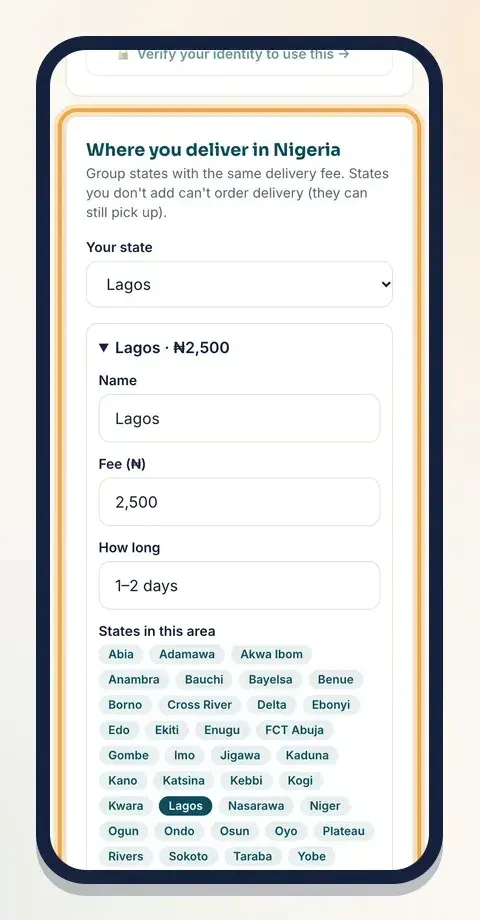
Where you deliver in Nigeria:
- Pick Your state.
- Open Delivery area 1. Give it a Name (for example "Lagos"), a Fee (₦) and How long it takes ("1–2 days").
- Tap the states that belong to that area. They turn dark when picked.
- Tap Save to get another empty area, and repeat for "Rest of Nigeria" or any other group of states.
States you don't add can't order delivery, but they can still pick up if you offer pick-up.
Under Free delivery and pick-up you can set Free delivery over (₦) (for example free delivery on orders over ₦100,000) and a Pick-up address if customers can collect from your shop. Leave the address empty if you don't offer pick-up.
Selling to people abroad or in the diaspora? Open Customers paying in dollars (abroad or diaspora) and set Delivery in Nigeria ($), Delivery abroad ($) and Free delivery over ($). Leave Delivery abroad ($) empty if you don't ship outside Nigeria.
Fill How customers reach you (phone, WhatsApp, email, shop address) so customers can ask questions before they buy.
Step 6: Add a size guide
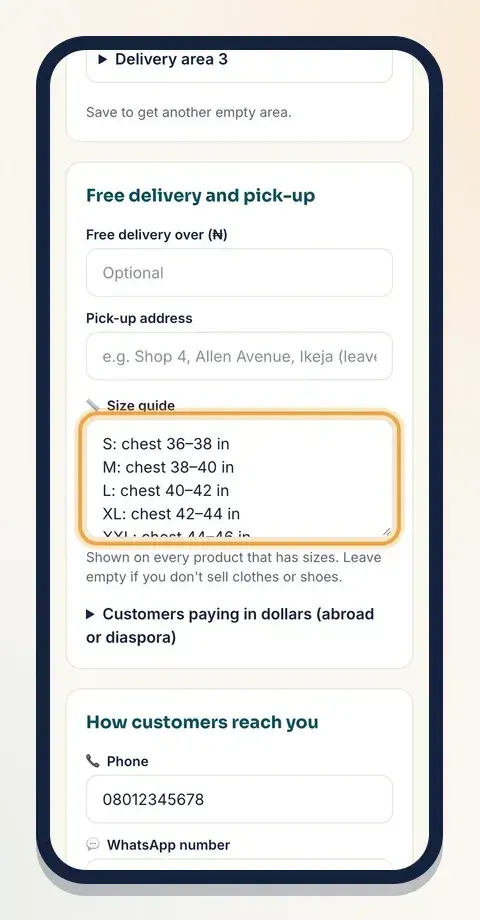
Still on the Delivery page, find 📏 Size guide. Type your sizes, one per line, for example:
S: chest 36–38 in · M: 38–40 in · L: 40–42 in
It's shown on every product that has sizes, so you only write it once. Leave it empty if you don't sell clothes or shoes. Tap Save.
Step 7: Check what your customer sees
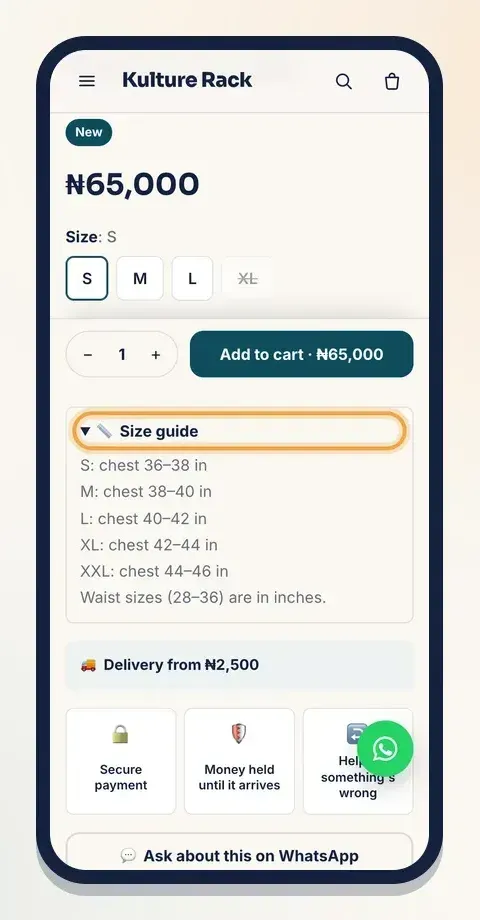
Open your product from View my website in the menu. On a phone, your customer sees the photos, the price, the size buttons (sold-out sizes are crossed out), Add to cart, the 📏 Size guide, and Delivery from with your lowest fee. They also see Secure payment and Money held until it arrives, which reassures people who are new to your shop.
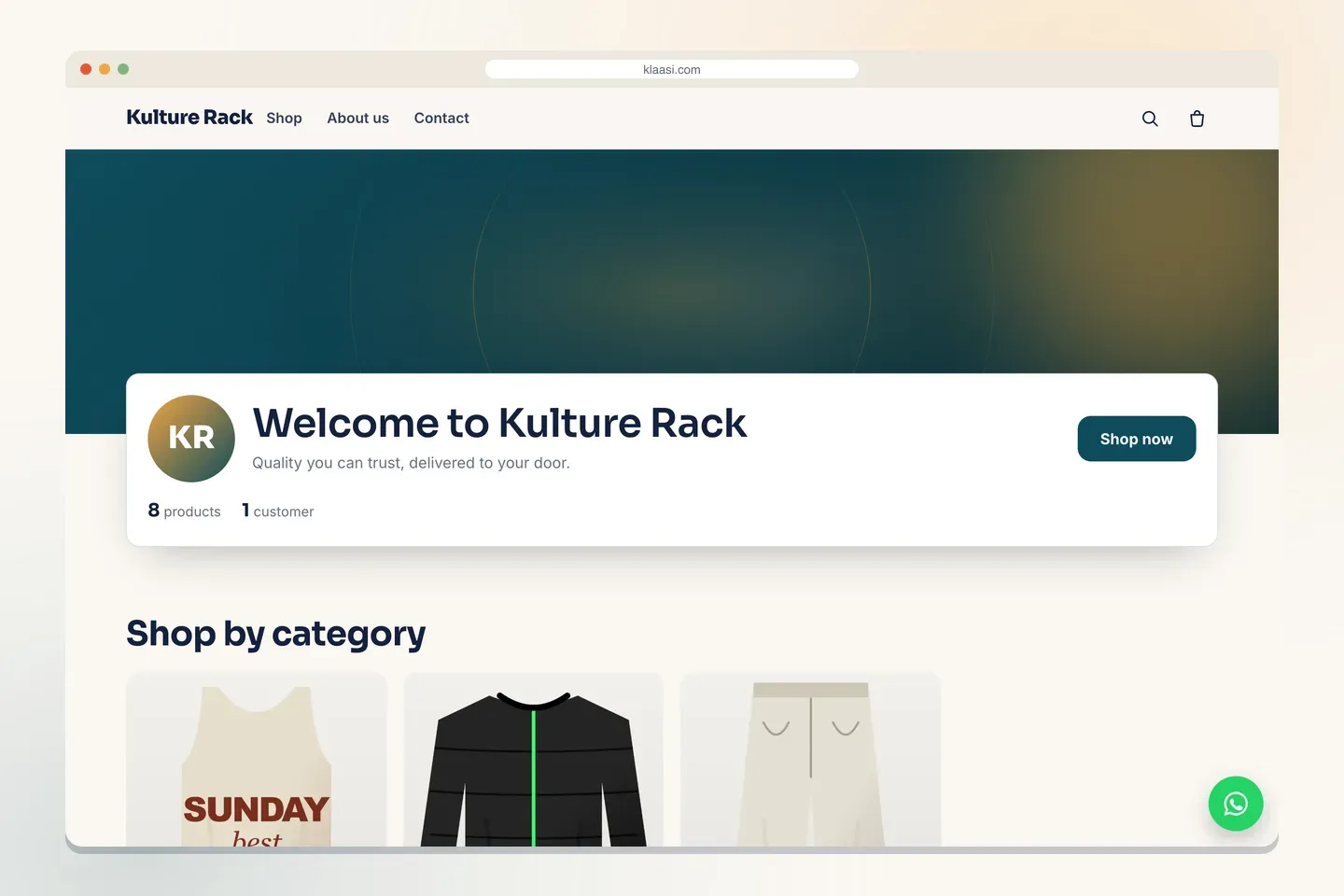
On a computer, your shop shows your products and "Shop by category" tiles from your collections. To change how your website looks, see How to choose a website theme and How to edit your Klaasi website.
Keeping stock right
- Inventory in the menu shows how many of each item you have, with Running low and Sold out first. Change numbers there and tap Save stock.
- Stock goes down by itself when someone buys online.
- Sold something at a market, in your shop or by bank transfer? Go to Orders and tap Record a sale. Your stock and sales stay right. No money moves through Klaasi for these sales, so your wallet doesn't change.
What happens when someone buys
You get a "New sale" alert and the order appears under Orders → To do. You pack it, send it, and tap I've sent it. The customer is told and can track each step. You're paid when they tap I got it, or a few days after you send it if they don't report a problem. The next guide explains every step: How to manage orders and delivery on Klaasi.
What to do next
Start selling on Klaasi, free
Your shop, courses, live classes and community in one place. Buyers pay in naira or dollars.
Open my free shopKeep reading
How to use the Klaasi developer API, webhooks and AI tools (MCP)
Connect your shop to your own website, Zapier, Make or an AI assistant. Create an API key, pick its permissions, receive signed webhooks for every sale and check them safely.
How to handle refunds and support as a seller on Klaasi
Klaasi has one refund policy for every shop. Buyers message Support, you reply with your side, and Klaasi decides using real evidence. Here's how it works and how to answer a refund request.
How to add team members to your Klaasi shop (and what each role can do)
Invite a helper by email and give them the right role: Editor, Support or Finance. Each role sees only what it needs, and only you can move money. Here's how.